

Help Center / Account / Billing / Update a payment method
Billing
Update a VirtualPBX payment method
Now, authorized billing contacts can quickly and easily update credit card information in Dash. Follow these steps to complete the task.
On this page
Log in as an administrator and start by clicking on your name/company at the top right.

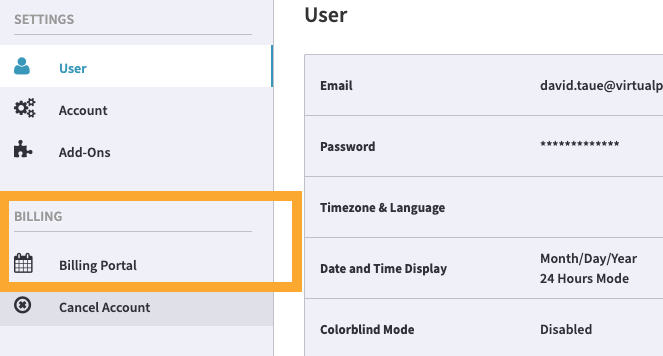
Next, click on Billing Portal in the left-side menu.
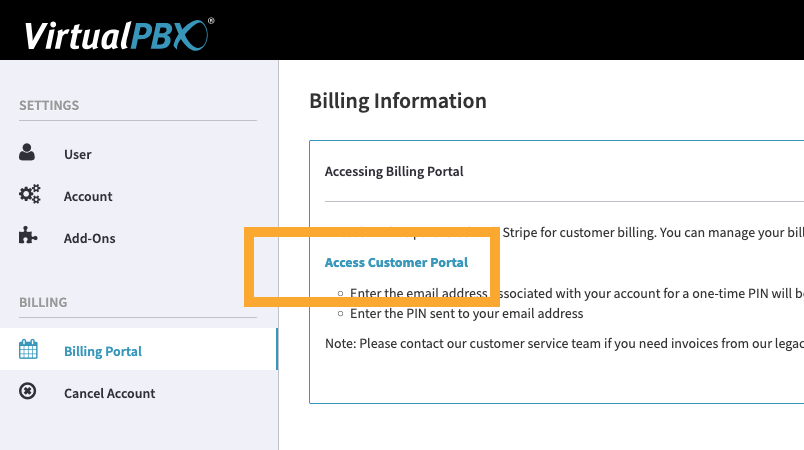
Click Access Customer Portal.
Enter your email address (the authorized billing contact) and click send.
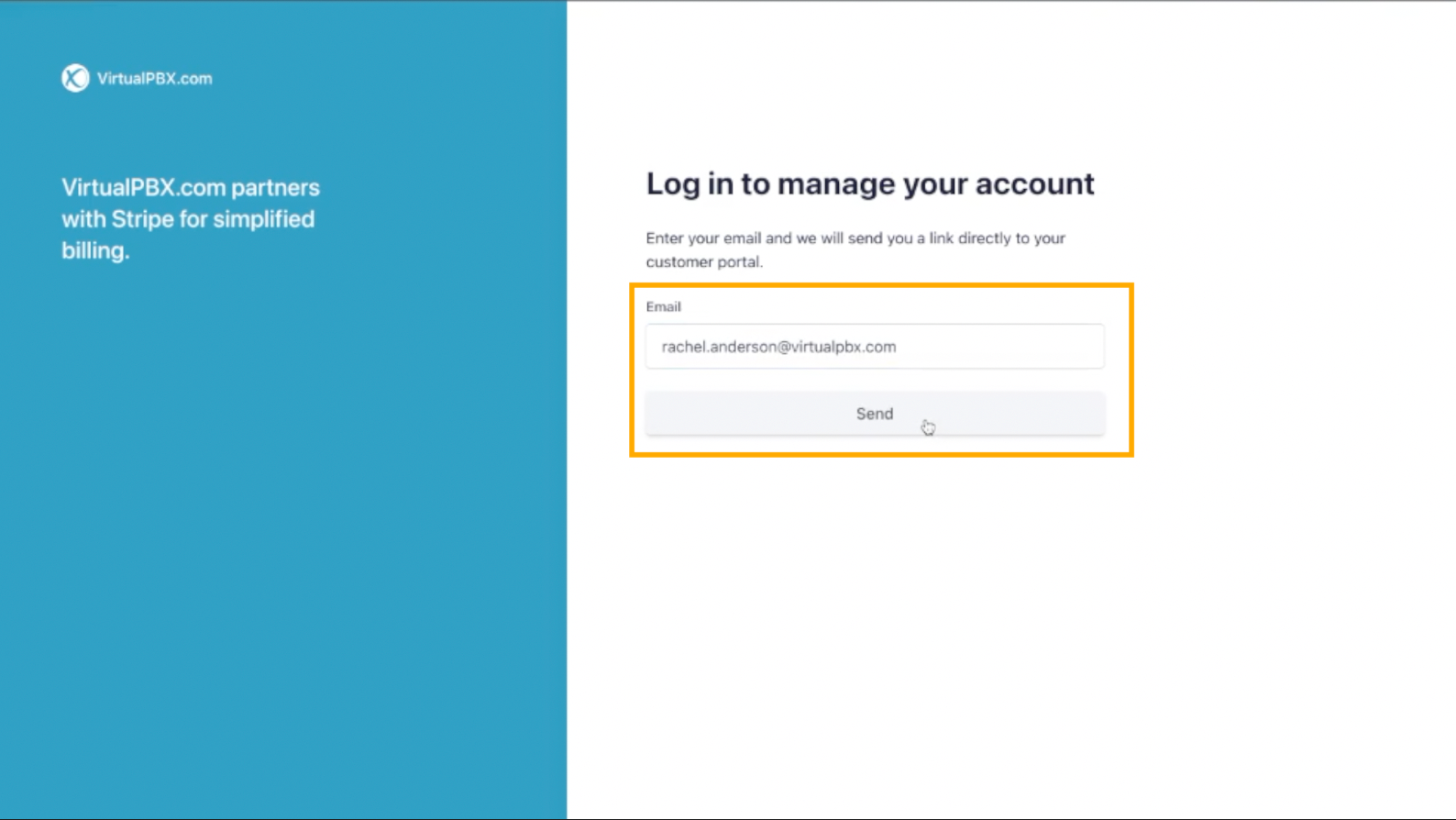
This will automatically send a temporary access link to this email address. Click the link provided via email to continue.
You’re now inside the billing portal. Here you can review your current plan, payment method, and address. Click Add payment method to continue.
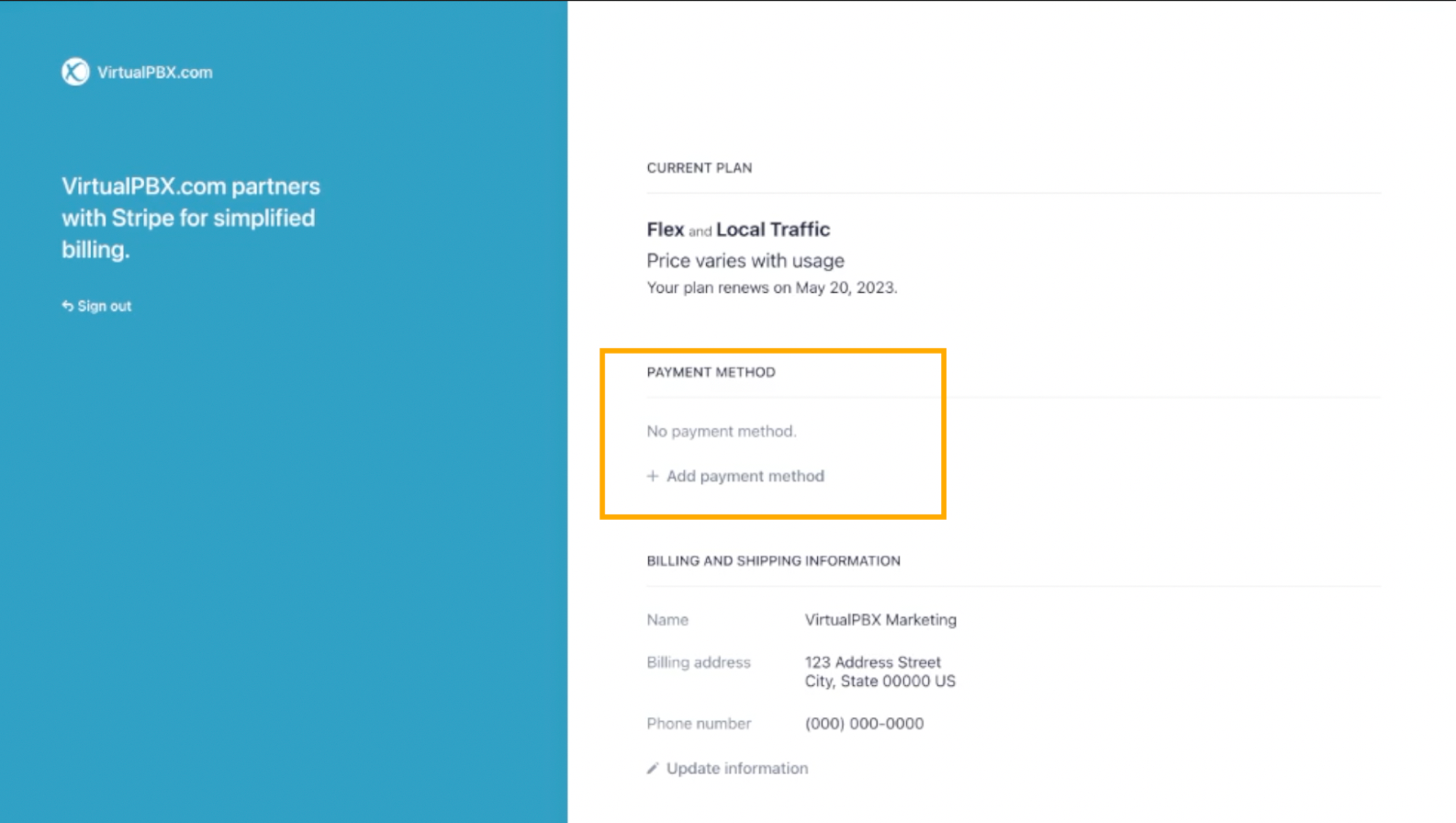
Add your credit card or US bank account information and click add. Now that a new payment method is in place, you may delete other payment methods on the previous screen.
Now, authorized billing contacts can quickly and easily update credit card information in Dash. Follow these steps to complete the task.