

Help Center / Smarter Voice / Call handling / Answer VoIP questions
Call handling
Answer VoIP questions for Business Phone
In your dashboard, you can update your auto-provisioned VoIP phone to make use of Combo/BLF keys. This will require admin access to perform.
On this page
VoIP Devices
How do I plug in and set up my desk phone?
Plug in the power cord to a power source.
Plug one end of an ethernet cable to the LAN port of the phone, and the other end into a network device with a valid internet connection (Gateway, switch, router, etc)You may plug a SEPARATE ethernet cable, with one end in your PC/Laptop, and the other end in the PC port of the device, if you wish for your phone to be a passthrough for your internet connection.
Phones purchased from us come pre-provisioned, once they connect to the internet the phone will automatically provision.
How do I make calls?
To dial a call, input the number you'd like to reach (make sure to include the area code even if for local calls). Then, you can pick up the handset to initiate a call
How do I transfer calls?
Steps may vary depending on the make and model of your device, but generally, every desk phone does have a transfer key on it. Transfer buttons on phones may be physical, or may only show up on “soft” keys while on an actual call. While on a call simply click the transfer key, type the number/extension you wish to transfer the calls to, then click transfer again.
How do I put a caller on hold?
Depending on the make and model of your device, there's a specific button on your desk phone to put calls on hold. Press the "hold" button to put the call on hold.
How do I check my voicemail messages using my desk phone?
Press the message button on your desk phone. Then, enter your voicemail number followed by the # key, followed by your PIN and the # key one last time.
How do I set up my BLF Keys?
This allows you to make use of Presence, additional lines, parking/retrieving calls, or speed dial provided your VoIP phone allows for these features.

Click on your Devices tab, and click on the wrench icon of the device you want to work with
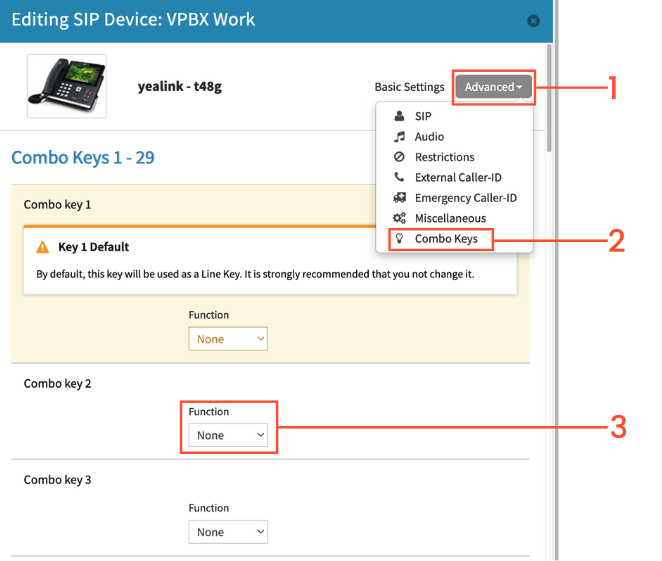
Click on Advanced
Choose ‘Combo Keys’
Here you can set the function of each combo key. It is strongly recommended not to change the first Combo Key, as it is by default your Line Key
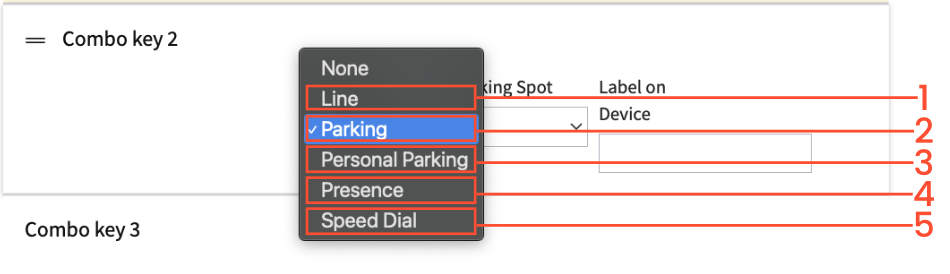
Select the function you want to use
Additional line: Add another set of SIP credentials (ie 3rd party softphone) to make/receive calls with. This can be from another account or simply allow 1 phone to handle multiple calls. This softphone will count as an additional VoIP device
Parking/Retrieving: Place a call in a parking spot so that the call can be picked up at another VoIP phone - You will need to select the parking spot number under “Value” Parking Notes: Dash essentially uses an extension/voicemail box number as the parking spot number. So if you have a user that has extension 101, you cannot make use of a parking spot 101. Additionally, there is a cooldown to reuse a parking spot number of approximately 30 seconds. For example, if you use parking spot 1212, you will not be able to use that parking spot again for 30 seconds.
Personal Parking: The same as above, but the call can only be picked up by the designated user.
Presence: Will allow you to see if a colleague is on a call or not - You will need to select which user you want to monitor under “Value”
Speed dial: Quickly call another user or phone number - You will need to select the extension of the user, or 10 digit number you want to dial under “Value”
Scroll down to the bottom of the page, and save changes once you are finished. Be sure to reboot your phone after saving the changes to reflect the new BLF options.
What happens if my network goes down? Does it affect my VoIP device?
VoIP relies on an internet connection to function. With that said, your VoIP devices will most likely be down as well. With good network back up you could reduce the impact of it, and keep your VoIP devices running.
How do I check the make and model of my device?
The model of the phone is typically stamped on the front of most desk phones. You can also find it on the label on the back of the phone
Is my internet fast enough for VoIP?
Speed alone does not guarantee optimal VoIP results. It takes about 100kB up and down for a phone call. It does, however, need a consistent and reliable connection for excellent VoIP calls. If you are experiencing issues with your phones, it may sometimes be related to your Network settings. One setting in particular is SIP ALG, which should be disabled if you are experiencing issues. If you have any questions regarding a malfunctioning VoIP device, you can contact our support team.
Can my VoIP device function over a wireless internet connection?
Most Older desk phones do not support connection over wifi. Newer generations however have a built-in wifi capability or a wifi dongle that allows connection through WiFI.
You can look up the make and model of your phone to check whether it’s capable of wireless internet connection. If troubleshooting needs to be done, VirtualPBX supports hard-wired connections to establish if an issue may be related to a wireless signal.
Feature Codes
Call Forwarding Codes
Update Call Forwarding (*56)
The update the call forwarding feature code *56 will prompt the user to enter a new call forwarding number. This immediately replaces any number currently being used, set either by the enable or toggle feature code. The number entered is also stored for later use with the toggle feature. The status of call forwarding will not be changed by this code, so if it is disabled or enabled, it will remain so.
Enable Call Forwarding (*72)
This feature code is used to enable call forwarding. The default code is *72, and when dialed, a prompt will ask for the number to forward calls. The user is expected to enter the phone number then press pound, at which point call forwarding is enabled and the number is read back to ensure it wasn’t misdialed. The feature code requires the user to enter the phone number to forward to each time they use the code. Optionally they can dial the feature code as a prefix on feature code *72-1-555-248-9715, which will enable call forwarding to 1-555-248-9715.
Disable Call Forwarding (*73)
This feature code will disable any active call forwarding. The default code is *73, and when dialed, a prompt to the user, informing them call forwarding will be disabled.
Dial *73 from the phone
If the user has a PIN configured, there will be a voice prompt requesting the PIN. Enter it, followed by #. You will hear a confirmation that Hot Desking has been enabled.
This feature code will disable any active call forwarding. The code is *73, and when dialed, a prompt will inform the user that call forwarding has been successfully disabled.
Toggle Call Forwarding (*74)
The feature code *74 will enable or disable call forwarding depending on if it is active. This feature code remembers the last number you forwarded to and enables it without asking for a new number. If the user has never enabled call forwarding then they will be prompted for the number. Similar to the enable call forwarding feature code, they can optionally prefix the code with a new call forwarding number.
Hot-Desking Codes
Enable Hot Desking (*11)
This User Feature Code allows you to log-in to an unassigned VoIP phone on your account. When dialed, the user will enter their ID (and optionally a pin). Upon successful completion, the phone from which they enabled hot-desking will function like the user’s phone, now ringing when they receive a call, get updates about voicemail.
To enable:
Dial *11 from the phone
The system will prompt to enter your Hot Desk ID (numeric code)
If the user has a PIN configured, there will be a voice prompt requesting the PIN. Enter it, followed by #.
You will hear a confirmation that Hot Desking has been enabled.
Disable Hot Desking (*12)
This User Feature Code allows you to log-out of a phone. Just as logging into the phone, once a user has entered their ID and optional pin, the phone will cease to receive their inbound calls, voicemail updates, and other features. Inbound calls will likely go straight to voicemail (unless the user is permitted to be logged into multiple phones at once).
To disable:
Dial *12 from the phone
The system will prompt to enter your Hot Desk ID (numeric code)
If the user has a PIN configured, there will be a voice prompt requesting the PIN. Enter it, followed by #.
You will hear a confirmation that Hot Desking has been enabled.
Toggle Hot Desking (*13)
This User Feature Code allows you to toggle the current state of the user’s devices. If logged out, toggling logs the user into owned devices. If logged in, toggling logs the user out of all the devices they’re logged into, and vice versa.
To toggle:
Dial *13 from the phone
The system will prompt to enter your Hot Desk ID (numeric code)
If the user has a PIN configured, there will be a voice prompt requesting the PIN. Enter it, followed by #.
You will hear a confirmation that Hot Desking has been enabled.
Voicemail Codes
Direct to Voicemail (**)
When an incoming call goes to a user, the user may press transfer on the VoIP device, enter **, and then the extension number of the voicemail box to transfer a call to voicemail.
Example: Transfer button on device —> **801This will transfer to extension 801’s voicemail box
Check Voicemail (*97)
This feature code will allow you to check the voicemail box of the extension/user in which the device is attached to. You may be prompted for that voicemail box’s PIN number, depending on your configuration
Check Voicemail – Auto Login (*98)
This will allow a user to check their voicemail from a device assigned to them without the need to enter the password. They will still need to enter in the mailbox number they wish to check.
Parking Codes
Park and Retrieve (*3)
When someone is on a call and they wish to park the call they first must press the transfer button and then enter in *3 + specific number (ex 555). This puts the call in parking spot 555. Any user can then go to another device on their account and dial *5+(parking number) and then dial send. This will retrieve the call on the new device.
Valet (*4)
Provides the next available parking spot number and places the call in that parking spot.
Retrieve (*5)
To retrieve a call press *5 + the park or valet parking number number.
Move, Intercom, and Privacy Codes
Move (6683)
Move allows a user to move a call from any phone to a VoIP phone on their user without having to transfer or put the user on hold. While on a call, dial 6683 from any VoIP phone on your user that is not in use. The system will scan for existing calls on your user and move the call to the phone you dial 6683 on.
Intercom (*0)
This feature code allows you to dial a phone and have the phone automatically go off-hook to speakerphone mode. This is useful for announcing user or paging individuals who may not be near their phone.
Please note that intercom is a phone-specific feature. Most phones support intercom; however some may not. The feature can also be disabled on most phones directly. Intercom is a user to user function, it will not broadcast to all users in a group or multiple users at the same time.
Privacy (*67)
This will block the outbound user ID of the user. This needs to be entered on a per call basis.
Direct Extension Pickup (*87)
This allows a user to pickup a call that is ringing to a different user’s VoIP phone. While the VoIP phone of the user that is not available is ringing, dial *87 followed by the extension number to pickup the call, the call will connect immediately