

Help Center / Smarter Voice / Call handling / Block numbers
Call handling
Block numbers in Business Phone
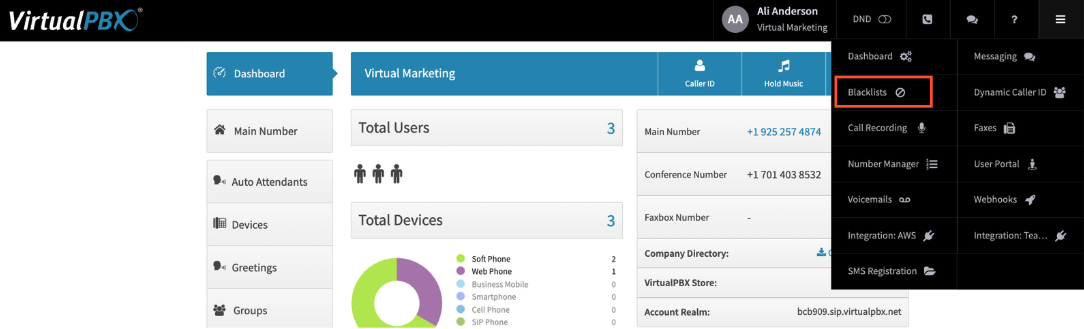
From the Dashboard, click on the hamburger menu Icon (3 horizontal lines) and click on Blacklists
On this page
Adding a New Blacklist
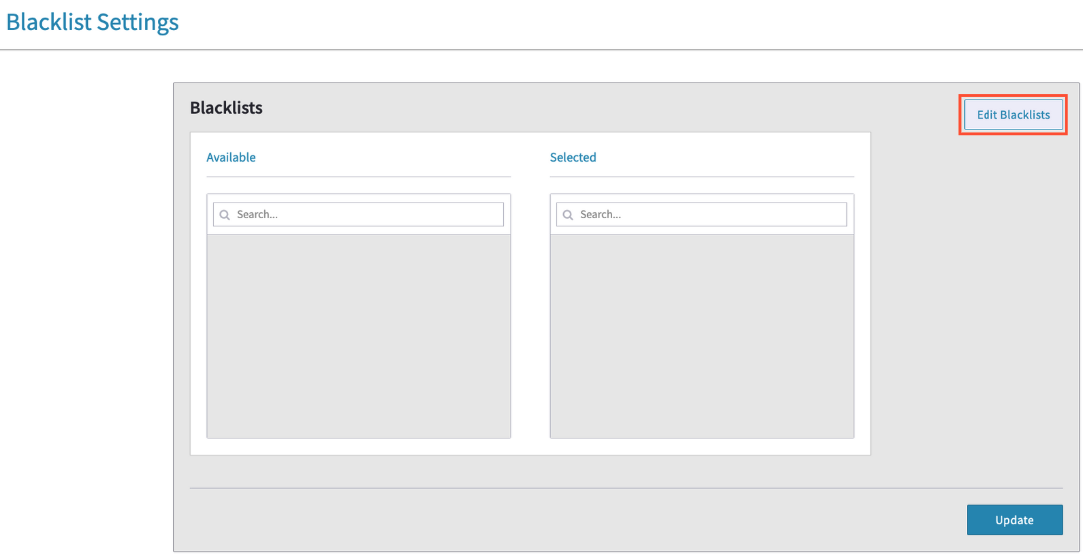
You will be taken to the Blacklist Settings screen, to add or create a new list click on Edit Blacklists
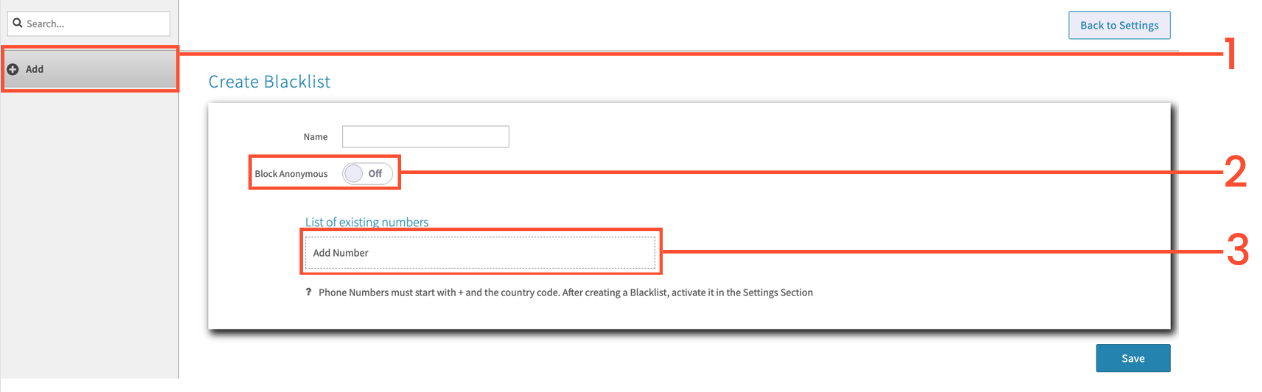
On the left click on Add. We recommend using one blacklist to help manage more efficiently, as well as to troubleshoot with our support team if anything comes up. Name your Blacklist to keep track of it.
You can choose to Block Anonymous
Add Number to add specific phone numbers. You can add as many numbers as needed to one Blacklist.
Click on Save
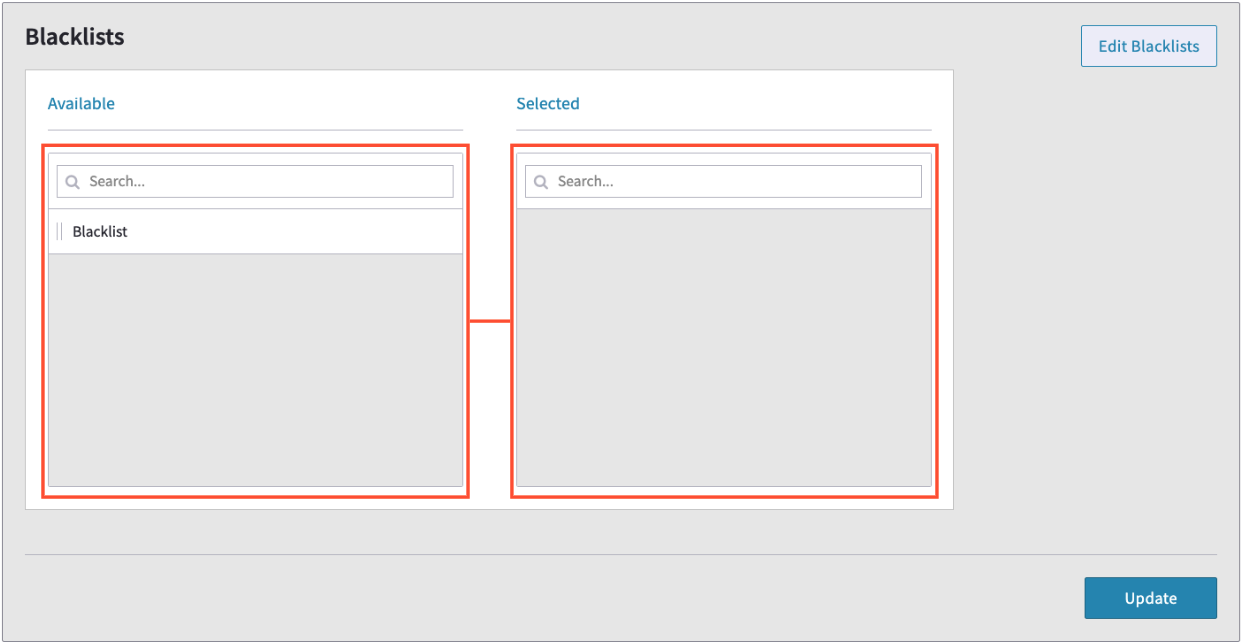
Click and drag the list you want to the Selected section
Click Update
When those phone numbers attempt to call your phone numbers, they will get a busy signal.
Editing an existing Blacklist
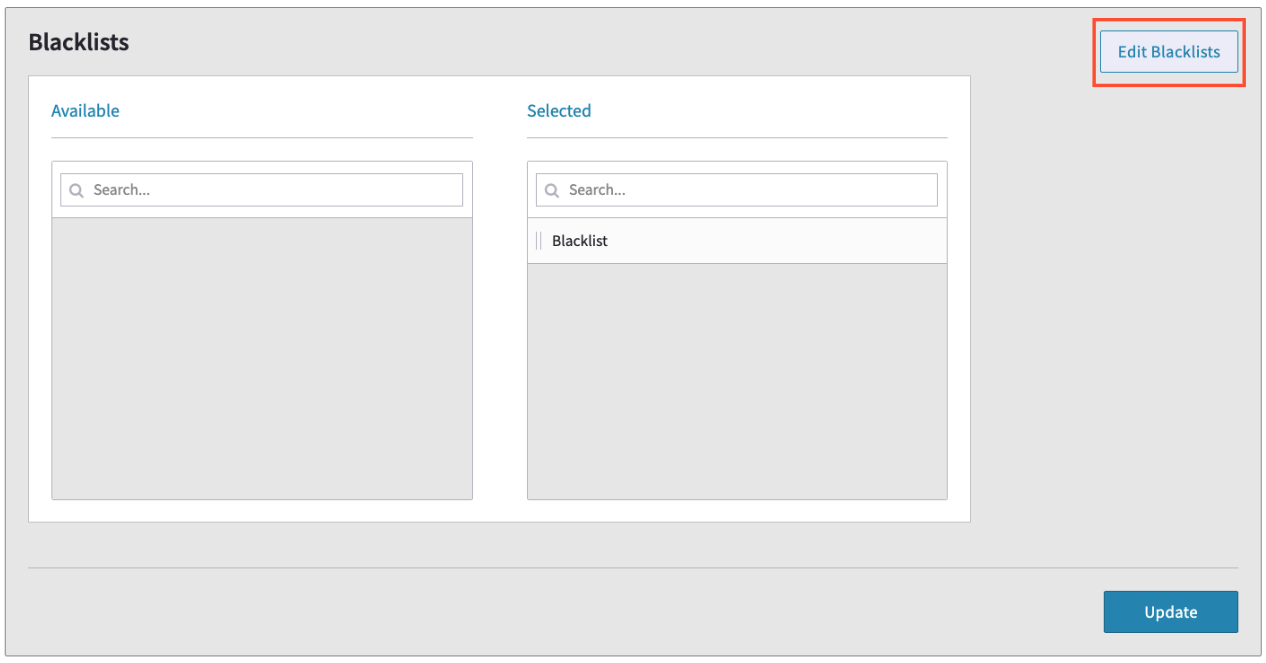
Click on Edit Blacklists
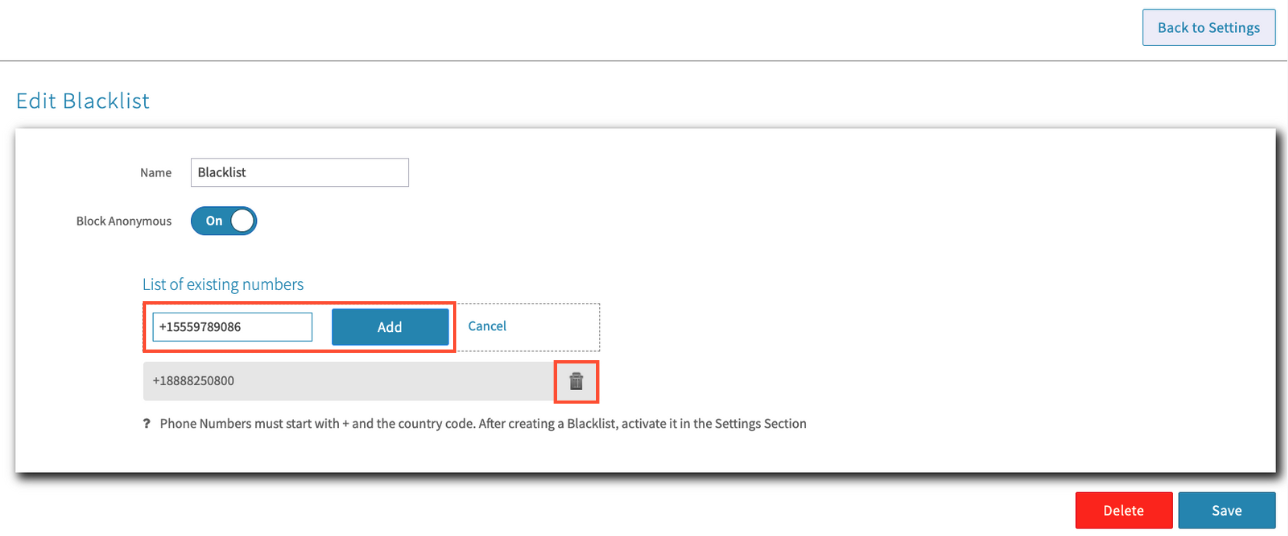
Click on the Blacklist you wish to edit
To add more numbers to the list, click on Add Number. (Make sure to add +1 in front of your intended number)
To remove a number from the list click on the Trash Can icon next to the number.
After Saving the changes, click ‘Back to Settings’