

Help Center / Smarter Voice / Advanced / Read call insights
Advanced
Read call insights in Business Phone
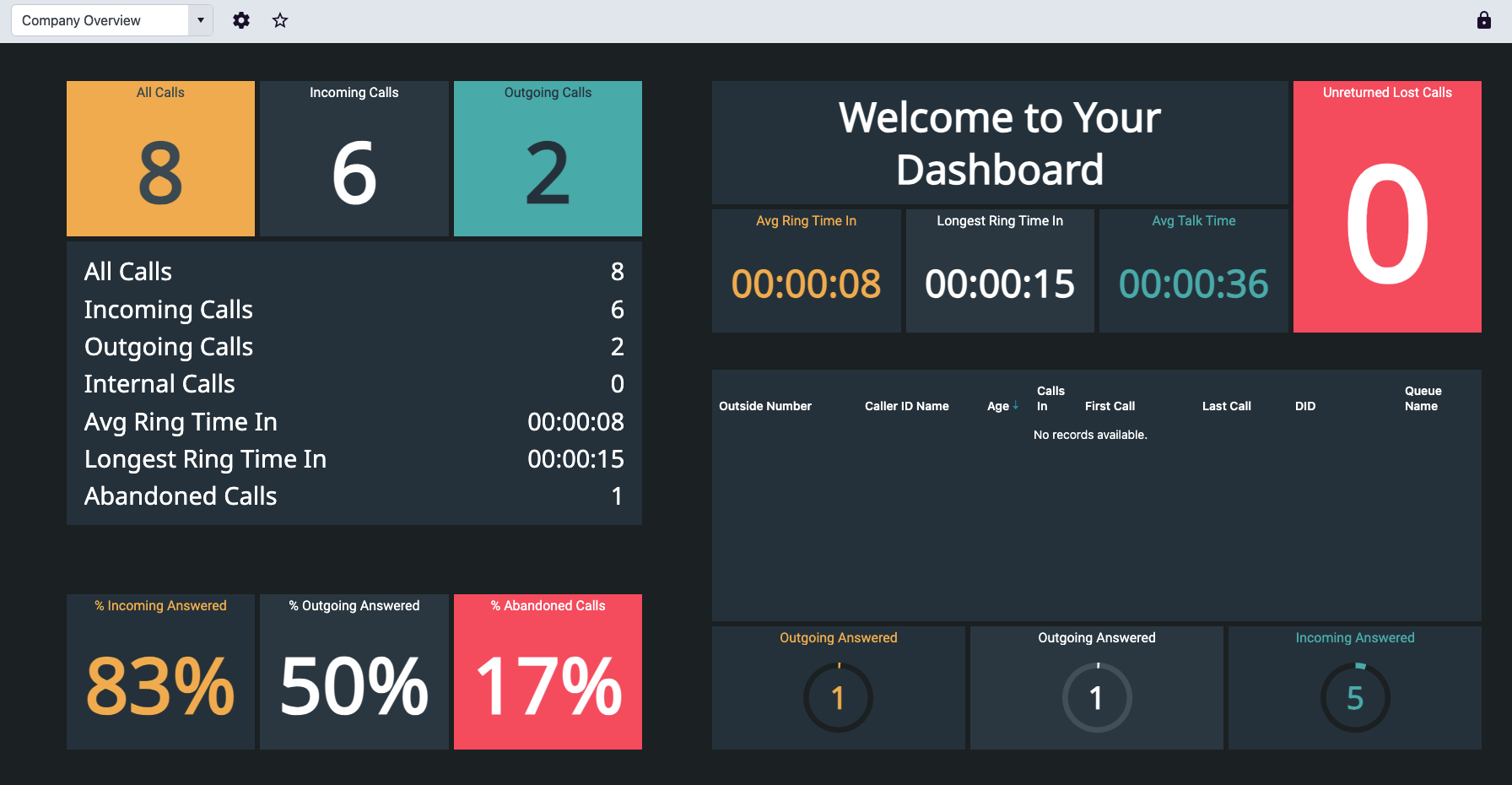
Once Insights has been enabled for your account, log in with your credentials at reports.virtualpbx.com. You will be able to choose which item to work through on the left-hand side.
On this page
Dashboards
Default Dashboard Layout
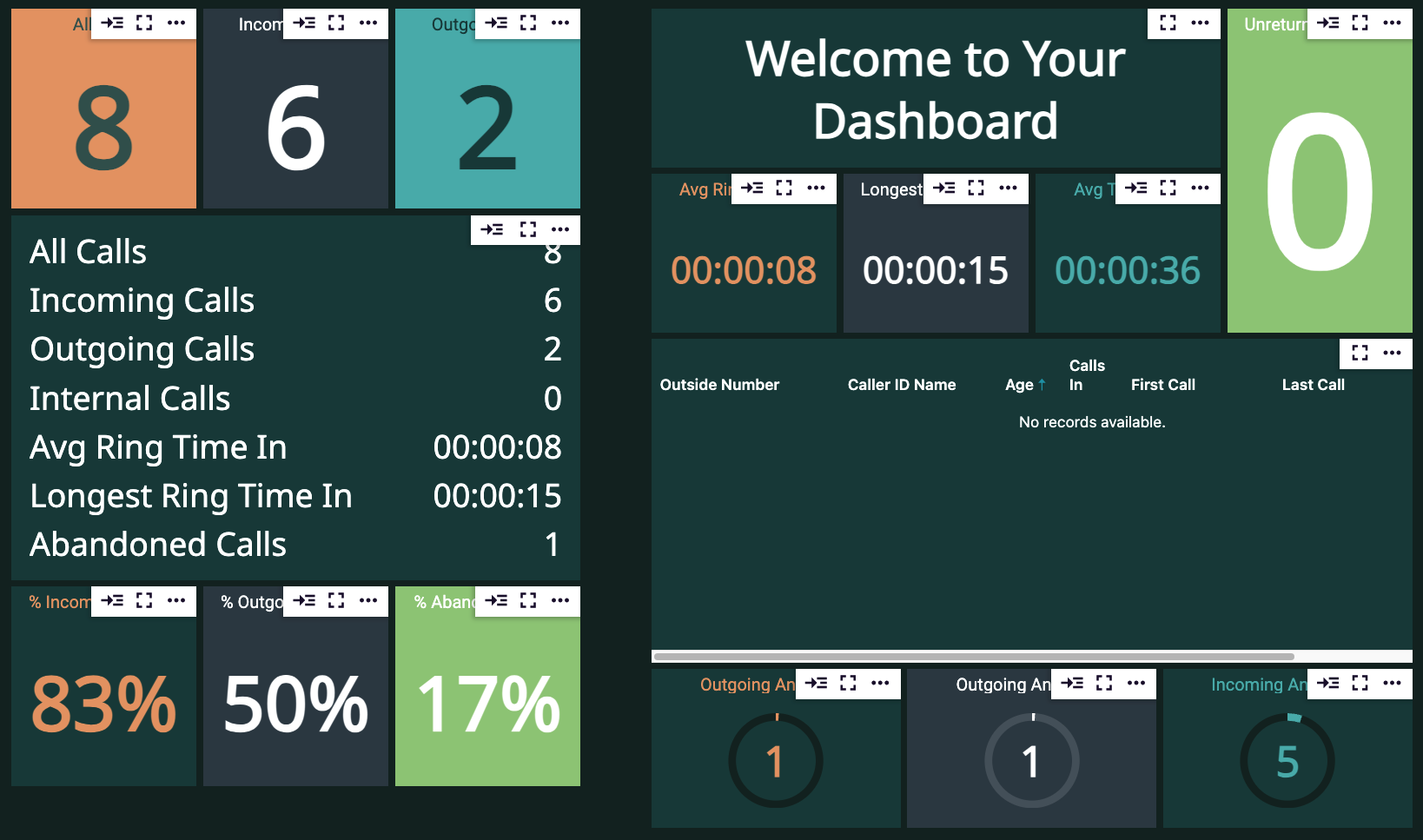
All Calls - Single Stat Tile
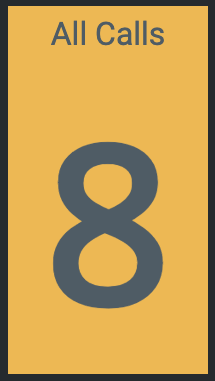
This tile tracks all of your incoming and outgoing calls.
Incoming Calls
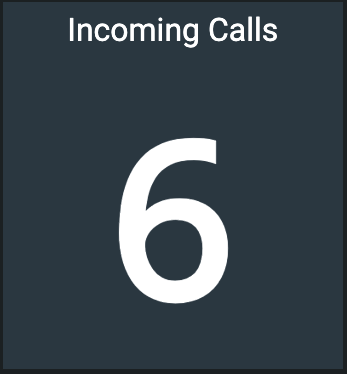
This tile allows you to track all inbound calls made to any of the numbers on your account.
Outgoing Calls
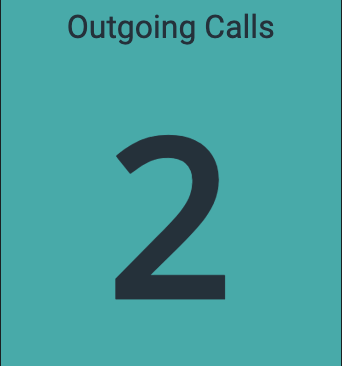
Track all calls made from your account with this single stat tile.
Multi-Stat List for Tracking Calls
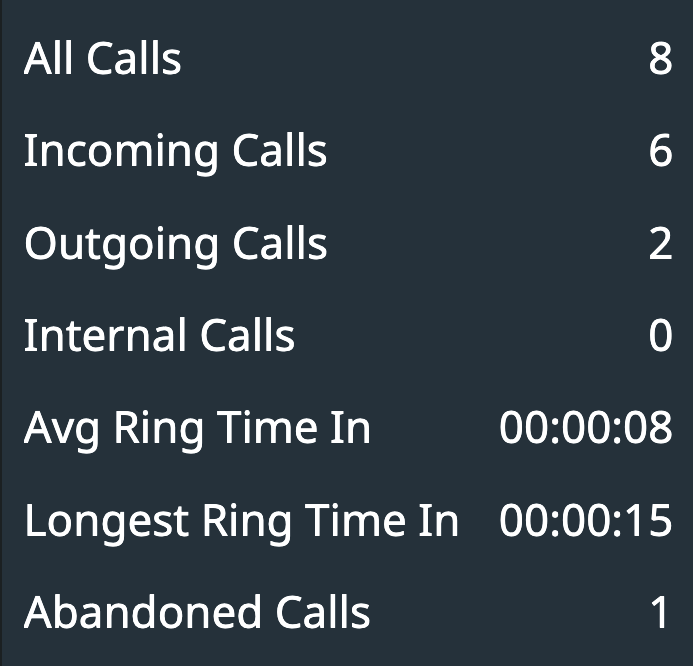
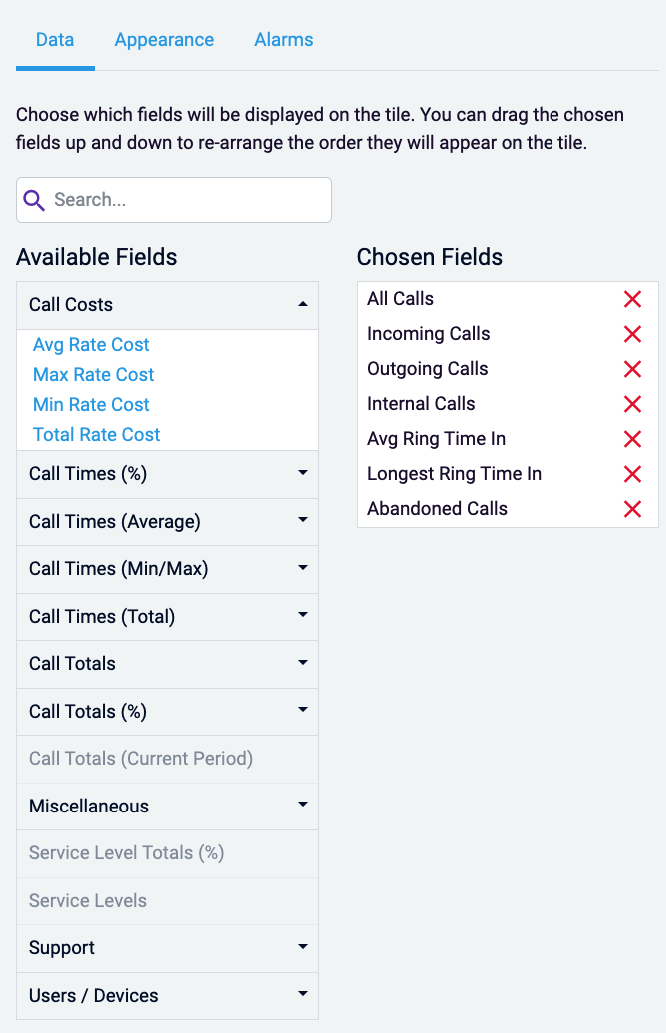
This tile allows you to track multiple statistics at once. While your default template will include the attached fields, you and add others by editing the data
Incoming, Outgoing, and Abandoned Call Percentages
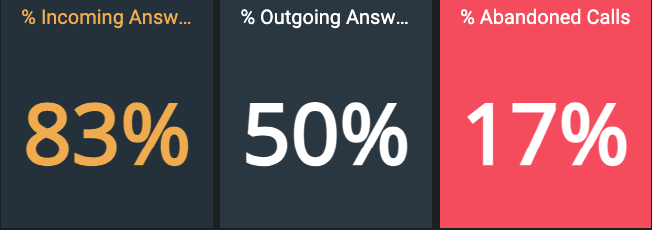
All three tiles are single stat, and allow you to view as a percentage what is happening to your calls
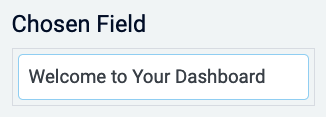
Manual Text Tile

Utilize this tile to add a specific static greeting to your dashboard. Edit the chosen field to change the text to your business name, greeting, sales goal, etc.
Unreturned Lost Calls
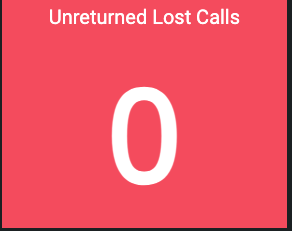
Track if agents have not returned any missed calls with this single stat tile
Average Ring Time In
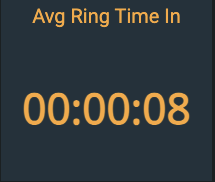
Track how long on average customers spent in ring time before their call was answered
Longest Ring Time
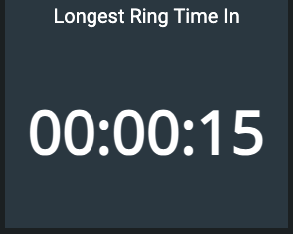
Track the longest time a customer spent ringing before their call was answered
Average Talk Time
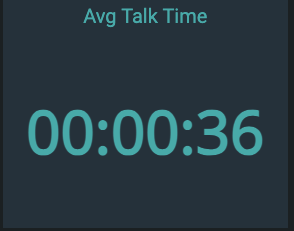
Track the average amount of time calls during the day took, including inbound and outbound
Unreturned Call Grid

Use a grid tile to track if any calls have gone unreturned for the business day
Outgoing and Incoming Answered
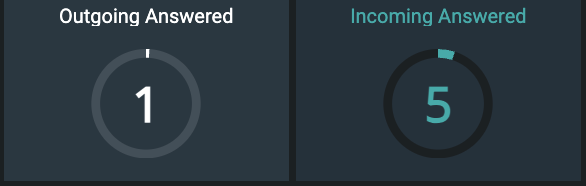
Utilize a circular gauge to track the amount of outgoing and incoming calls based off of your set goal.
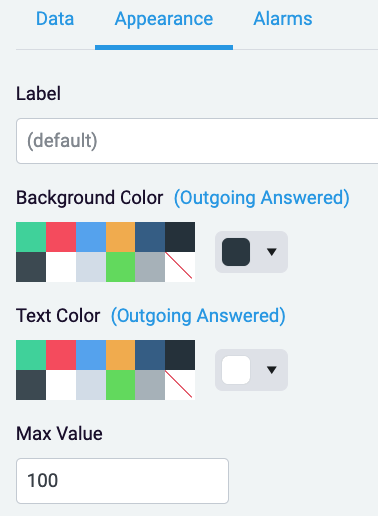
Use ‘Max Value’ under Appearance to update the number you would like the circular gauge to track off of
Editing Tiles
For all tiles, you can edit the appearance, add a different label, and set alarms
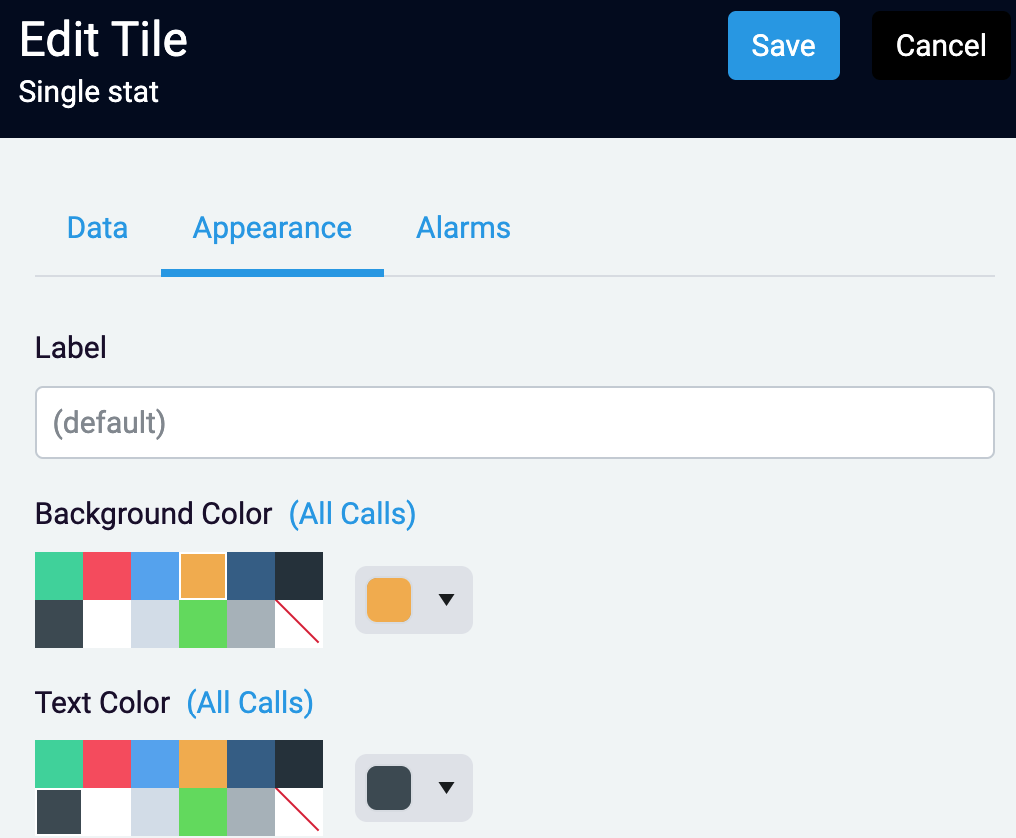
Change the background color, text color, and label on the Appearance tab
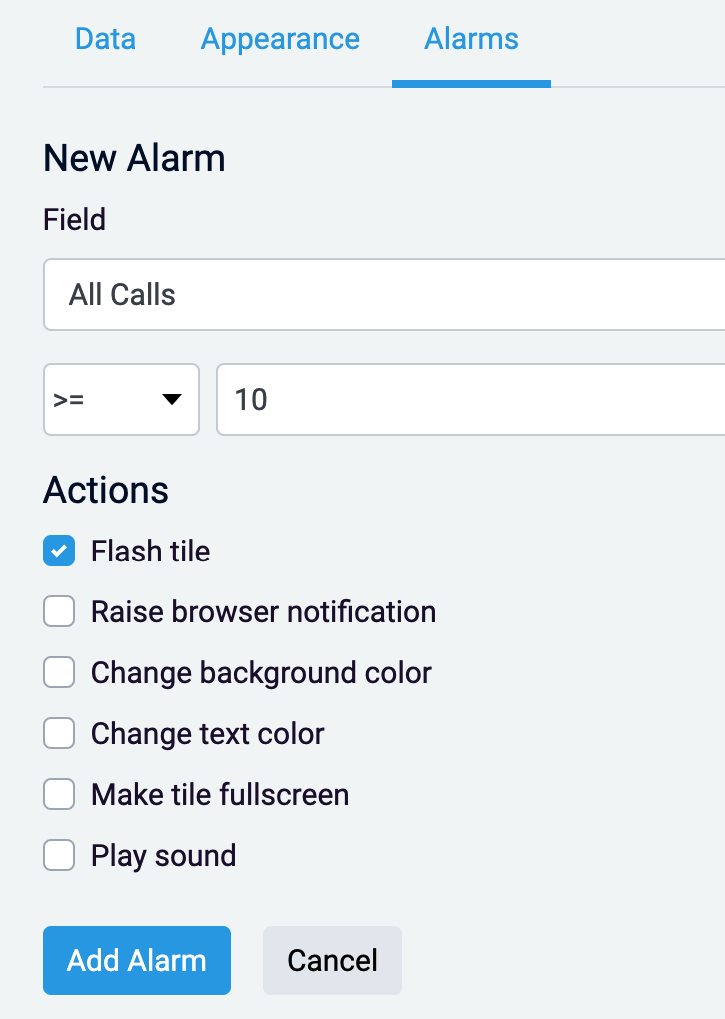
Create an alarm for your stat tile on the ‘Alarms’ tab. This will allow you to choose from multiple notifications/actions when your stat is more than, less than, or equals the number of your choosing.
Editing the Appearance of your Dashboard
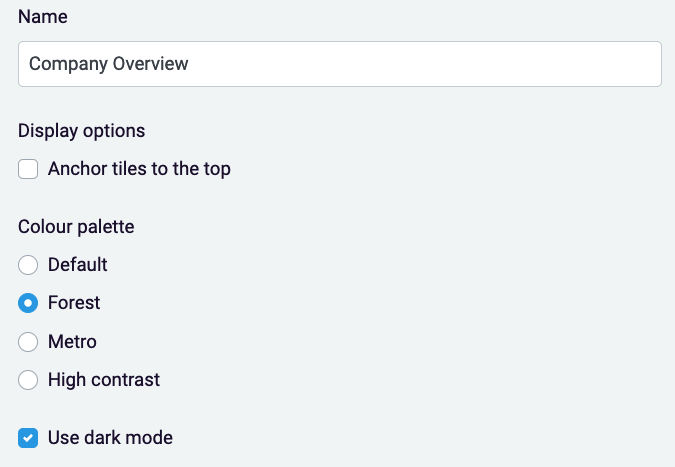
Click on the cog next to your dashboard dropdown to edit the color scheme for your dashboard.

Click on the lock in the top right of your screen to unlock the tiles to move and resize them freely

Wallboards
Please note- depending on your plan, wallboards may be an extra monthly charge. If you would like to check, call our Account Management team at 888.825.0800 option 4, or experience@virtualpbx.com
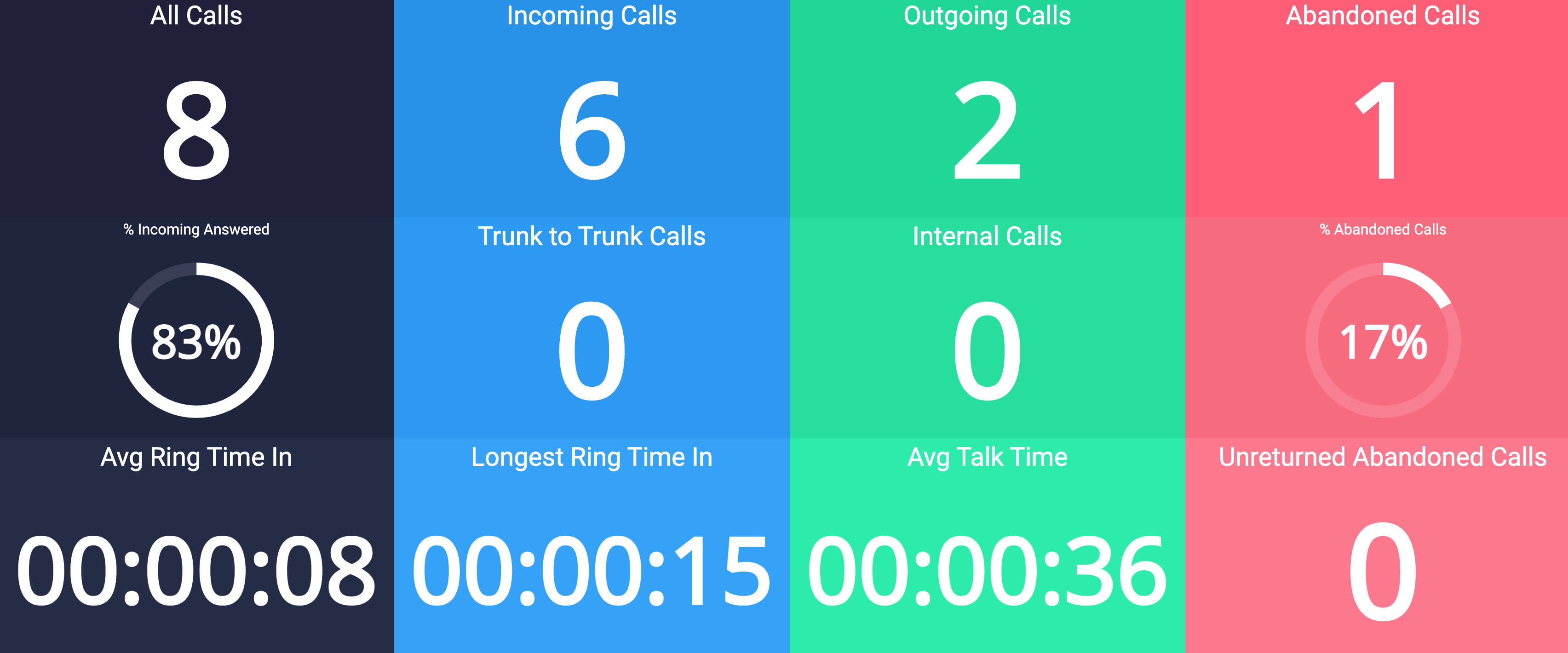
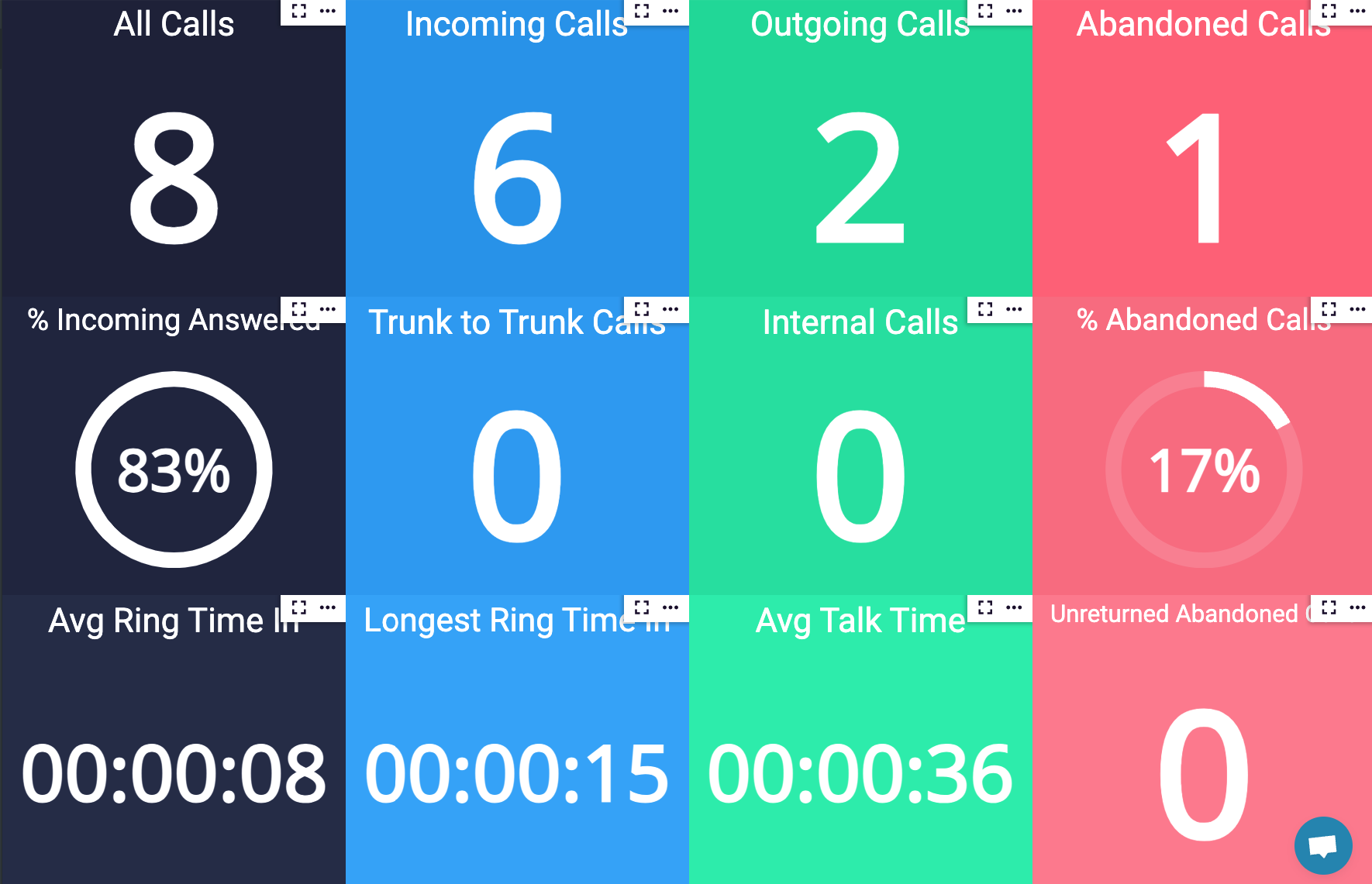
All tiles in your default wallboard are known as ‘Single Stat’. While Gauges are incorporated, all tiles will only show one piece of information.
All Calls
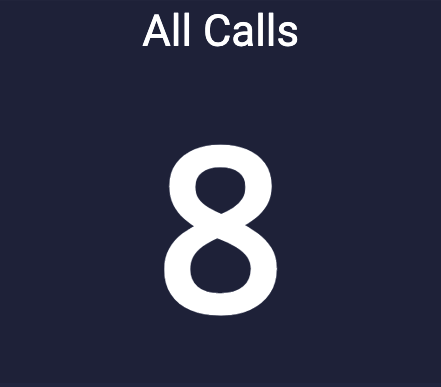
Track the total of all incoming and outgoing calls with a single stat tile.
Incoming Calls
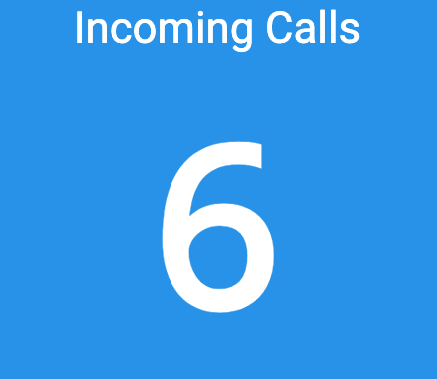
Track the total incoming calls to your account’s numbers
Outgoing Calls
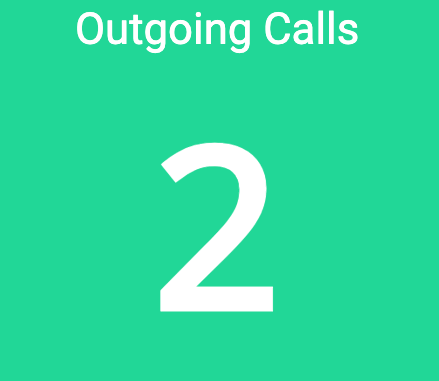
Track the total number of calls your agents/users made throughout the business day
Abandoned Calls
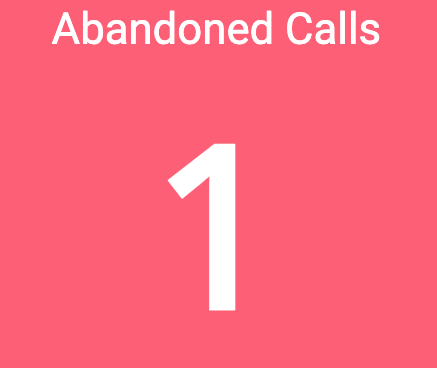
Track any calls where the caller ended the call while ringing to your agents, or while on hold.
Incoming Answered Percentage
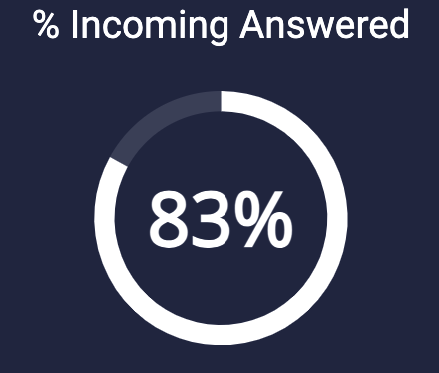
Out of 100%, track how many calls were answered by users/agents with a circular gauge
Trunk-to-Trunk Calls
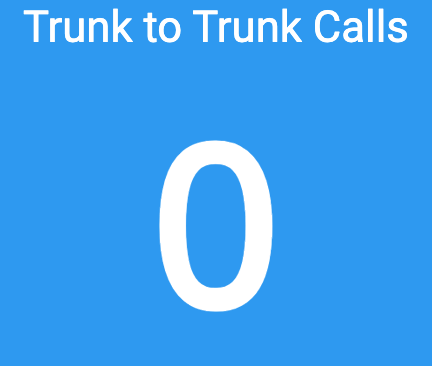
Track all calls that require connecting two external lines through the system.
Internal Calls
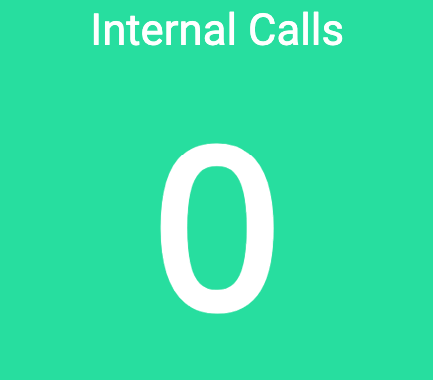
Track how many calls your agents/users made to each other throughout your business day
Abandoned Calls Percentage
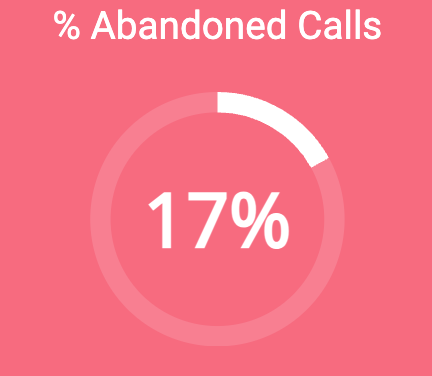
Track calls where the caller ended the call while ringing to your agents, or while on hold in percentage form
Average Ring Time In
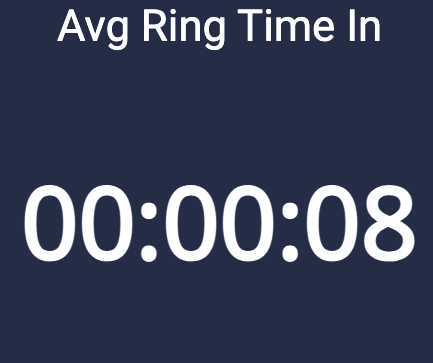
Track the average of the time customers spend ringing before an agent/user answers
Longest Ring Time In
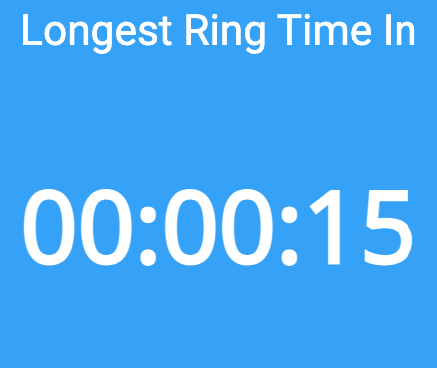
Track the longest time a customer spent ringing to a user/agent before the call is answered
Average Talk Time
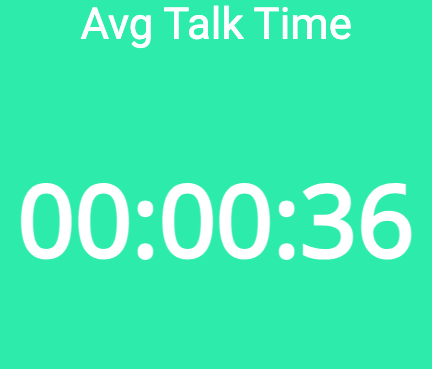
Track the average time inbound and outbound calls have taken over the business day
Unreturned Abandoned Calls
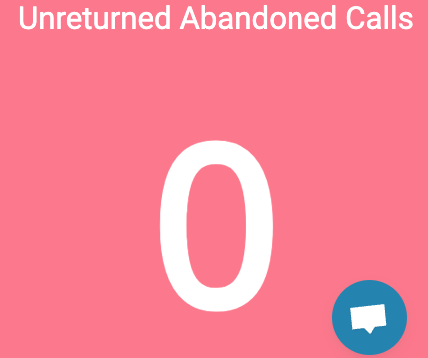
Track instances where customers have not been called back after users/agents missed their initial call
Editing Tiles
For all tiles, you can edit the appearance, add a different label, and set alarms
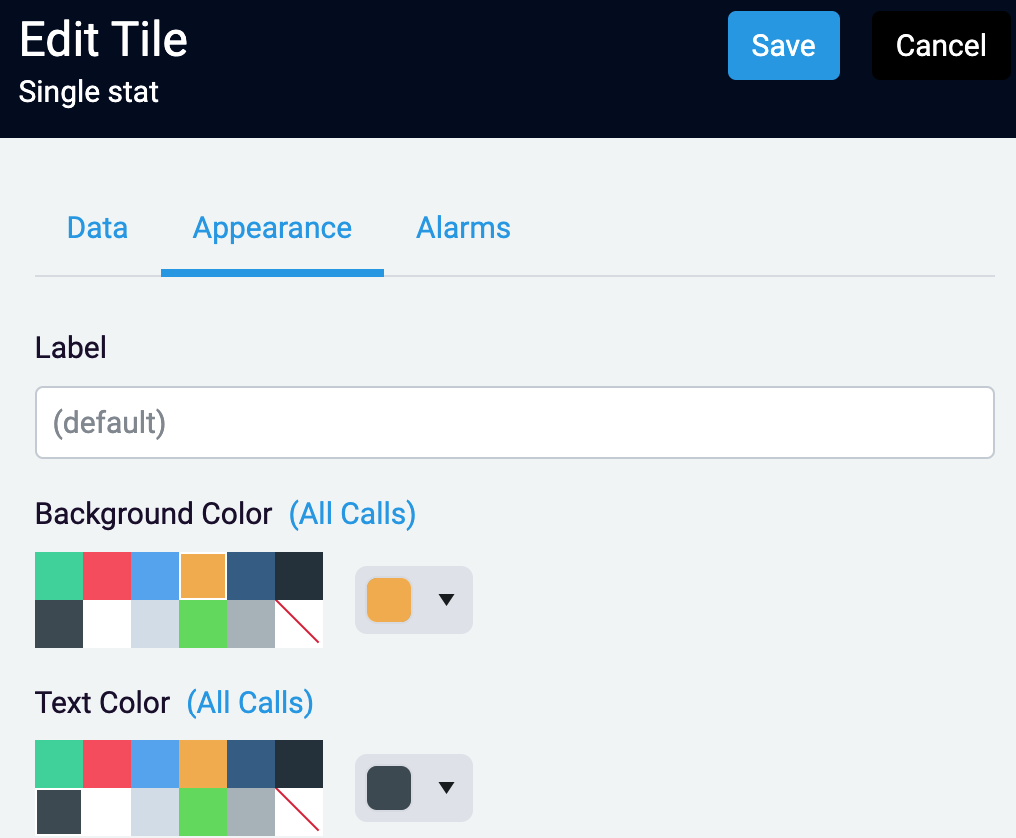
Change the background color, text color, and label on the Appearance tab
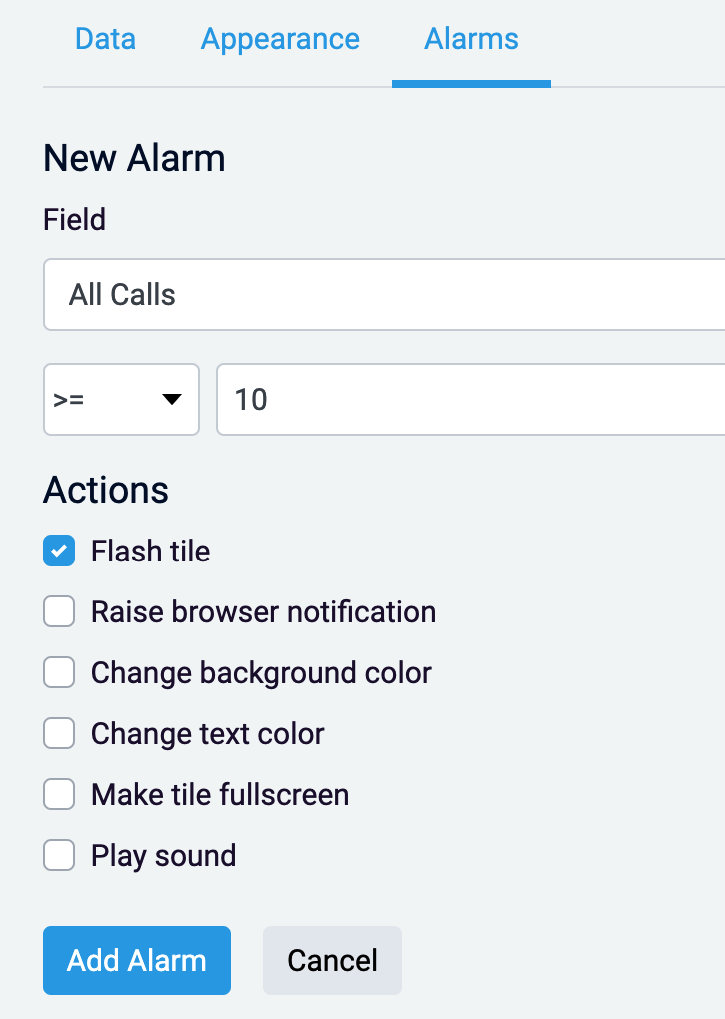
Create an alarm for your stat tile on the ‘Alarms’ tab. This will allow you to choose from multiple notifications/actions when your stat is more than, less than, or equals the number of your choosing.
Editing Wallboard Appearance
Click on the cog next to your dashboard dropdown to edit the color scheme for your dashboard.

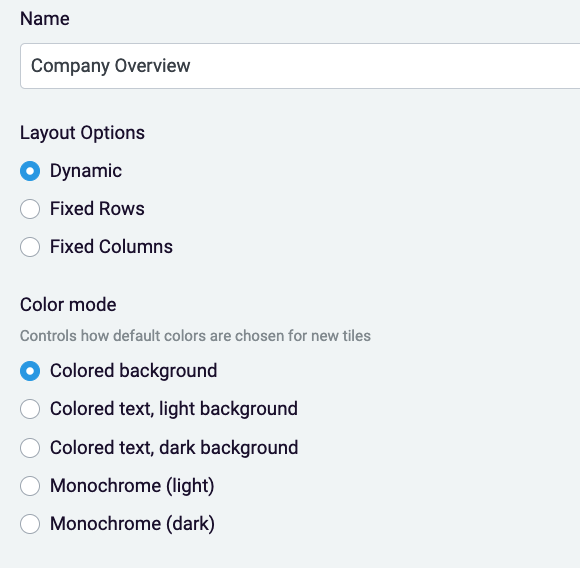
Click on the lock in the top right of your screen to unlock the tiles to move and resize them freely
Reports
Reports are created to get specific analytics on your calls.
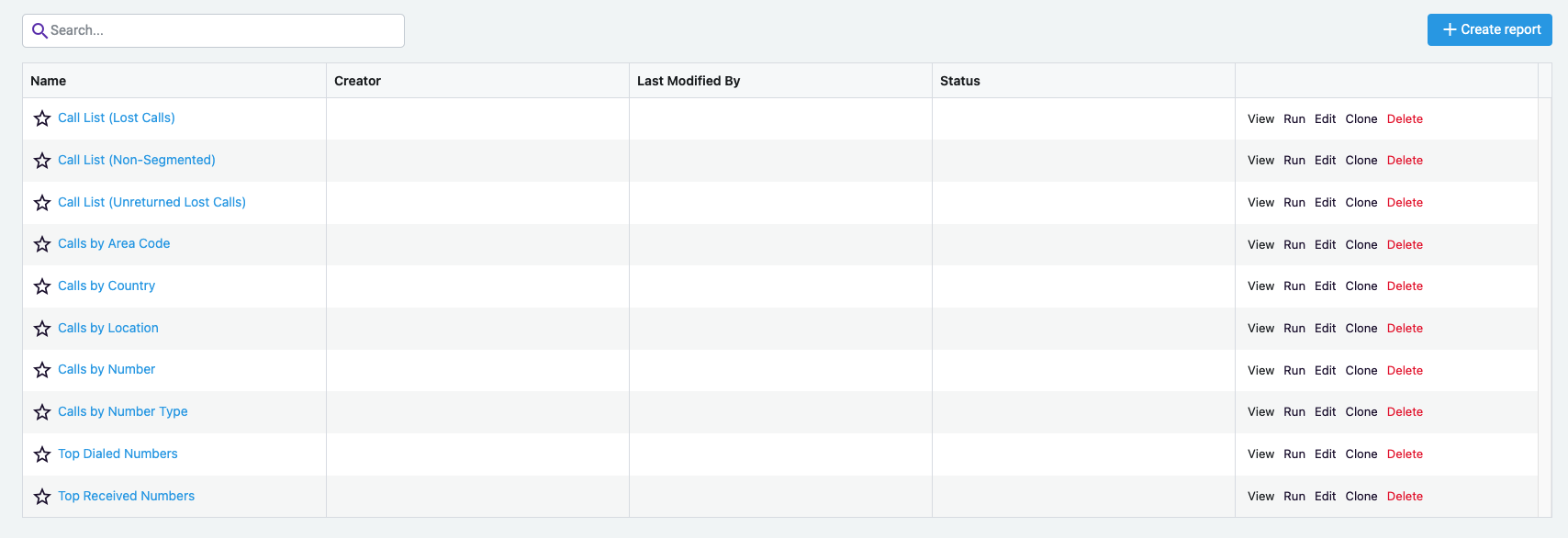
Default reports are listed below.
Call List (Lost Calls)
Calls that have been abandoned or dropped
Call List (Non-Segmented)
Only the total data for an entire call is displayed
Calls by Area Code
Summary of the number of calls by area code
Calls by Country
A summary of the number of calls by country
Calls by Location
Summary of the number of calls by location
Calls by Number
Call information grouped by the telephone number
Calls by Number Type
Summary of the number of external calls by the type (local, national or international) of the call
Top Dialed Numbers
Summary of calls based off of numbers dialed to
Top Received Numbers
Summary of calls baed off of calls based off of the caller’s number
Creating a New Report

Click ‘Create Report’ on the top of the page in the right corner.
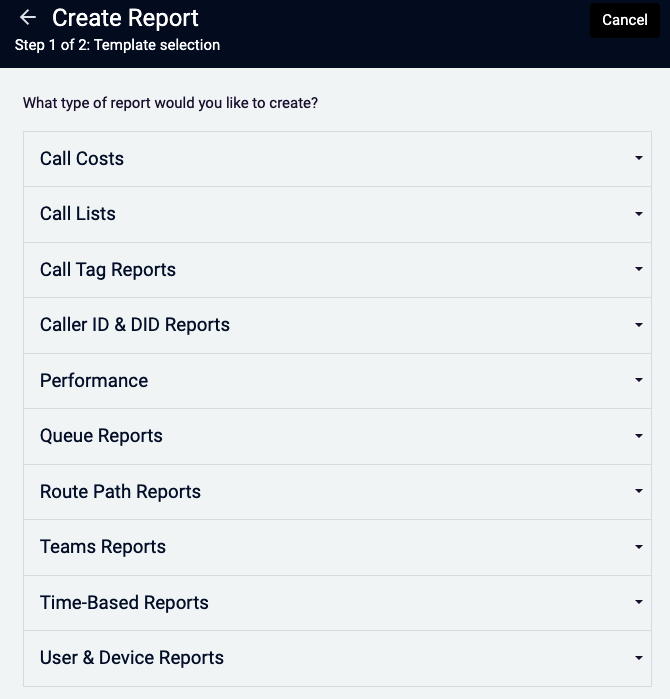
From here, you can decide which type of report you can run. Your options through insights are below.
All Report Options
Call Costs
Call Cost by Number - Call data grouped by telephone number
Call Cost by Number Type- A summary of the number calls by type
Call List (Rated Calls Non-Segmented)
Call Lists
Call List (Abandoned Calls) - Displays incoming calls that were never answered
Call List (Non-Segmented) - Only the aggregate data for an entire call is displayed
Call List (Unreturned Abandoned Calls - no filter) - A list of abandoned calls that have not been successfully called back (with no filter applied to the return calls)
Call List (Unreturned Abandoned Calls) - A list of abandoned calls that have not been successfully called back.
Caller ID & DID Reports
Calls by Area Code - A summary of the number of calls by area code
Calls by Country - A summary of the number of calls by country
Calls by Location - A summary of the number of calls by location
Calls by Number - Call data grouped by telephone number
Calls by Number Type - A summary of the number of external calls by the type (Local, National, or International) of the call
Top Dialed Numbers - A summary of the number of outgoing calls by telephone number
Top Received Numbers - A summary of the numbers of incoming calls by telephone number
Teams Reports
Teams Call List - Call list of Teams calls
After choosing your report, click ‘save and run’ to view the data.