

Help Center / Smarter Voice / Users and access / Change account settings
Users and access
Change account settings in Business Phone
You will need to be logged in as an admin on your system to work on your account settings.
On this page
Locating Your Settings
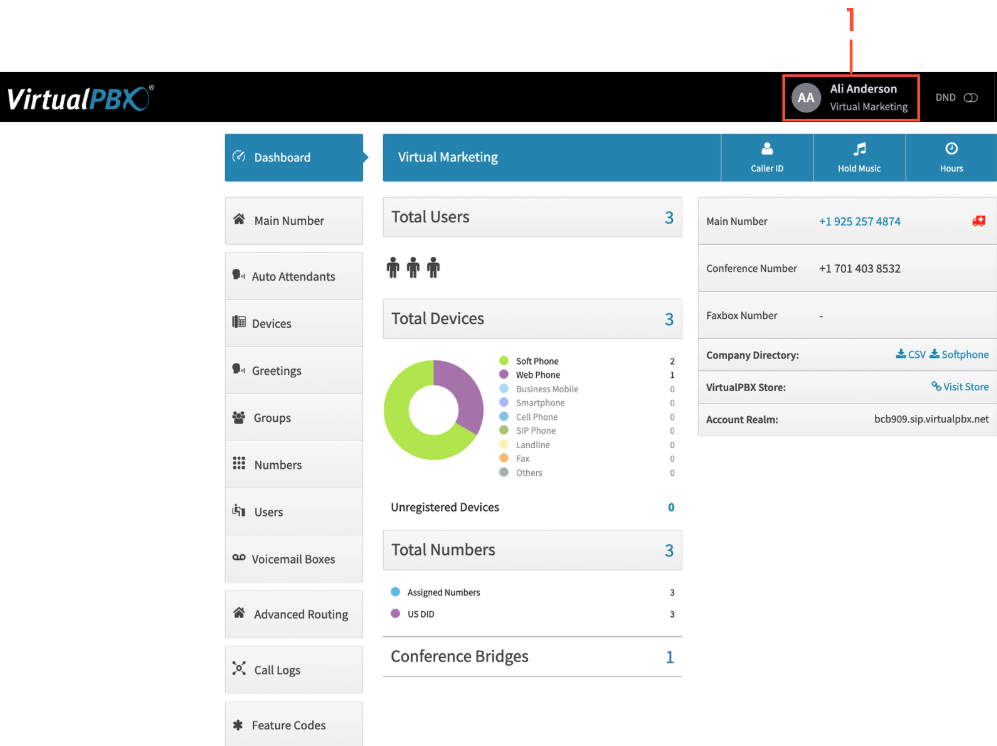
Once logged in to your dashboard, click on your name in the top black bar.
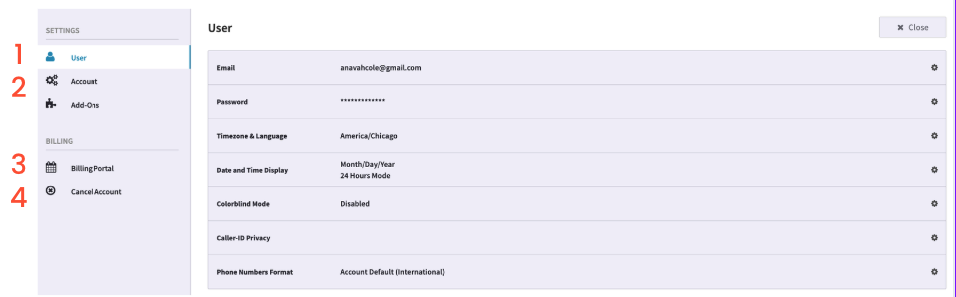
User Settings - View your email and password, as well as set your user’s Timezone and Language.
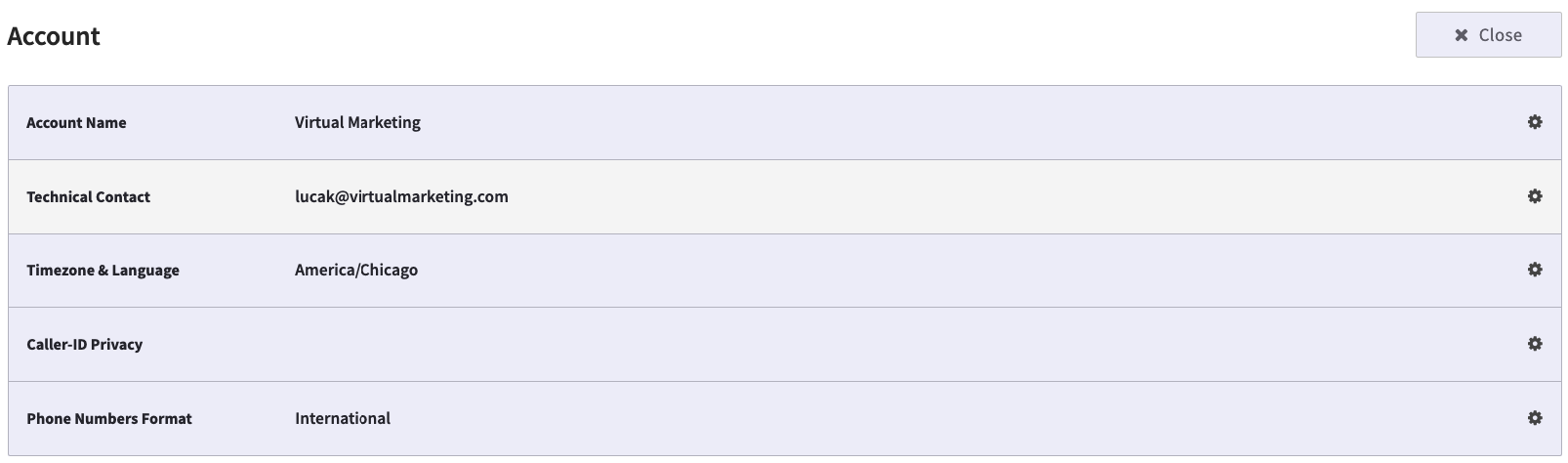
Account Settings - View your account name, edit your technical contact, and set your account’s Timezone and Language. You will want to get this updated should you choose to set specific office hours.
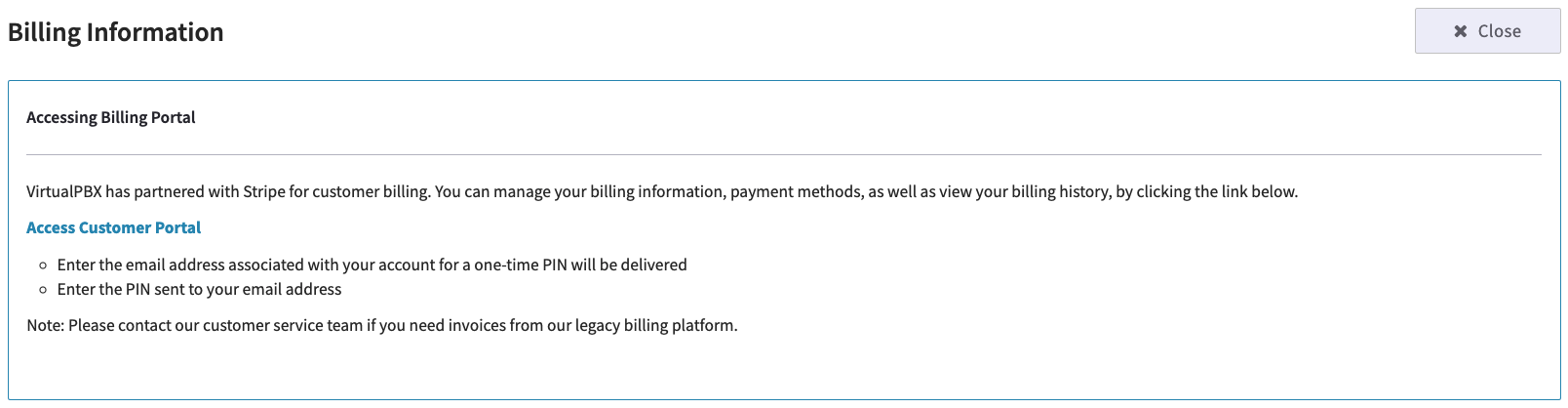
Billing Portal - VirtualPBX partners with Stripe for your billing. Once you click on the access link, your billing contact on file will need to input their email, from which they will receive a pin to input for an additional layer of security.
Cancel Account - If you are struggling with your account, please don’t hesitate to reach out to our support team first by calling or texting (888) 825-0800, visiting us in chat, or emailing experience@virtualpbx.com. Should you need to cancel your account with VirtualPBX, you can process through this tab.