

Help Center / VirtualText / Admin / Use the user menu
Admin
Use the VirtualText user menu
As a user, you will be able to edit some settings on your own profile. If you are an admin looking to edit your users or teams, please review our Admin Guides linked here. Items unable to be edited through your User Profile will need to be edited by your Admin.
On this page
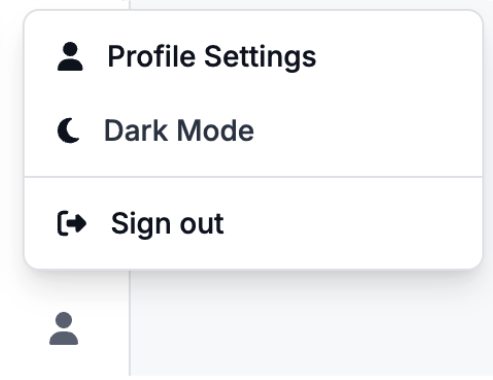
Profile Settings
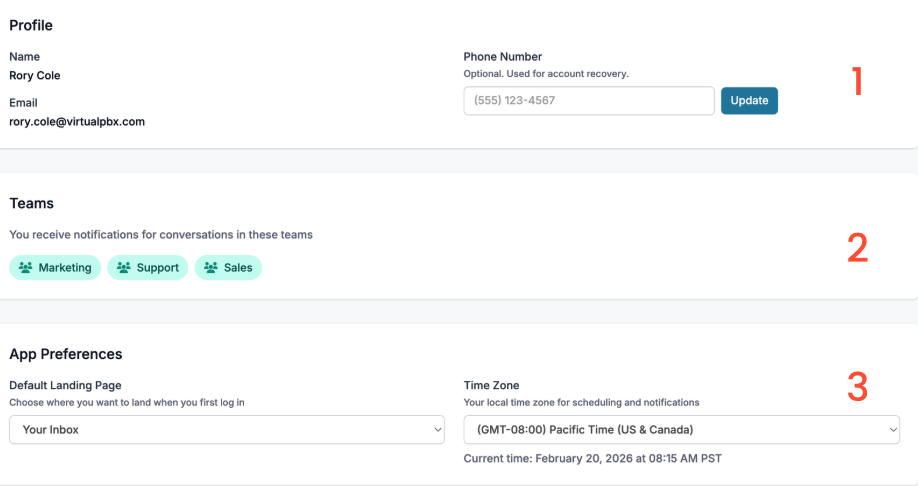
1. Profile
Review your display name and email, as well as add an additional phone number for account recovery if you end up unable to receive your verification via you email.
2. Teams
Teams will show which conversations you are able to review and answer
3. App Preferences
Change which landing page is default for you - upon signing up you will see your inbox, however you can change this to your contacts page
Change your local time zone to ensure you are able to schedule messages and receive notifications correctly
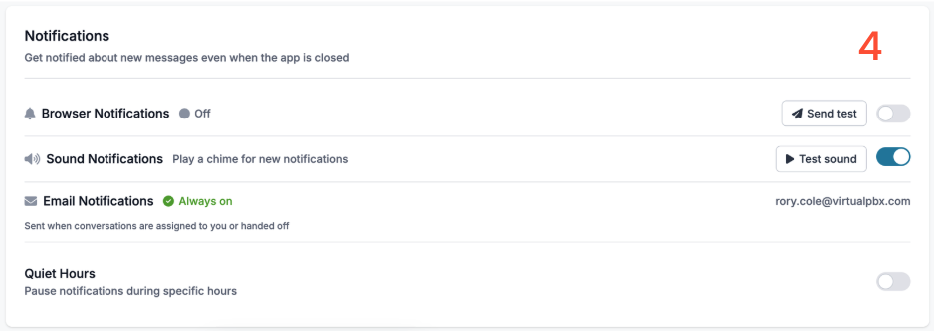
4. Notifications
Turn on or off both browser and sound notifications - test both out through your settings. (Note - If your browser blocks notifications, you will receive an error code for sending a browser test)
Pause the above notifications with set quiet hours. Turning this on will allow you to set custom hours
