

Help Center / Smarter Voice / Apps / Use the mobile softphone
Apps
Use the mobile softphone in Business Phone
You can find the app for the VirtualPBX Softphone through the Apple Store and Google Play Store under ‘VirtualPBX’. If the Softphone has not yet been created, please refer to our guide here on how to create it on the user level.
On this page
Softphone User Guide
Dial Pad and Features
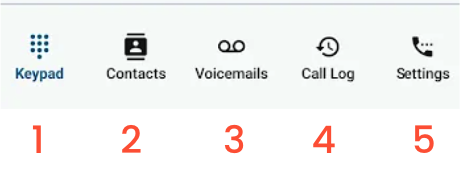
Dial Pad - Dial out to your client base
Contacts - See your VirtualPBX and/or Local Contacts
Voicemails - See the voicemail box for your user
Call Log - See the call history made to this device
Settings - Set up your preferences
Contacts
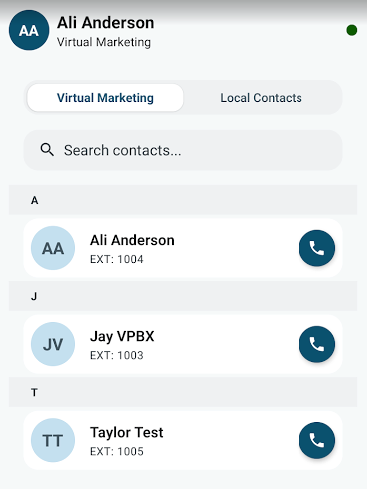
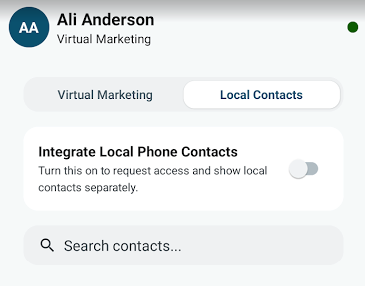
Choose to view your contacts on your system (Where the name Virtual Marketing appears, you will see your company’s name and all users in the system) or Local Contacts - contacts from your device’s contact list. Turn on ‘Integrate Local Phone Contacts’ to do so.
Voicemails
This section is intended to review the voicemails for your user. To review other voicemailboxes, use dash.virtualpbx.com or the email address(es) assigned to the respective voicemail box.
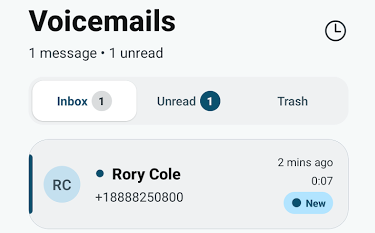
Choose either your Inbox (both read and unread messages), Unread Voicemails, or your Trash.
Options on your Voicemail
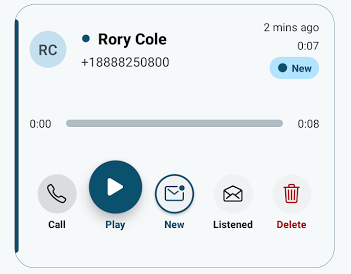
Click on the Voicemail to see the options dropdown.
Call - Call back the person who left the voicemail
Play - Play the voicemail message
Mark as New - This will place your calls in ‘Unread’
Listened - Mark your call as listened to
Delete - Move to Trash
Call Log
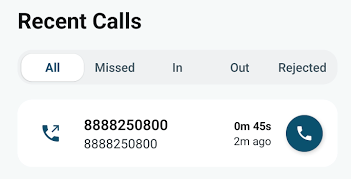
View a full log of all calls made on this Softphone. Any calls of on this log will allow you to click the Phone icon to call back
All - Full list of calls made
Missed - Any calls that were not answered
In - Calls made in to your device
Out - Calls made from this device to others
Rejected - Calls you rejected
Settings
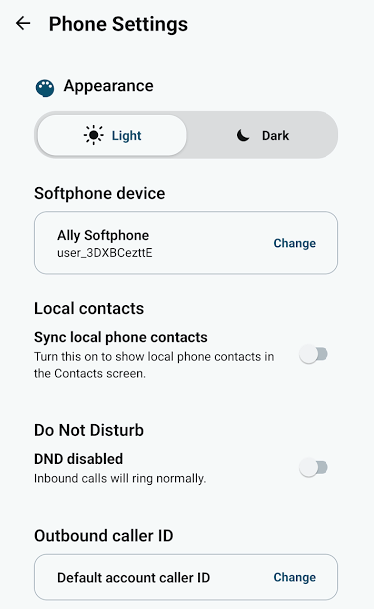
Appearance - Choose to stay in Light Mode (default) or change to Dark Mode
Softphone Device - If you have multiple devices attached to your user on the dashboard, you can change the device here
Local Contacts - Choose to sync the contacts from your device’s contacts to the Softphone contacts
Do Not Disturb - Inbound calls will be suppressed if DND is turned on
Outbound Caller ID - If you have a personal Caller ID set on your user (admin guide on how to do so here) you can change your Outbound Caller ID to your user’s number. By default it will be your account’s main Caller ID
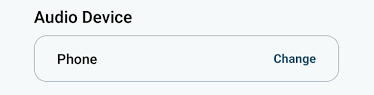
Audio Device - Allows you to change to any Bluetooth devices you have connected
Options on a Call
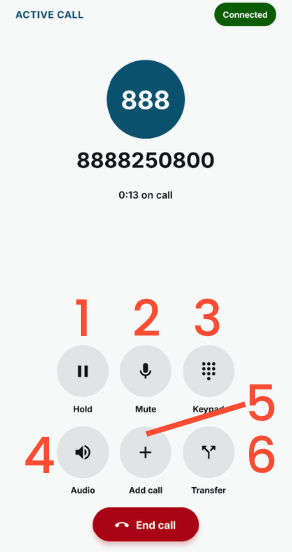
Place call on Hold (Default classical music will play if you do not have custom music set)
Mute yourself
Keypad - click here to utilize the keypad for dialing options
Place call on Speakerphone
Add Call (Three Way Calling) Once clicked, your initial caller will be placed on hold while you choose your secondary call contact
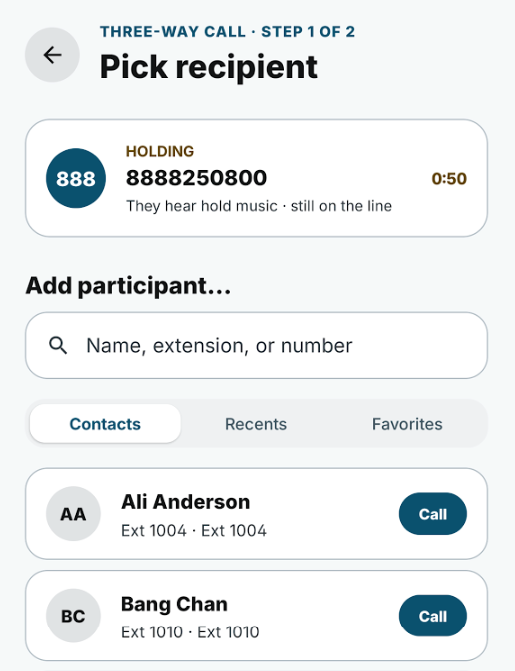
Once the secondary call is connected, you will be speaking privately with the secondary call. Choose here to merge both calls together
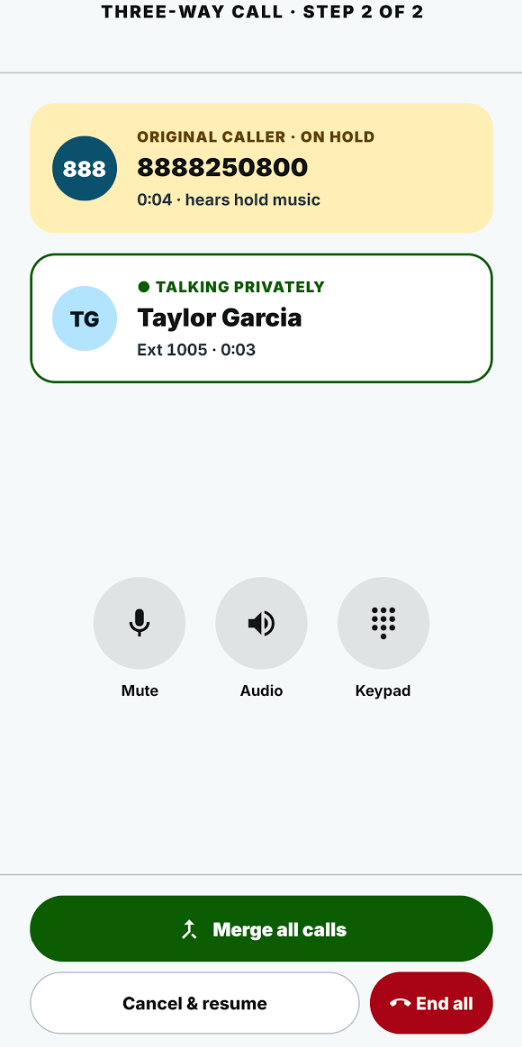
Click ‘Merge all calls’ to start the three way call
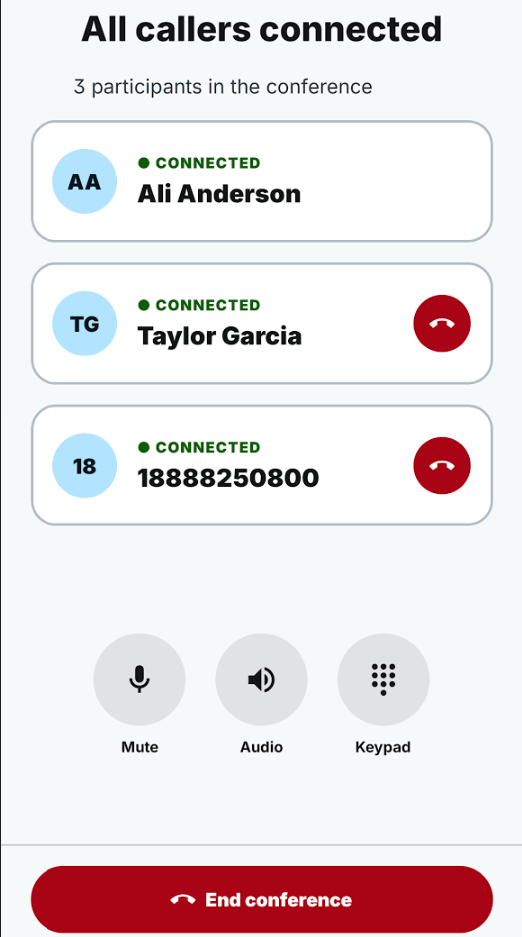
Once in the three-way call, you can choose to hang up on either person or end the conference fully
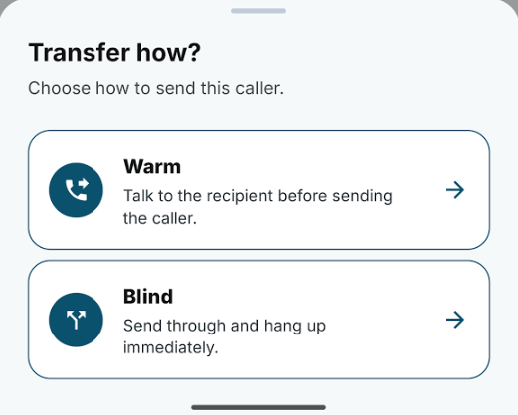
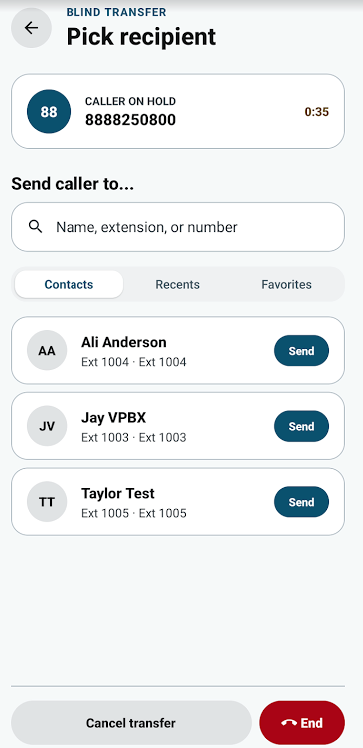
Transfer - After choosing the Transfer option, you will be able to choose ‘Warm’ or ‘Blind’ Warm - dials the number, then allows you to speak to the recipient before fully transferring the call to provide any extra context neededBlind - sends the call immediately through to the recipent, and ends your portion of the call After you choose which option, choose from your contact list, recents, favorites, or dial the intended number.
Additional Options
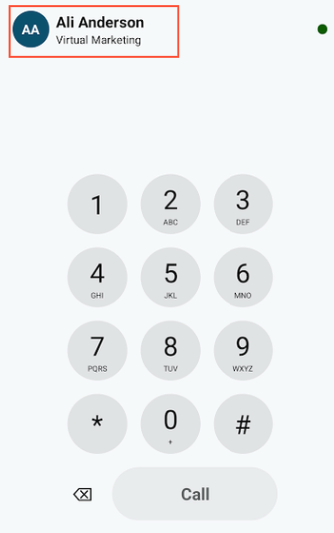
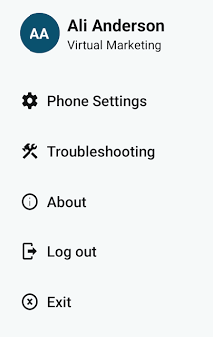
On each tab you can click on your name on the top lefthand side to open additional options.
Settings
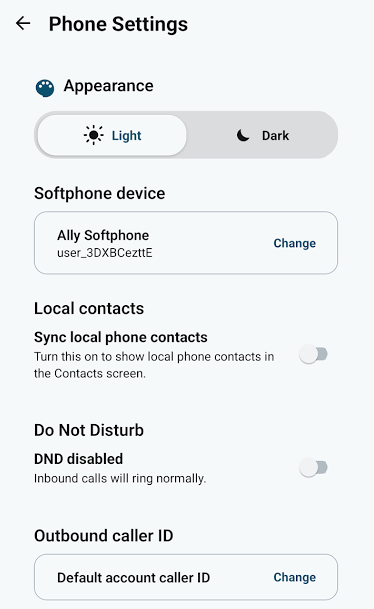
Appearance - Choose to stay in Light Mode (default) or change to Dark Mode
Softphone Device - If you have multiple devices attached to your user on the dashboard, you can change the device here
Local Contacts - Choose to sync the contacts from your device’s contacts to the Softphone contacts
Do Not Disturb - Inbound calls will be suppressed if DND is turned on
Outbound Caller ID - If you have a personal Caller ID set on your user (admin guide on how to do so here) you can change your Outbound Caller ID to your user’s number. By default it will be your account’s main Caller ID
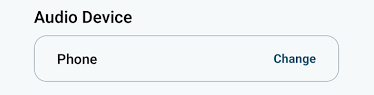
Audio Device - Allows you to change to any Bluetooth devices you have connected
Troubleshooting
Utilize this page if you run in to any connection/audio issues on your Softphone
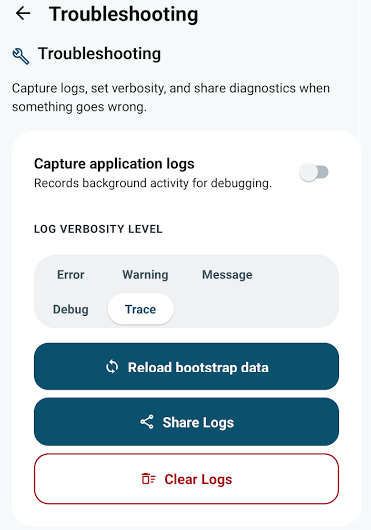
Capture application logs - Allows you to record background activity for debugging, by default this is turned off
Log Verbosity Level - Choose which item to trace. You can also reload the data, clear logs, and share the logs to any contacts needed
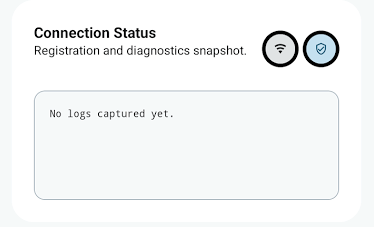
Connection Status - Will show any logs with issues on your connection
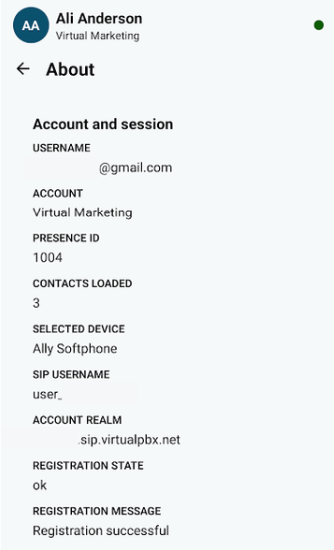
About
About page will show you all information on your user’s account including username, selected device, and your registration state
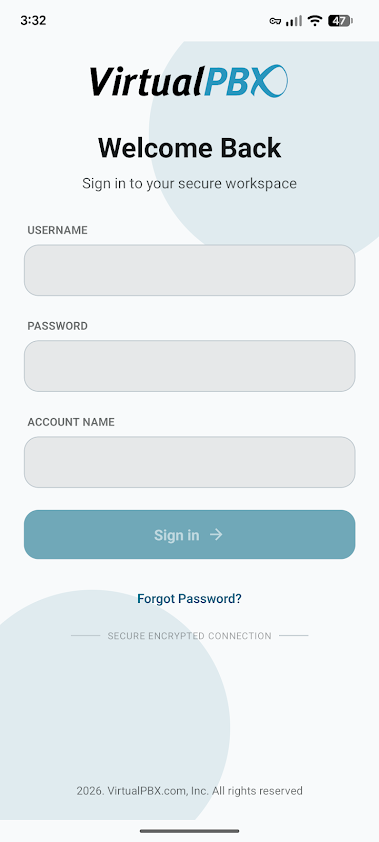
Log Out
Choosing this option will bring you back to your log in page
Exit
Choosing this option will close out the application