---
notionId: "d37f0d27c79883c8be9701d4780aab34"
product: "virtualtext"
cluster: "apps"
intent: "virtualtext.mobile-app"
docSlug: "mobile-app"
task: "Use the VirtualText mobile app"
title: "Use the VirtualText mobile app | VirtualPBX"
meta_description: "On your phone, type in use.virtualtext.app into your browser. Upon signed in, you will see a request to ‘Install VirtualText’. When confirmed, the app will"
answer: "On your phone, type in use.virtualtext.app into your browser. Upon signed in, you will see a request to ‘Install VirtualText’. When confirmed, the app will begin to download"
audience: "user"
updated: "2026-01-01"
legacy: ["mobile-application"]
headings: [{"depth":2,"text":"How to download App","id":"how-to-download-app"}]
lint: ["answer-first"]
---
## How to download App
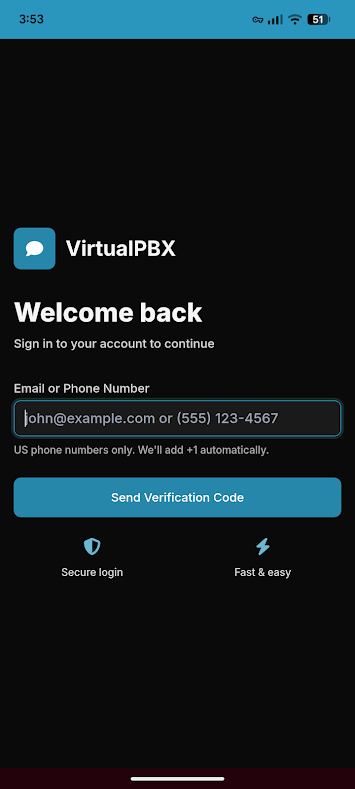
Once downloaded, log in to the application with your associated email or phone number
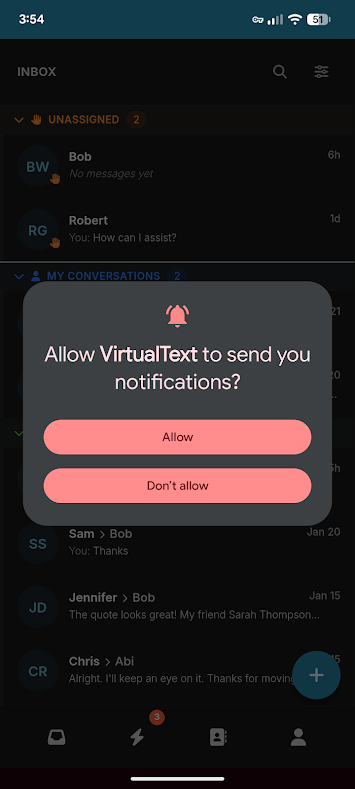
Once logged in, VirtualText will ask to send you notifications. Allow or Deny through the pop-up request
Once logged in, you are ready to send and receive conversations through your mobile device
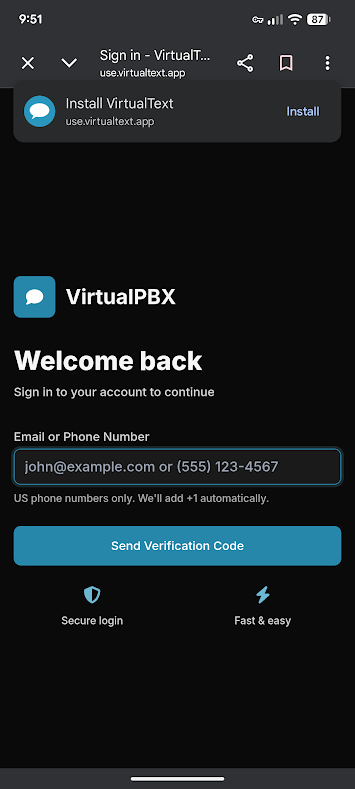 Once downloaded, log in to the application with your associated email or phone number
 Once logged in, VirtualText will ask to send you notifications. Allow or Deny through the pop-up request
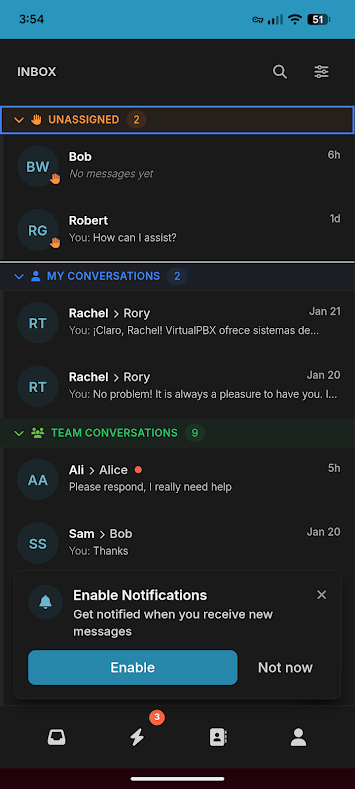 Once logged in, you are ready to send and receive conversations through your mobile device