---
notionId: "6c2f0d27c79883c0af00818dd35b33d2"
product: "virtualtext"
cluster: "contacts"
intent: "virtualtext.contact-dashboard"
docSlug: "contact-dashboard"
task: "Use the VirtualText contact dashboard"
title: "Use the VirtualText contact dashboard | VirtualPBX"
meta_description: "You can review all inboxes you are included in through the Inboxes tab."
answer: "You can review all inboxes you are included in through the Inboxes tab."
audience: "user"
updated: "2026-01-01"
legacy: ["contact-dashboard"]
headings: [{"depth":2,"text":"Inboxes","id":"inboxes"},{"depth":2,"text":"Observations","id":"observations"},{"depth":3,"text":"Options while reviewing Observations","id":"options-while-reviewing-observations"},{"depth":3,"text":"1. Information on Observations","id":"1-information-on-observations"},{"depth":3,"text":"2. Reviewing and Resolving Observations","id":"2-reviewing-and-resolving-observations"},{"depth":2,"text":"Contacts and Groups","id":"contacts-and-groups"},{"depth":3,"text":"Contacts","id":"contacts"},{"depth":3,"text":"Adding a new contact/processing duplicates","id":"adding-a-new-contactprocessing-duplicates"},{"depth":2,"text":"Quarantine","id":"quarantine"}]
lint: ["meta-answer","answer-first"]
---

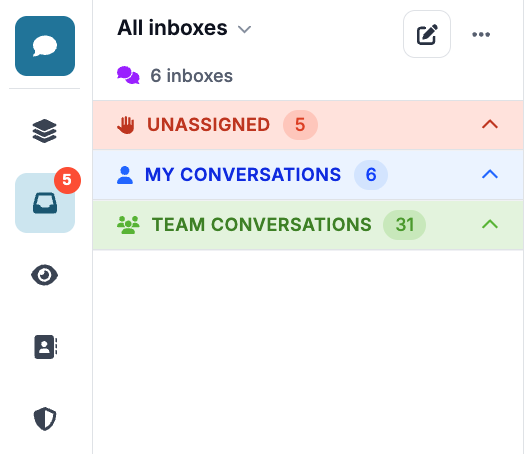
<aside class="note"><p>There are four other icons on your main inbox page - Inboxes, Observations, Contacts, and Quarantine. Below is a breakdown of what each item does</p></aside>

<img src="/assets/contact-dashboard/image.png" alt="Use the VirtualText contact dashboard" width="526" height="454" loading="lazy" decoding="async">

## Inboxes

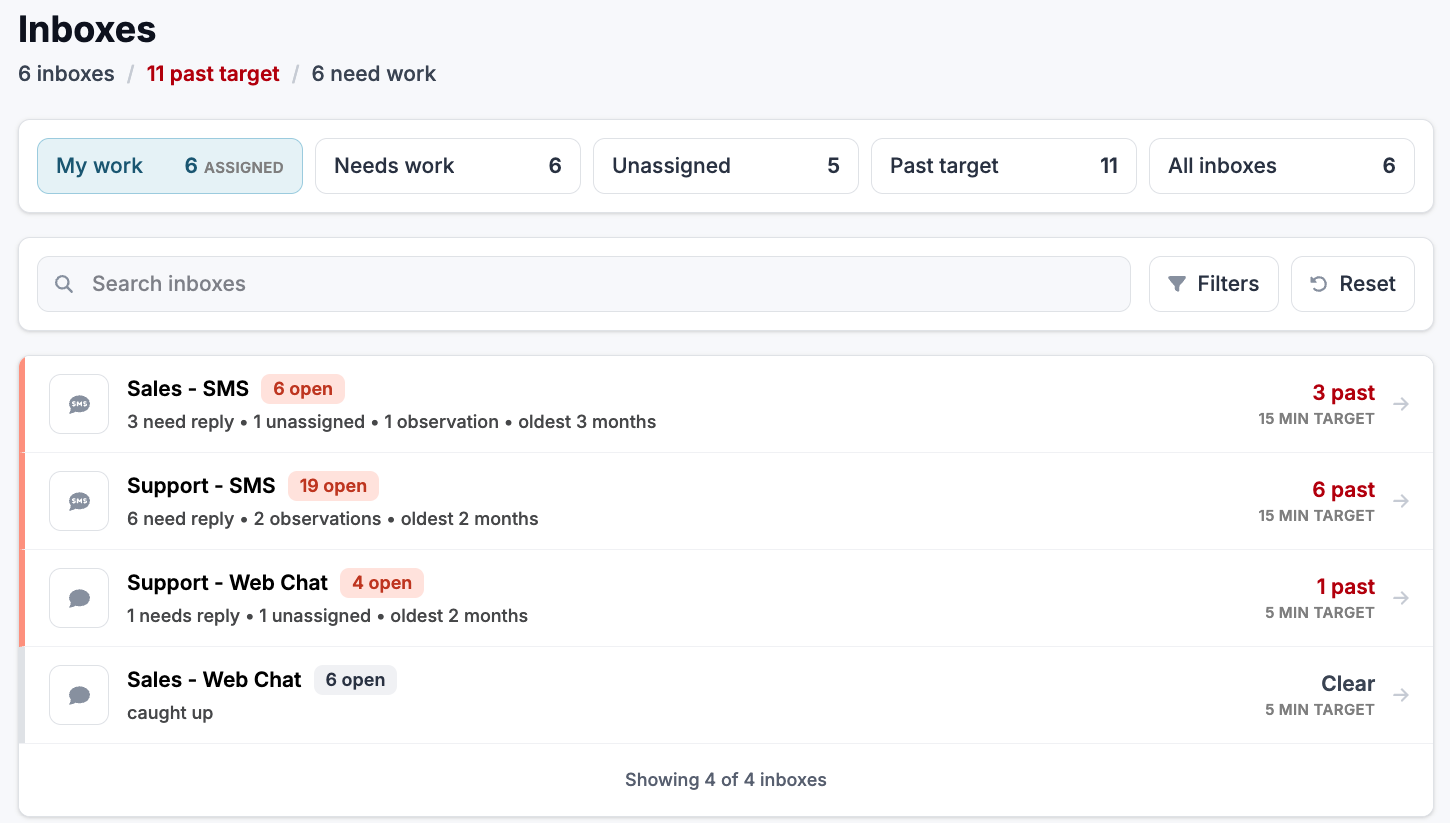
<img src="/assets/contact-dashboard/image-1.png" alt="Inboxes" width="1450" height="823" loading="lazy" decoding="async">

<ul>
<li><p>My Work - Conversations assigned to you </p>
</li>
<li><p>Needs Work - Conversations waiting for a response </p>
</li>
<li><p>Unassigned - Conversations with no owner </p>
</li>
<li><p>Past Target - Conversations where the response target has been passed. The amount of minutes set for your target is created upon inbox creation. </p>
</li>
<li><p>All Inboxes - Every inbox you are a part of </p>
</li>
</ul>

## Observations

<img src="/assets/contact-dashboard/image-2.png" alt="Observations" width="1683" height="335" loading="lazy" decoding="async">

Here you can review conversations our AI automations have reviewed and provided more insights for - either retention risks, mishandled conversations, and sales opportunities. 
<aside class="note"><p>The AI automation will review both your AI Agent’s response as well as your team members </p></aside>

<ul>
<li><p>Needs Review - Observations with no actions taken yet </p>
</li>
<li><p>Ready to Act - Observations noted as ‘Reviewed’ but have not been resolved or dismissed </p>
</li>
<li><p>Retention Risks - Observations where the AI has noted a customer may churn soon if not worked with further </p>
</li>
<li><p>Mishandled - Incorrect information provided to the customer </p>
</li>
<li><p>Sales Opportunities - Possible up-sells available </p>
</li>
<li><p>All Observations - Every observation not resolved/dismissed </p>
</li>
</ul>

### Options while reviewing Observations

<img src="/assets/contact-dashboard/image-3.png" alt="Options while reviewing Observations" width="910" height="621" loading="lazy" decoding="async">

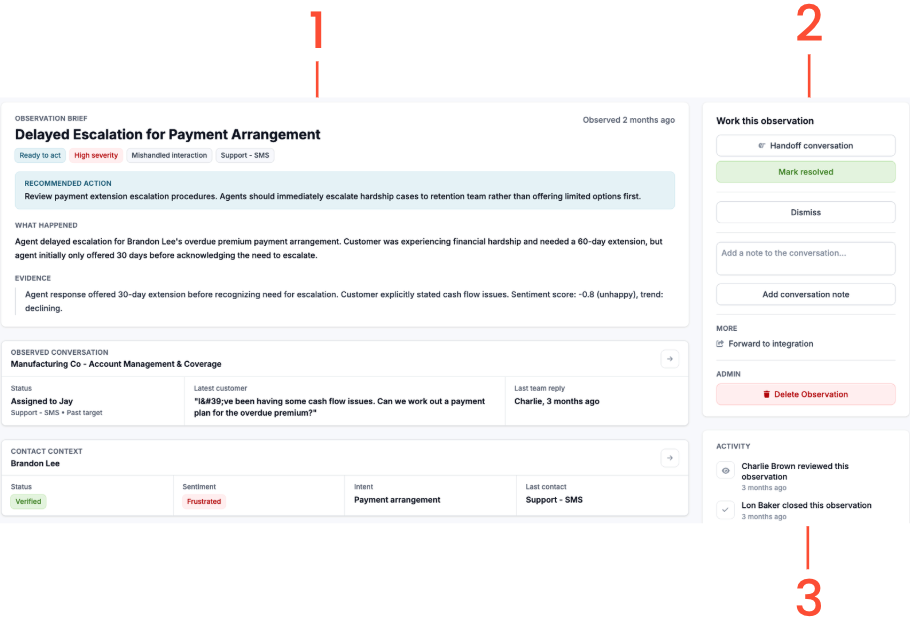
When clicking into an observation, you will see multiple items, including the AI evidence and suggestions, and how to respond 

### 1. Information on Observations

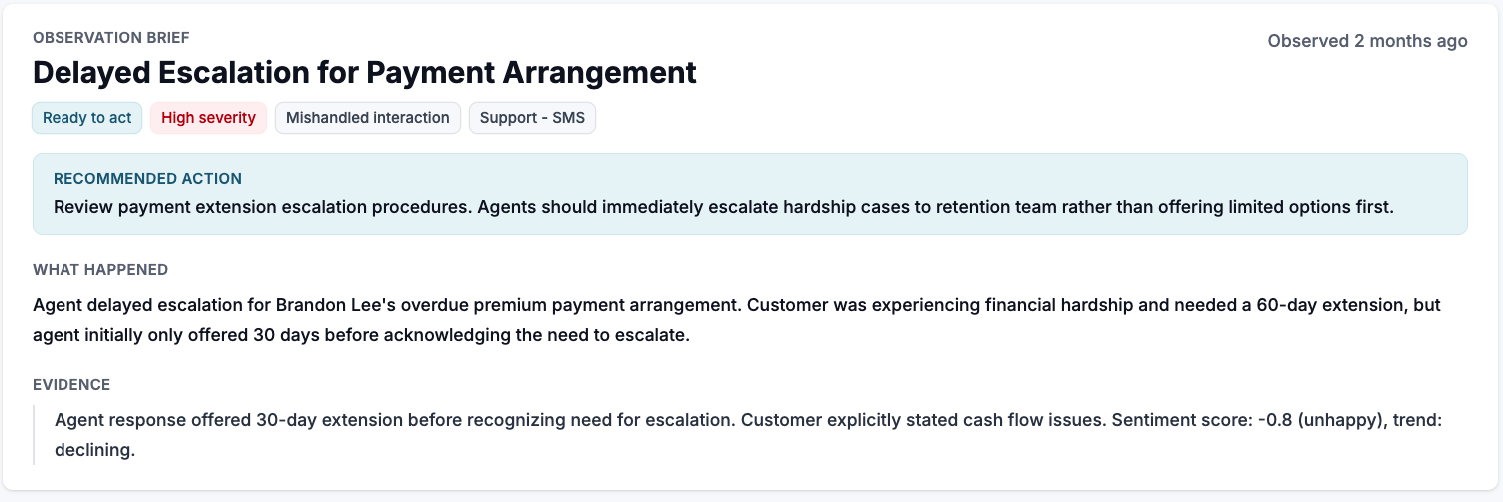
The first item you will see on the Observation is the Summary - a breakdown of the full conversation and where the AI has deemed it in need of further review 
<img src="/assets/contact-dashboard/image-4.png" alt="1. Information on Observations" width="1503" height="502" loading="lazy" decoding="async">

<ul>
<li><p>First you will see the main issue stated in the title, as well as the severity rating and recommended next action to give you a quick review at a first glance </p>

<img src="/assets/contact-dashboard/image-5.png" alt="1. Information on Observations" width="1468" height="222" loading="lazy" decoding="async"></li>
<li><p>Next the Observation will note exactly what happened, including the evidence pointing towards the issue </p>

<img src="/assets/contact-dashboard/image-6.png" alt="1. Information on Observations" width="1445" height="233" loading="lazy" decoding="async"></li>
<li><p>The Observation will also provide information on which exact conversation it is pulling from, who it was assigned to, what the latest response was from the customer, and the latest team member reply. You can click on the top right hand arrow to go to this conversation </p>

<img src="/assets/contact-dashboard/image-7.png" alt="1. Information on Observations" width="1495" height="187" loading="lazy" decoding="async"></li>
<li><p>Lastly the Observation will provide full information on the Contact themselves - if they have been verified through SMS, what their latest AI sentiment was, their intent, and where they last had contact. You can click on the top right hand arrow to go to the full contact </p>

<img src="/assets/contact-dashboard/image-8.png" alt="1. Information on Observations" width="1494" height="167" loading="lazy" decoding="async"></li>
</ul>

### 2. Reviewing and Resolving Observations

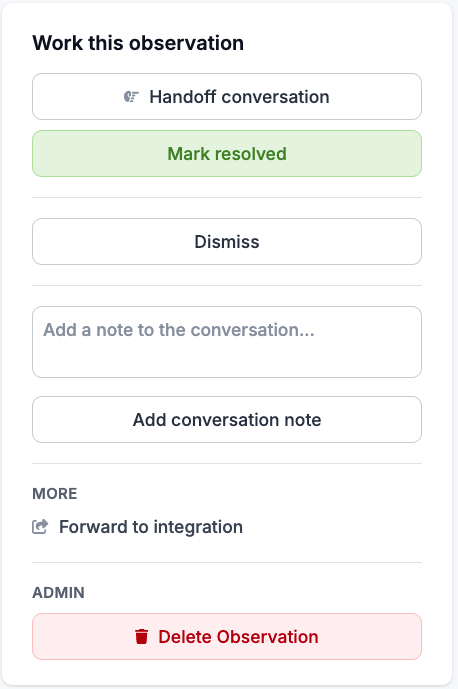
<img src="/assets/contact-dashboard/image-9.png" alt="2. Reviewing and Resolving Observations" width="458" height="689" loading="lazy" decoding="async">

You have many options for working an Observation. 
<ul>
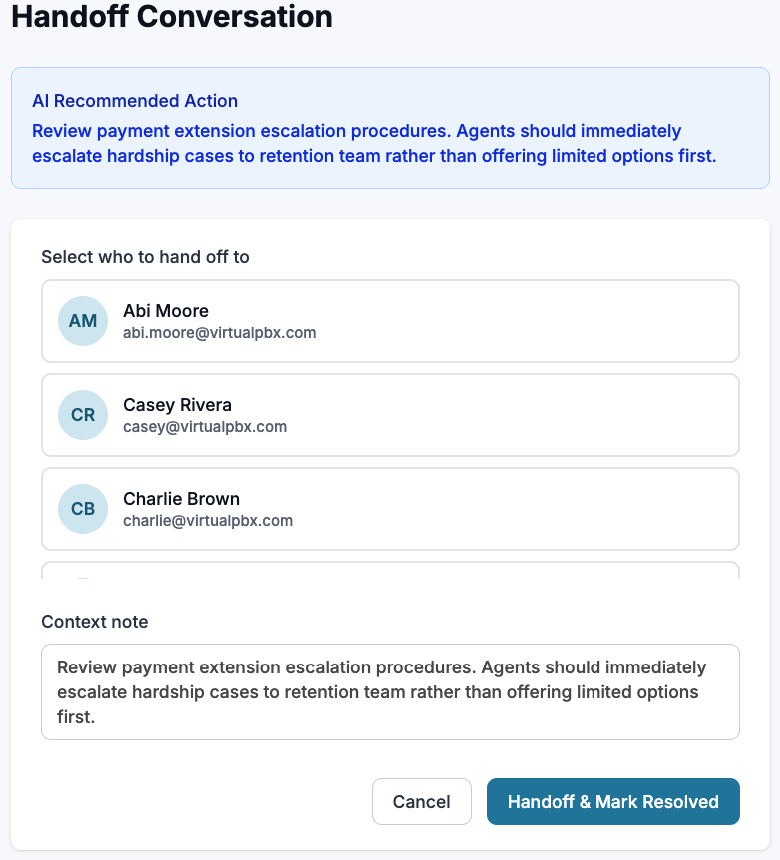
<li><p>Handoff Observation - Pass this to a team member. This will also allow you to pass over the AI recommended action </p>
<img src="/assets/contact-dashboard/image-10.png" alt="2. Reviewing and Resolving Observations" width="780" height="860" loading="lazy" decoding="async"></li>
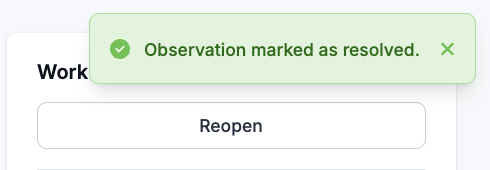
<li><p>Mark Resolved - Mark observation resolved if you took the feedback and utilized in the conversation. This will close the observation however you can open back up if needed. </p>
<img src="/assets/contact-dashboard/image-11.png" alt="2. Reviewing and Resolving Observations" width="490" height="170" loading="lazy" decoding="async"></li>
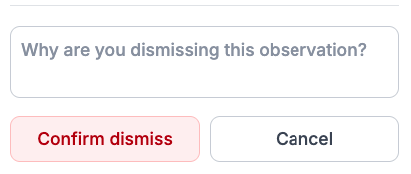
<li><p>Dismiss - Dismiss the observation if no action is needed on the noted observation. Dismissing will close, however you will need to make a note on why this specific observation has been dismissed </p>
<img src="/assets/contact-dashboard/image-12.png" alt="2. Reviewing and Resolving Observations" width="411" height="174" loading="lazy" decoding="async"></li>
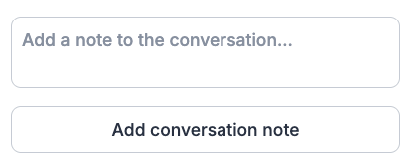
<li><p>Add Conversation Note - Provide any further context to the observation note</p>
<img src="/assets/contact-dashboard/image-13.png" alt="2. Reviewing and Resolving Observations" width="411" height="165" loading="lazy" decoding="async"></li>
<li><p>Forward to integration - if you have any CRM integration you can forward the conversation and contact through here </p>
</li>
<li><p>Delete Observation - Delete the full observation. This will not delete the conversation, or the contact </p>
</li>
<li><p>Activity - Review any past actions team members have taken on this observation, including reviewing and closing </p>
</li>
</ul>

## Contacts and Groups

<img src="/assets/contact-dashboard/image-14.png" alt="Contacts and Groups" width="1351" height="295" loading="lazy" decoding="async">

### Contacts

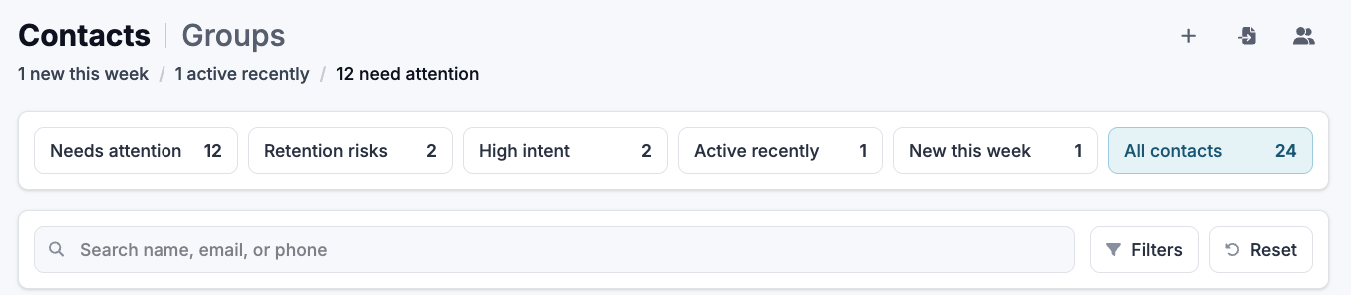
Keep track of all contacts and groups through this icon 

<ul>
<li><p>Needs Attention - Contacts that either have open observations or unanswered messages </p>
</li>
<li><p>Retention Risks - Contact who has noted a possible churn </p>
</li>
<li><p>High Intent - Contact with high interest in purchasing/upgrading based on conversations</p>
</li>
<li><p>Active Recently - Contacts who have been active within the last week </p>
</li>
<li><p>New this week - New contacts </p>
</li>
<li><p>All Contacts - Every contact saved on your account </p>
</li>
</ul>

Search the contact by either name, email, or phone number. 

### Adding a new contact/processing duplicates

<img src="/assets/contact-dashboard/image-15.png" alt="Adding a new contact/processing duplicates" width="172" height="65" loading="lazy" decoding="async">

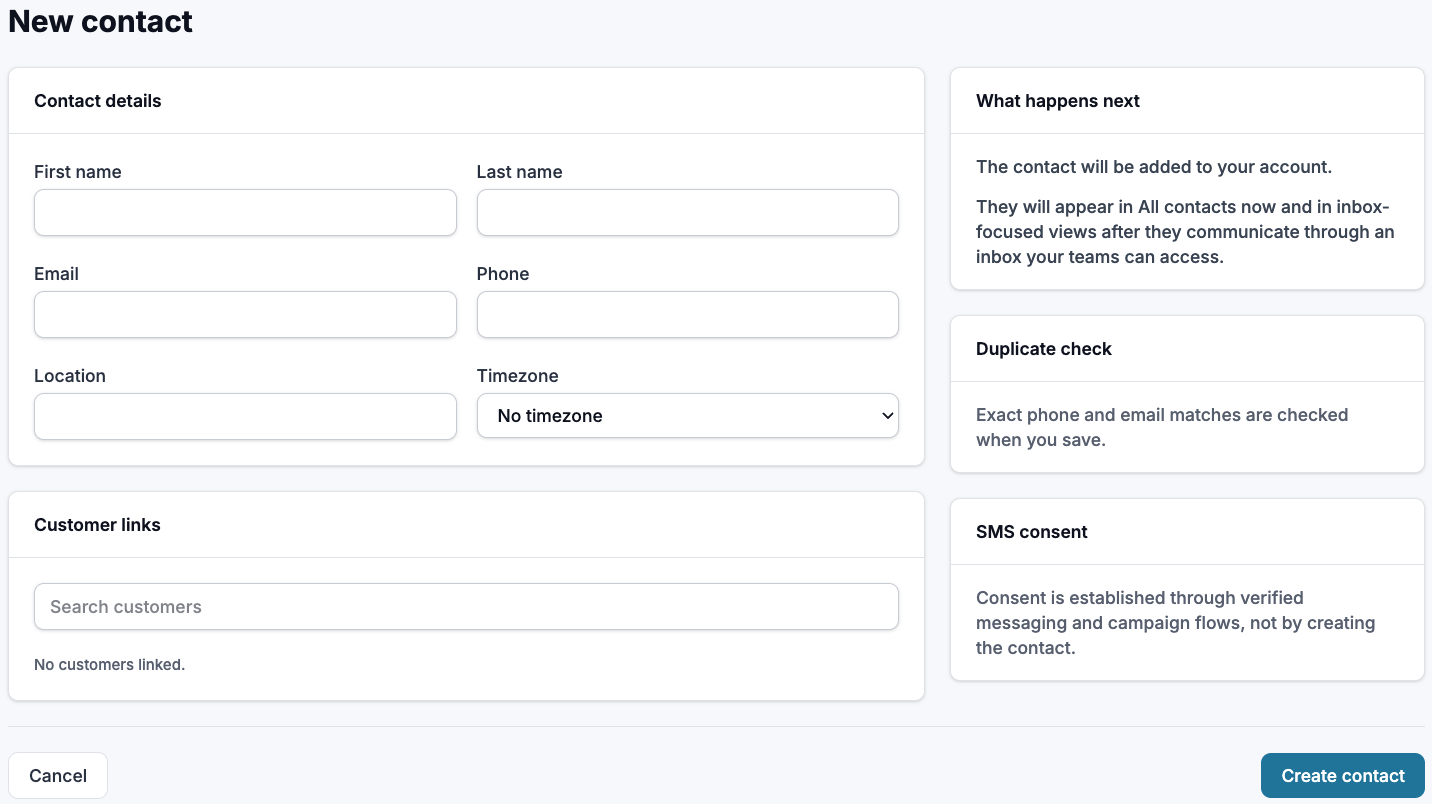
On the top right hand side of your Contacts page you will be able to add a single contact, import a contact list, or review possible duplicate contacts 
<ul>
<li><p>Adding a single contact - Add a singular contact by clicking the plus icon. Input all information needed for your contact on the next page </p>
<img src="/assets/contact-dashboard/image-16.png" alt="Adding a new contact/processing duplicates" width="1432" height="804" loading="lazy" decoding="async"></li>
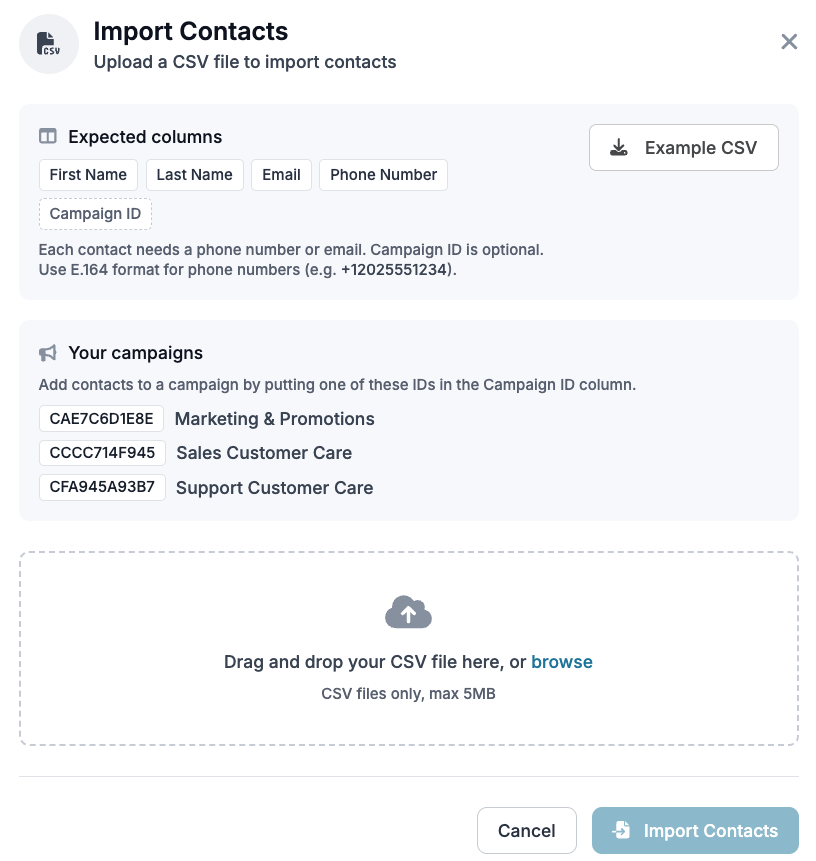
<li><p>Importing a contact list - Follow the example CSV to import multiple contacts at the same time, as well as add to your campaigns </p>
<img src="/assets/contact-dashboard/image-17.png" alt="Adding a new contact/processing duplicates" width="816" height="861" loading="lazy" decoding="async"></li>
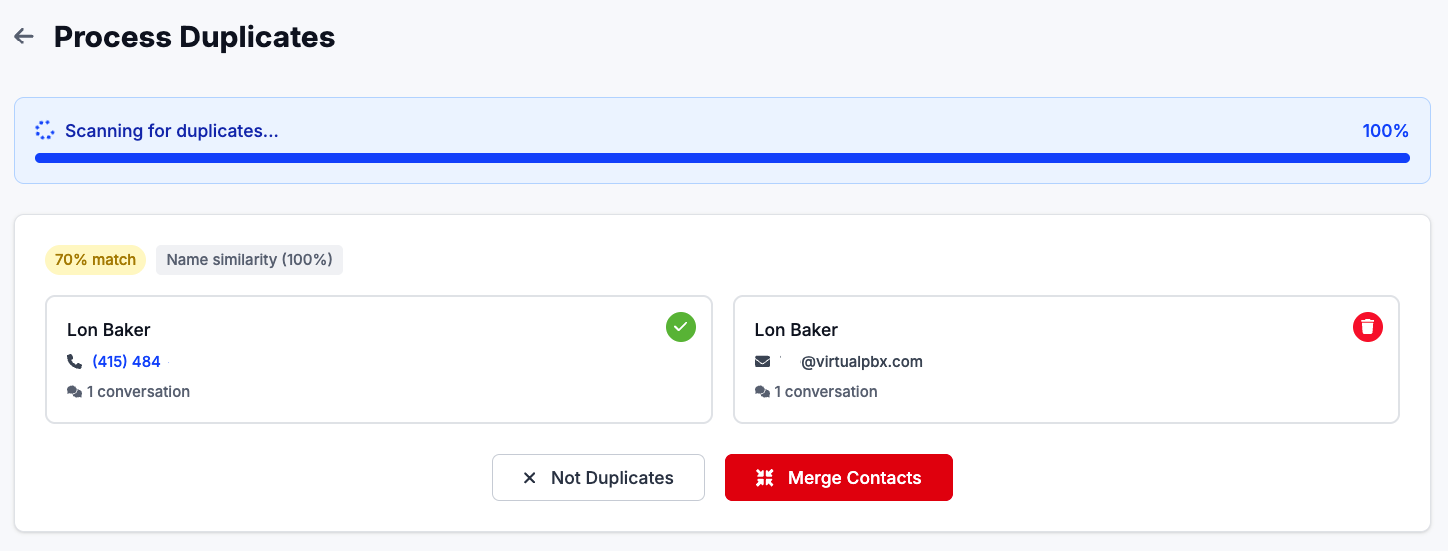
<li><p>Review Duplicates - Click ‘Scan’ to review if any contacts have duplicates - this can happen if they have come in separately with an email and phone number Duplicates will appear and show how similar of a match these are. You can either merge the contacts from here, or dismiss the duplicate </p>
<img src="/assets/contact-dashboard/image-18.png" alt="Adding a new contact/processing duplicates" width="1448" height="551" loading="lazy" decoding="async"></li>
</ul>

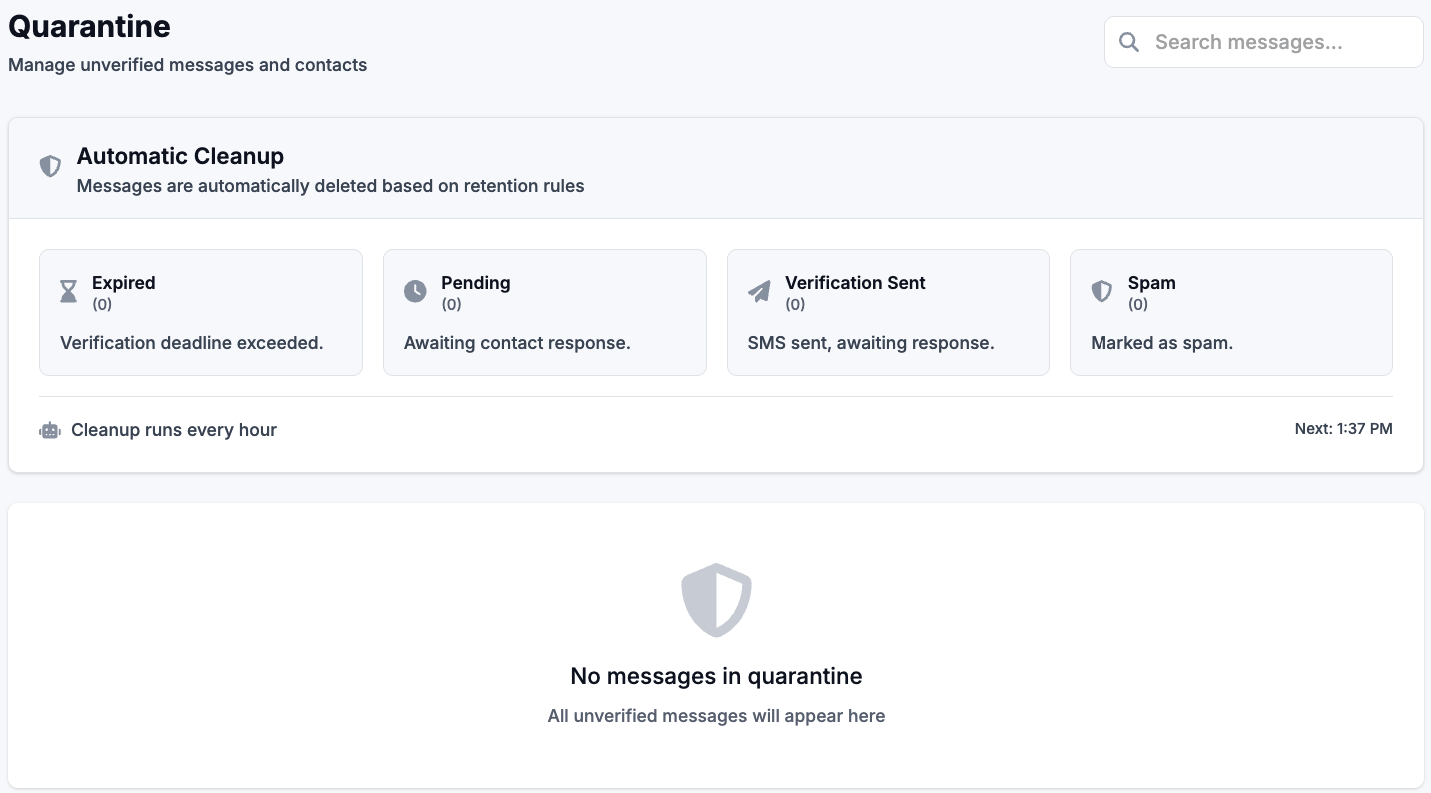
## Quarantine

<img src="/assets/contact-dashboard/image-19.png" alt="Quarantine" width="1431" height="793" loading="lazy" decoding="async">

When a contact reaches out via SMS for the first time, they will be prompted to opt-in by responding with a specific keyword, and their name. If the contact does not respond by opting in, their initial message will stay in Quarantine, pending their opt-in. The system will review each hour to find any new contacts in quarantine