---
notionId: "399f0d27c79880028a35df833883079b"
product: "business-phone"
cluster: "apps"
intent: "business-phone.web-phone"
docSlug: "web-phone"
task: "Use the web phone in Business Phone"
title: "Use the web phone in Business Phone | VirtualPBX"
meta_description: "The VirtualPBX Web Phone is a browser VoIP device that allows you to make and take phone calls through your business’s number, as well as utilize features such"
answer: "The VirtualPBX Web Phone is a browser VoIP device that allows you to make and take phone calls through your business’s number, as well as utilize features such as transferring and hold. If the Web Phone has not been created yet, please refer to our guide here on how to create it on the user level."
audience: "user"
updated: "2026-01-01"
legacy: ["webphone","web-phone-user-guide"]
headings: [{"depth":2,"text":"Browser Web Phone","id":"browser-web-phone"},{"depth":3,"text":"Accessing & Logging In","id":"accessing--logging-in"},{"depth":3,"text":"Making and Taking Calls with the Dial Pad","id":"making-and-taking-calls-with-the-dial-pad"},{"depth":3,"text":"Additional Web Phone Features","id":"additional-web-phone-features"},{"depth":2,"text":"Desktop Web Phone","id":"desktop-web-phone"},{"depth":3,"text":"Web Phone Download - Chrome","id":"web-phone-download---chrome"},{"depth":3,"text":"Web Phone Download - Edge","id":"web-phone-download---edge"}]
lint: ["meta-answer","answer-first"]
---

<aside class="note"><p>Below you will find a comprehensive guide on how to operate the Desktop version of our Softphone. For more information on how to create the devices for your users, please refer to our user guide <a href="/business-phone/create-users">here</a>. </p></aside>

## Browser Web Phone

### Accessing & Logging In

<img src="/assets/web-phone/image.png" alt="Accessing &amp; Logging In" width="881" height="101" loading="lazy" decoding="async">

<ol>
<li><p>You may access the Web Phone from the Dashboard, by clicking on the phone icon near your name at the top right</p>
</li>
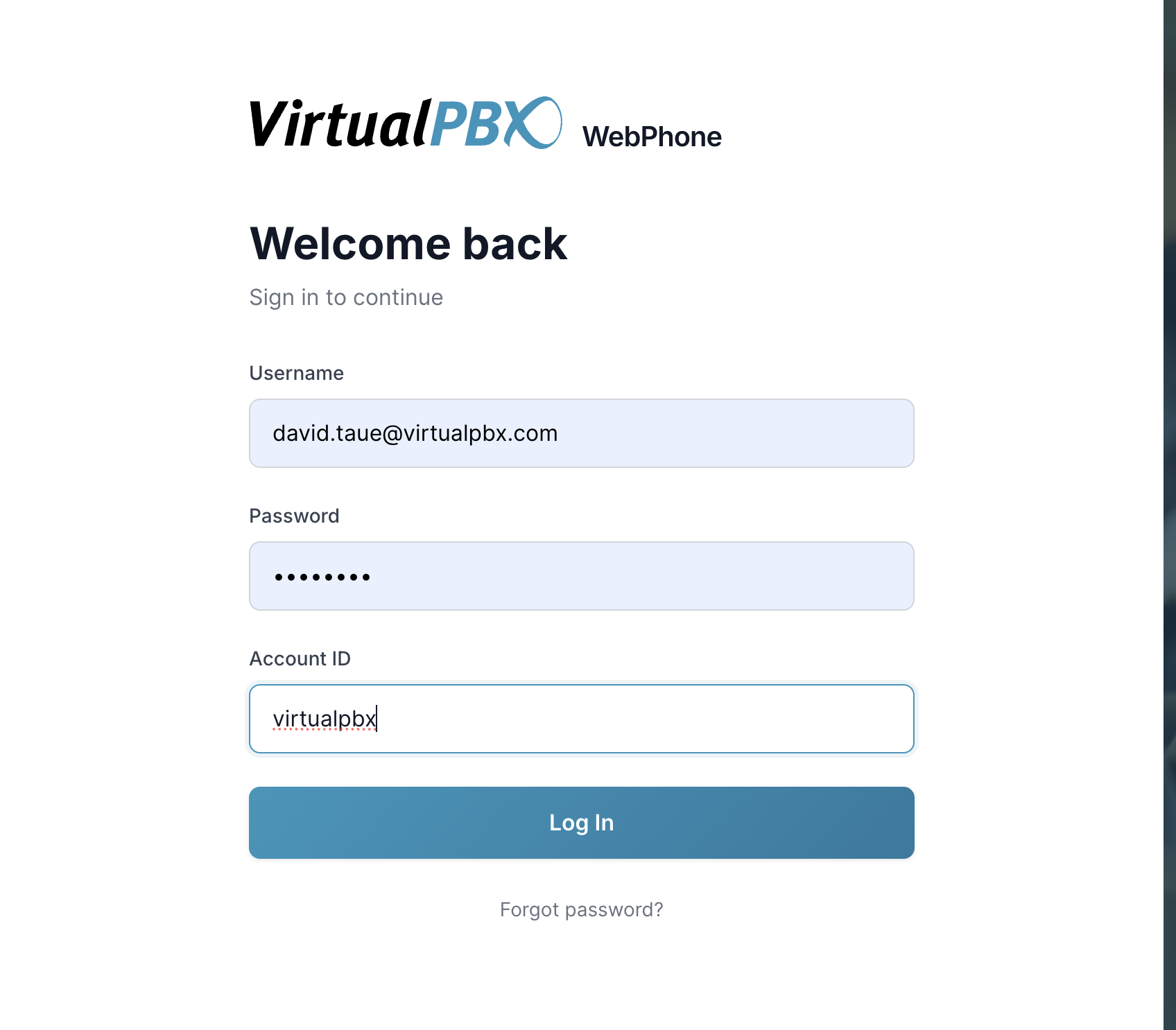
<li><p>You can also access the Web Phone by going directly to <a href="https://webphone.virtualpbx.net/?utm_source=autopilot&amp;utm_medium=email&amp;utm_campaign=VirtualText">https://webphone.virtualpbx.net</a> with a web browser (We support Chrome and Firefox). Users log in using the same credentials as their Dash user account.</p>
</li>
</ol>

Enter the same login details that you use for your VirtualPBX Dashboard. You can always use the Forgot password? option if you’re unsure of your login credentials.

As you’re signing in, be sure to allow permissions for the Camera, Microphone, and Notifications. These permissions are required for the Web Phone to function properly. If you are not prompted to enable these features, please access your browser’s “Permissions” settings to manually enable them.

<img src="/assets/web-phone/NewWeblogin.png" alt="Accessing &amp; Logging In" width="1696" height="1486" loading="lazy" decoding="async">

Once signed in, you’ll be prompted to enable Audio Notifications. 
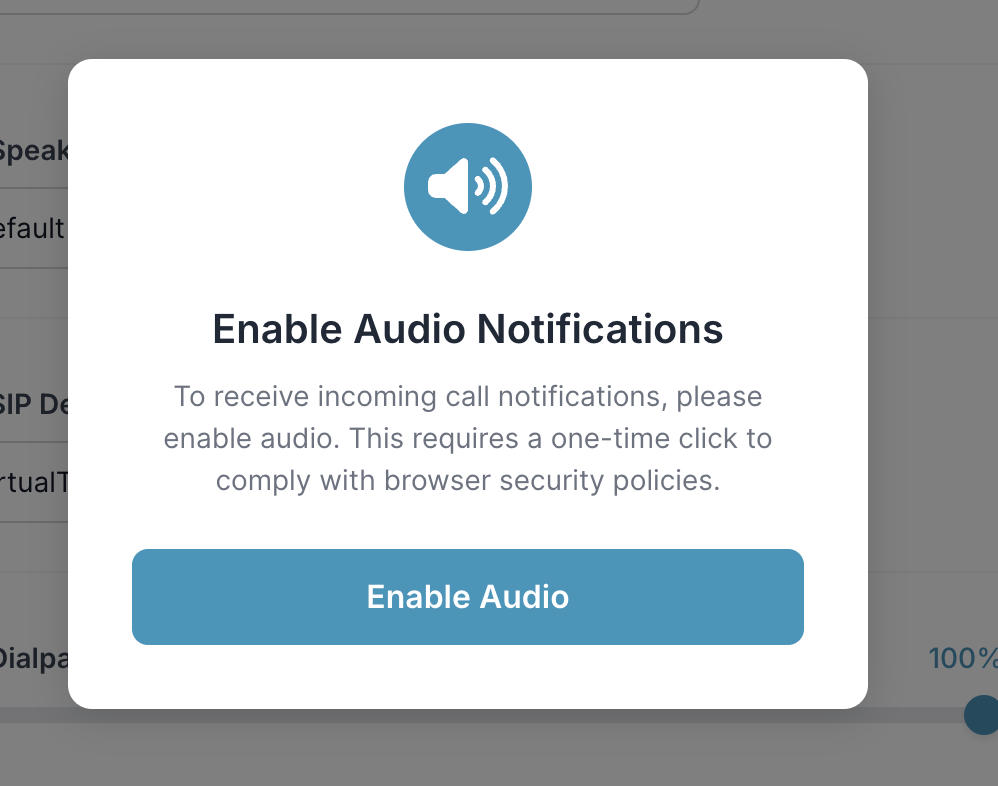
<img src="/assets/web-phone/NewWeb_Audio_2.png" alt="Accessing &amp; Logging In" width="998" height="786" loading="lazy" decoding="async">

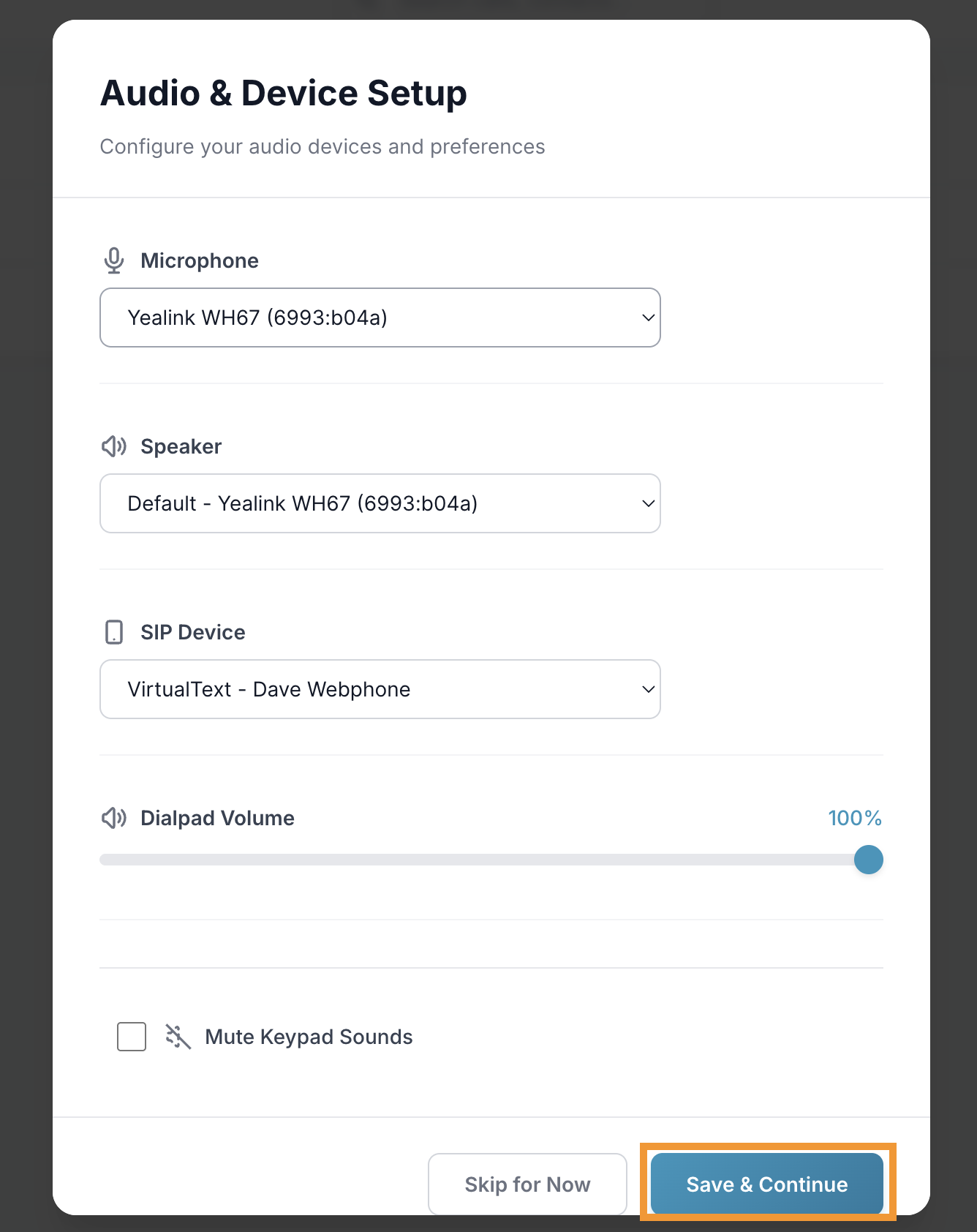
After that, you will be able to select devices for your Microphone, Speaker, and VirtualPBX Device. Select the desired devices from the drop-down menus. If you’d like, you can choose to “Mute Keyboard sounds,” which silences the keypad buttons when making a call. Select Accept, and you are ready to begin using the VirtualPBX Web Phone!
<img src="/assets/web-phone/NewWeb_Settings1A.png" alt="Accessing &amp; Logging In" width="1336" height="1684" loading="lazy" decoding="async">

### Making and Taking Calls with the Dial Pad

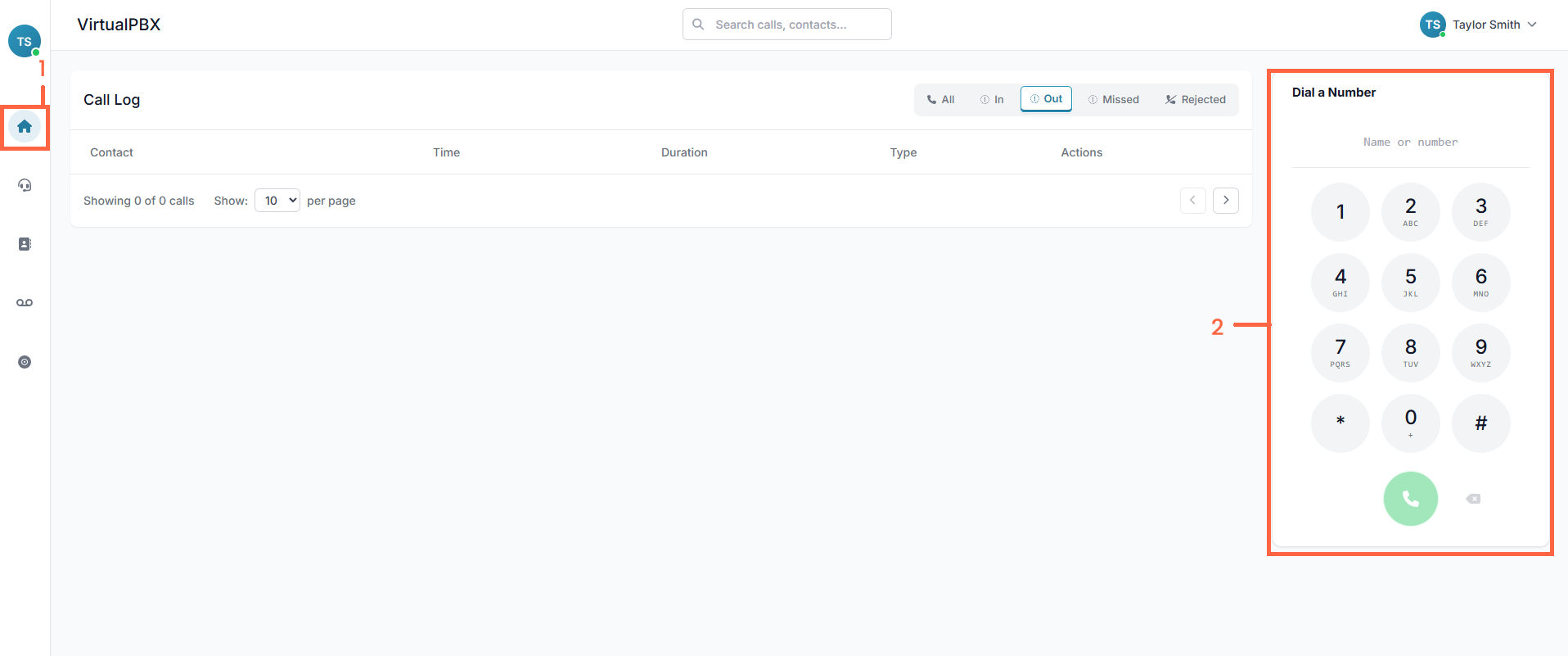
It may be easier to start on the Home Page, the house icon on the left

Then enter the phone number that you wish to call out to under Dial a Number and click on the call button.
<img src="/assets/web-phone/New_Webphone_replacement.png" alt="Making and Taking Calls with the Dial Pad" width="1916" height="801" loading="lazy" decoding="async">

<ol>
<li><p>Home button</p>
</li>
<li><p>Dial a number box - enter the phone number you wish to call</p>
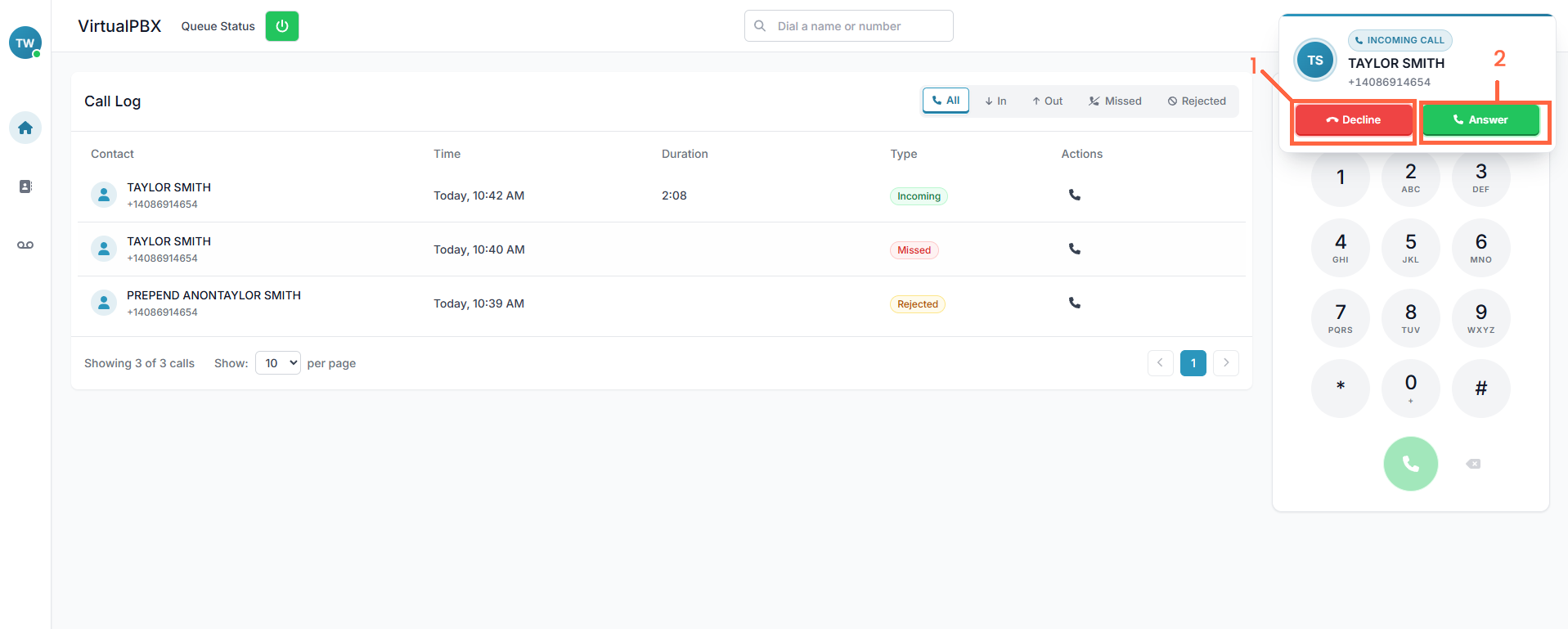
<img src="/assets/web-phone/Answer_Decline.png" alt="Making and Taking Calls with the Dial Pad" width="1917" height="769" loading="lazy" decoding="async">
<p>Inbound calls will ring through the speaker you have set and will display an option to reject (in red on the left) the incoming call, or answer it (in green on the right).</p></li>
<li><p>Decline the incoming call</p>
</li>
<li><p>Answer the incoming call</p>
<img src="/assets/web-phone/Webphone_on_a_call.png" alt="Making and Taking Calls with the Dial Pad" width="1919" height="699" loading="lazy" decoding="async">
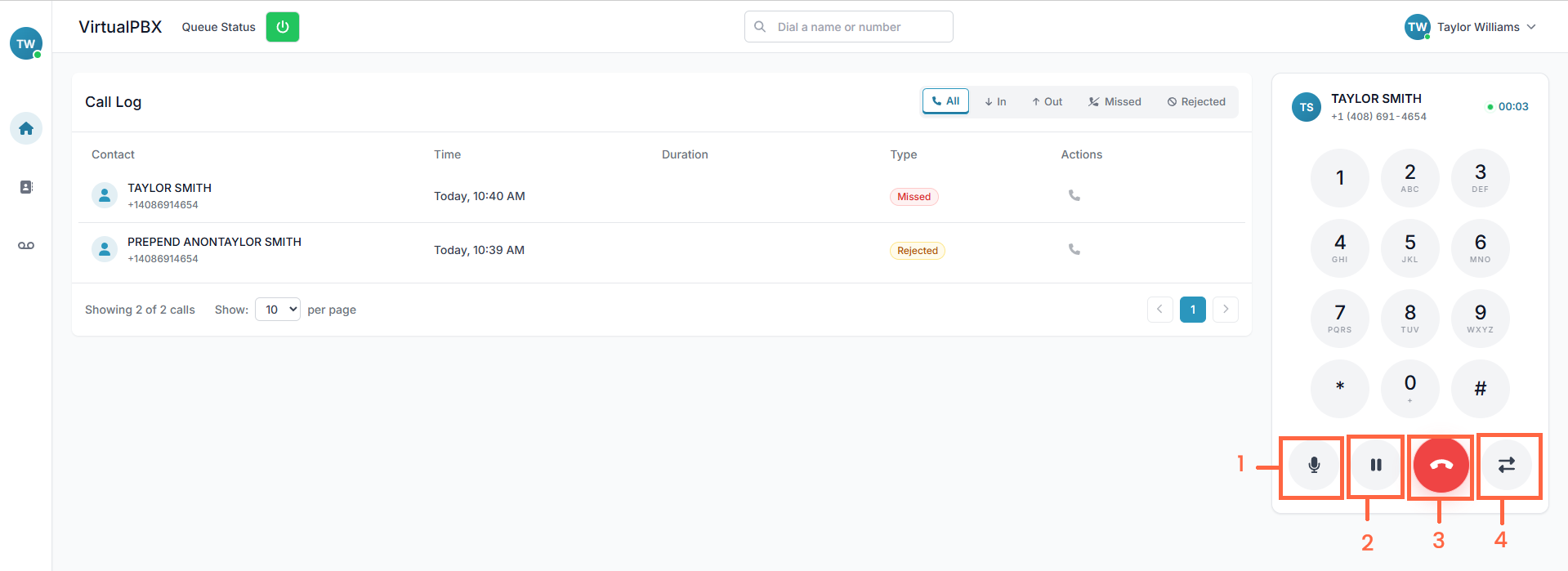
<p>Once on the call, additional options become available on the dial pad.</p></li>
<li><p>Mute - Toggle the mute button on and off to prevent others from hearing you temporarily.</p>
</li>
<li><p>Hold - Use the pause button to place the call on hold, or to retrieve the call from hold.</p>
</li>
<li><p>Disconnect - Use the red disconnect button to hang up the call.</p>
</li>
<li><p>Transfer - Send the call to another extension using the transfer button.</p>
</li>
</ol>

### Additional Web Phone Features

<img src="/assets/web-phone/New_Webphone_main_page.png" alt="Additional Web Phone Features" width="1918" height="753" loading="lazy" decoding="async">

<ol>
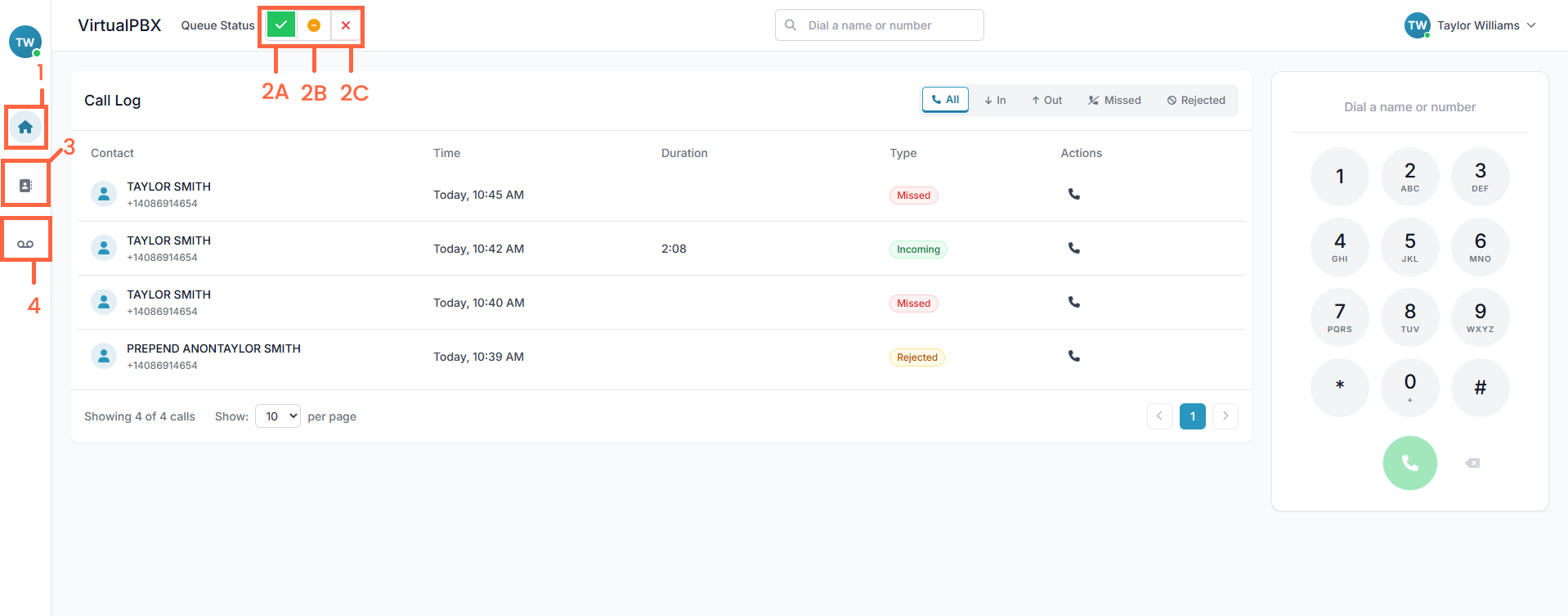
<li><p>Home - Displays all of your inbound and outbound calls from your latest session and allows you to call that person again using the black phone button. Additionally, you can search for calls by phone number.</p>
</li>
<li><p>Queue Status - For agents in our Queue feature only. Adjust your queue status at the top of the page. You can mark ready, unready, or even log in or out of the queueMark as ReadyMark as AwayLog out of Queue</p>
</li>
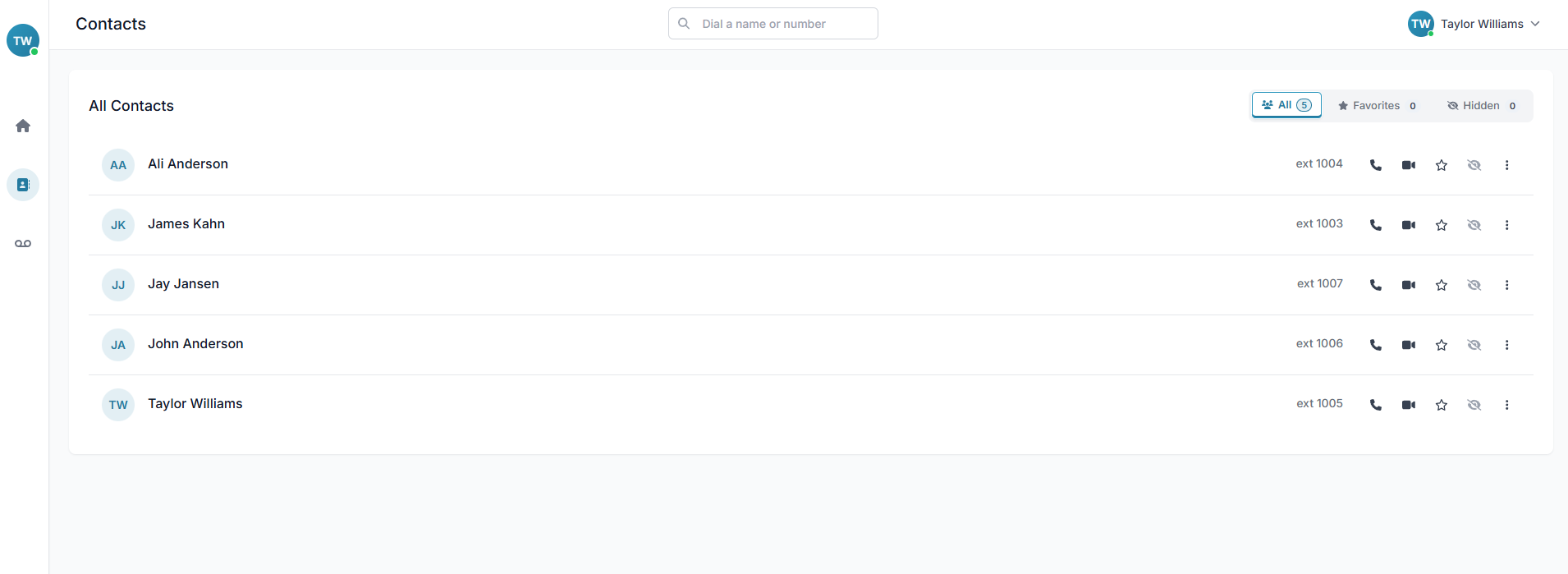
<li><p>Contacts - Allows you to view or search your list of VirtualPBX contacts and call them directly:</p>
<img src="/assets/web-phone/Contacts_Update.png" alt="Additional Web Phone Features" width="1910" height="699" loading="lazy" decoding="async"></li>
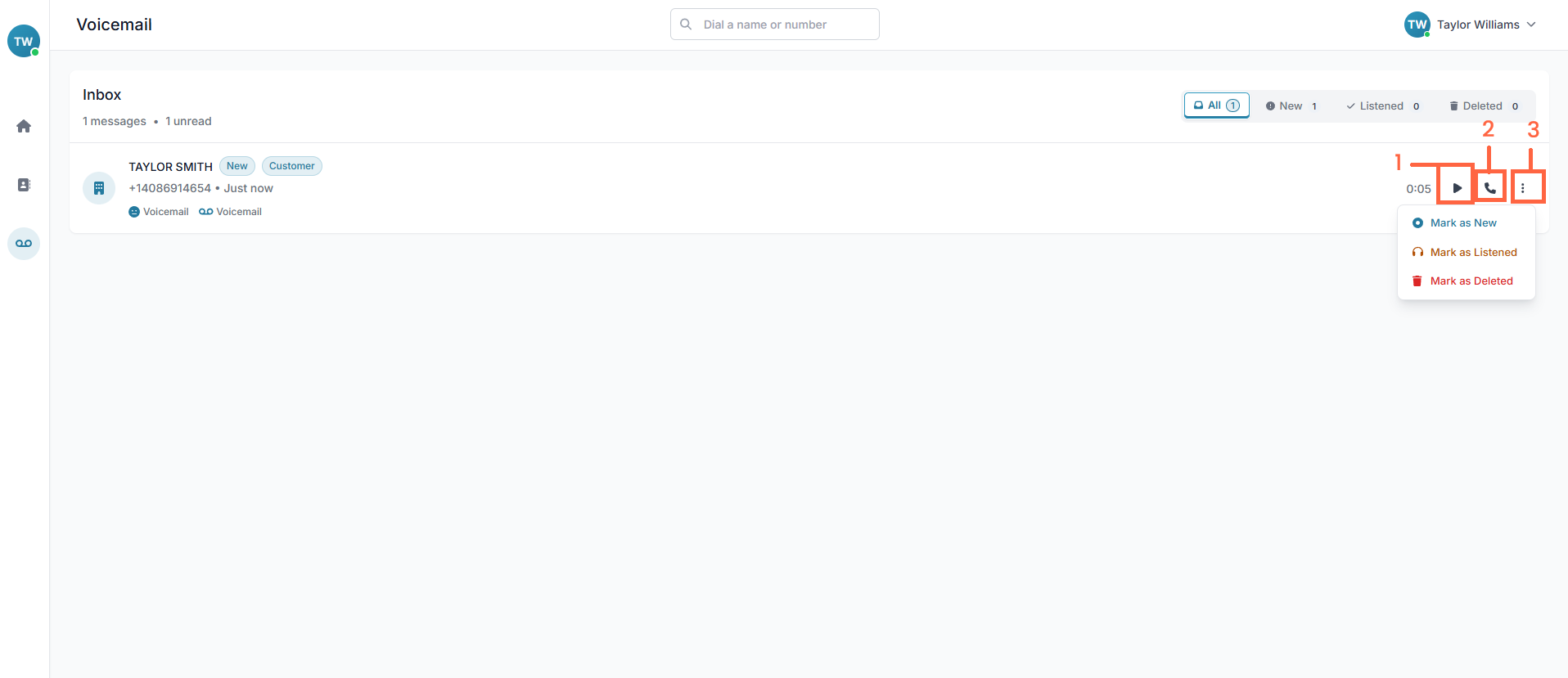
<li><p>Voicemail - Access the voicemail history and listen to voicemails for your user directly from the interface. You can listen to the message or call the other party back.</p>
<img src="/assets/web-phone/Voicemail_update.png" alt="Additional Web Phone Features" width="1916" height="829" loading="lazy" decoding="async">
<p> 1. Play the voicemail</p></li>
<li><p>Call back the person who left the voicemail</p>
</li>
<li><p>Either mark the voicemail as New (unlistened to), old (listened to), or mark it for deletion.</p>
</li>
</ol>

## Desktop Web Phone

The VirtualPBX browser Web Phone is downloadable on Microsoft Edge and Google Chrome, allowing you to take calls directly from your desktop without having to keep a browser open. All features work exactly as they do on the browser version - follow the guides below to download the WebPhone 

### Web Phone Download - Chrome

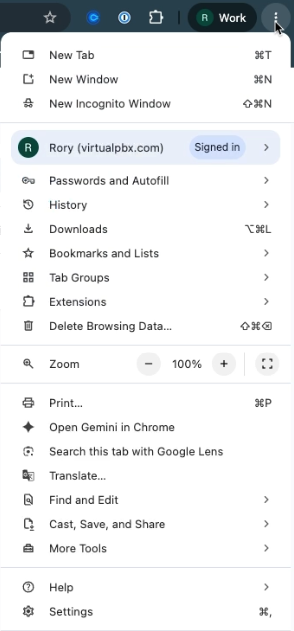
Log in to your Web Phone with your credentials on your browser. On the top of your browser page, click on the three-line menu 

<img src="/assets/web-phone/image-1.png" alt="Web Phone Download - Chrome" width="294" height="631" loading="lazy" decoding="async">

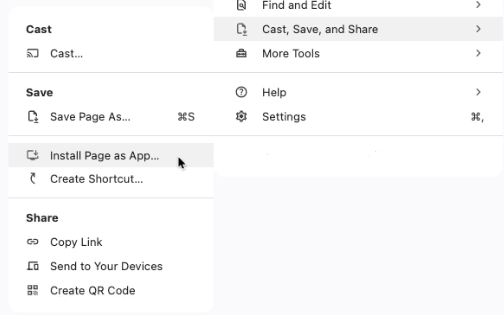
Hover over Cast, Save, and Share and choose ‘Install Page as App’ 
<img src="/assets/web-phone/image-2.png" alt="Web Phone Download - Chrome" width="504" height="315" loading="lazy" decoding="async">

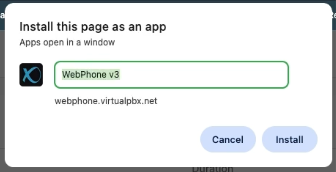
A pop up will appear to confirm your download. Click ‘Install’ 
<img src="/assets/web-phone/image-3.png" alt="Web Phone Download - Chrome" width="336" height="172" loading="lazy" decoding="async">

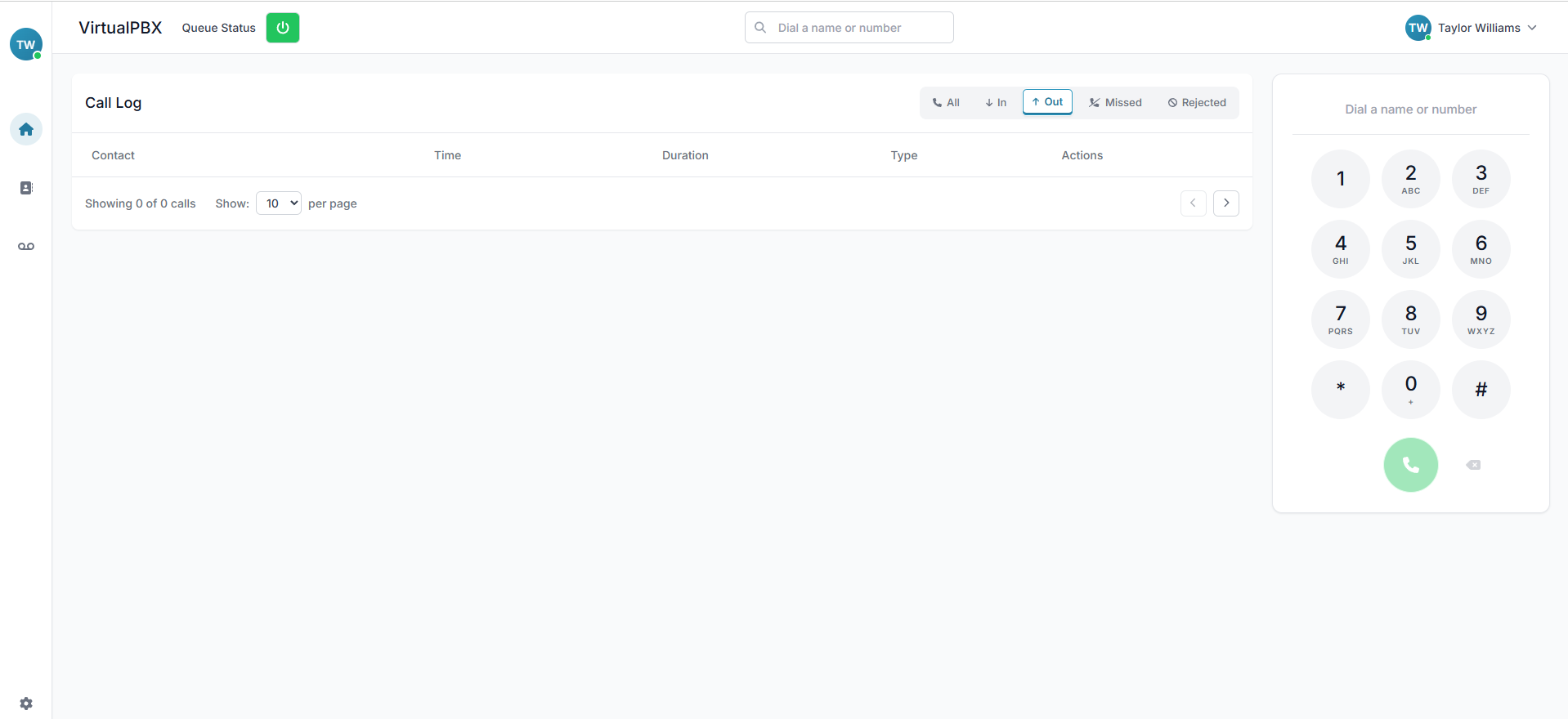
Your desktop Web Phone is now ready to use! You should also be able to add it to your respective task bar on your desktop.
<img src="/assets/web-phone/Full_softphone_page.png" alt="Web Phone Download - Chrome" width="1918" height="880" loading="lazy" decoding="async">

### Web Phone Download - Edge

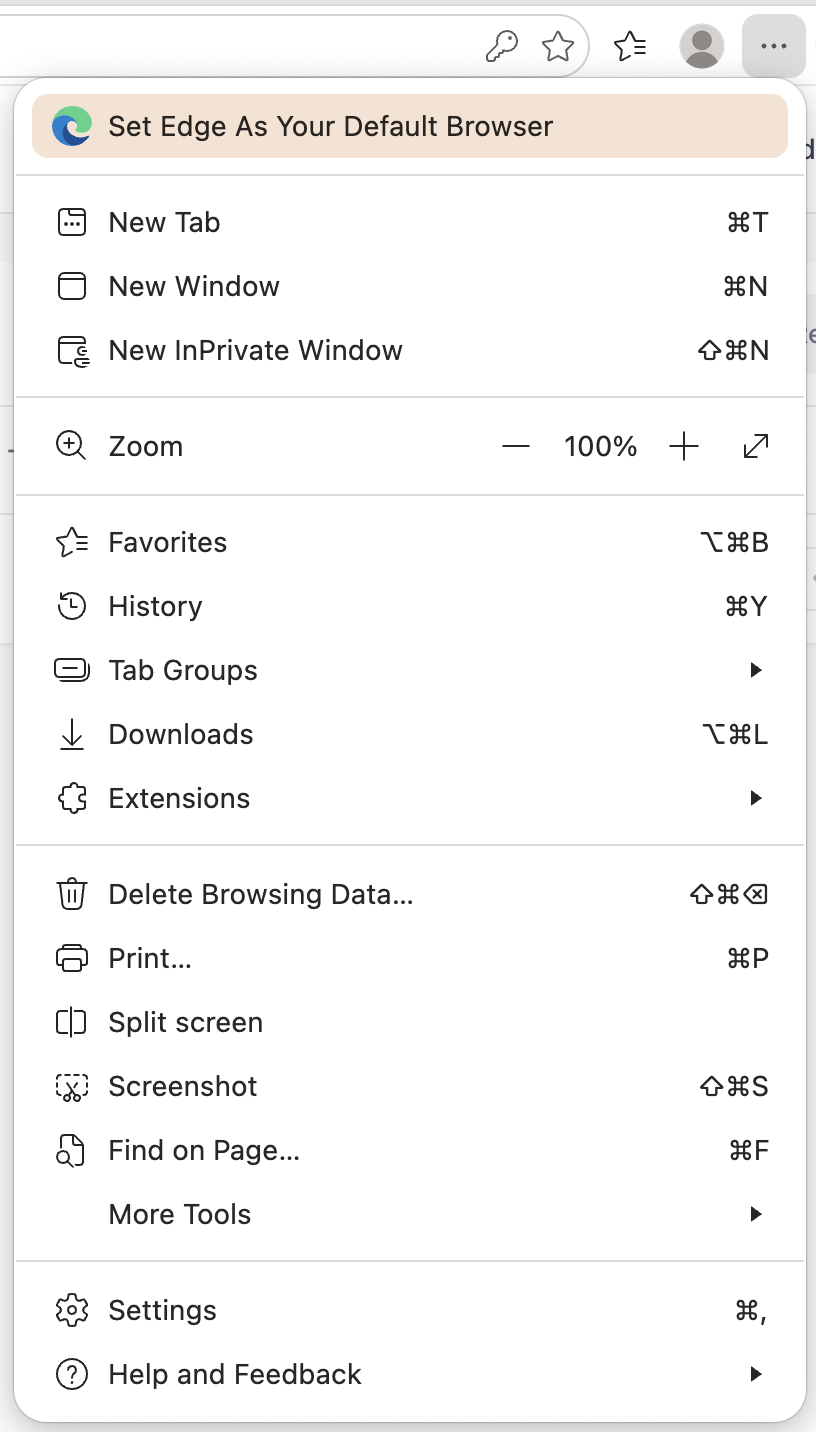
Log in to your Web Phone with your credentials on your browser. On the top of your browser page, click on the three-line menu 
<img src="/assets/web-phone/Pasted_Graphic_3.png" alt="Web Phone Download - Edge" width="816" height="1432" loading="lazy" decoding="async">

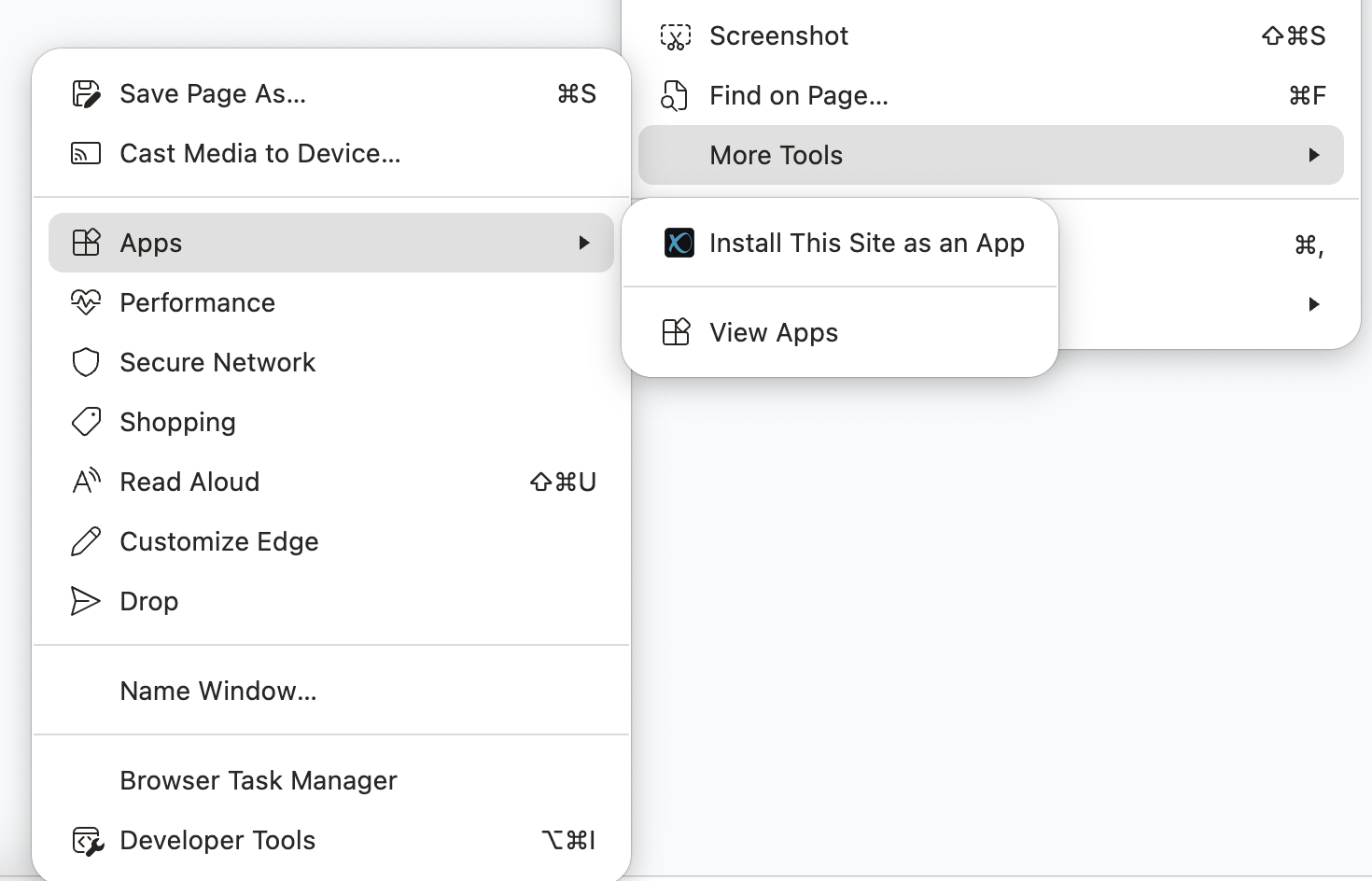
Click on ‘More Tools’, then ‘Apps’, and choose ‘Install This Site as an App’ 
<img src="/assets/web-phone/Browser_Task_Manager.png" alt="Web Phone Download - Edge" width="1470" height="944" loading="lazy" decoding="async">

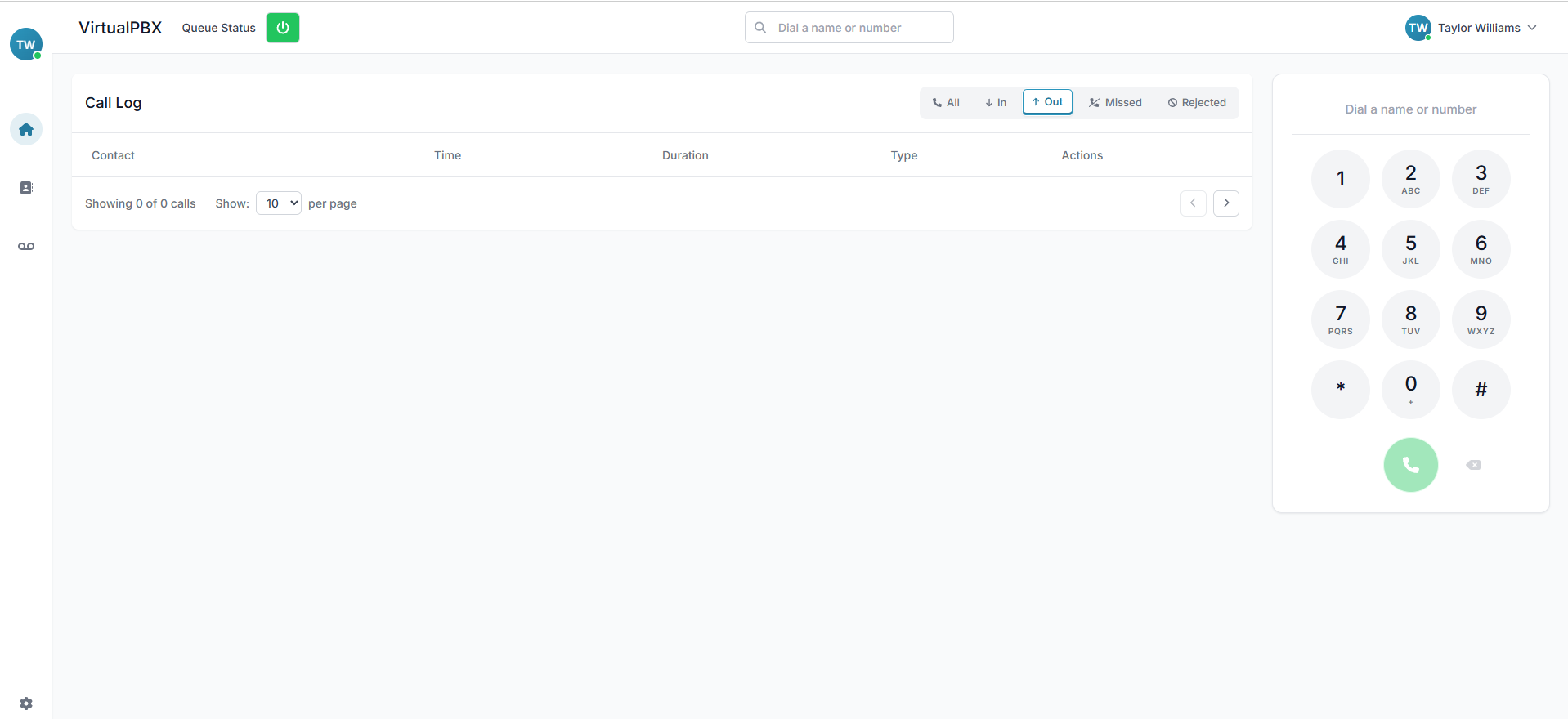
Your desktop Web Phone is now ready to use! 
<img src="/assets/web-phone/Full_softphone_page-1.png" alt="Web Phone Download - Edge" width="1918" height="880" loading="lazy" decoding="async">