---
notionId: "1eaf0d27c79880ffa51be2934c0d3cb5"
product: "business-phone"
cluster: "users-and-access"
intent: "business-phone.reset-dashboard-password"
docSlug: "reset-dashboard-password"
task: "Reset a dashboard password in Business Phone"
title: "Reset a dashboard password in Business Phone | VirtualPBX"
meta_description: "If you’ve forgotten your password to dash.virtualpbx.com - You can set up a new one by following these steps"
answer: "If you’ve forgotten your password to dash.virtualpbx.com - You can set up a new one by following these steps"
audience: "user"
updated: "2026-01-01"
legacy: ["resetting-updating-your-dashboard-password"]
headings: []
lint: ["meta-answer","answer-first","headings"]
---

The Dashboard portal now shares the same credentials as the VirtualPBX Web Phone and the VirtualPBX Softphone. Resetting here will update credentials for those devices as well.

<img src="/assets/reset-dashboard-password/image.png" alt="Reset a dashboard password in Business Phone" width="684" height="631" loading="lazy" decoding="async">

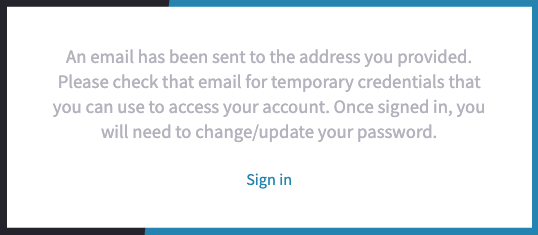
Click on the Forgot Your Info? link just above the Sign in Bar to the bottom right
<img src="/assets/reset-dashboard-password/image-1.png" alt="Reset a dashboard password in Business Phone" width="526" height="628" loading="lazy" decoding="async">

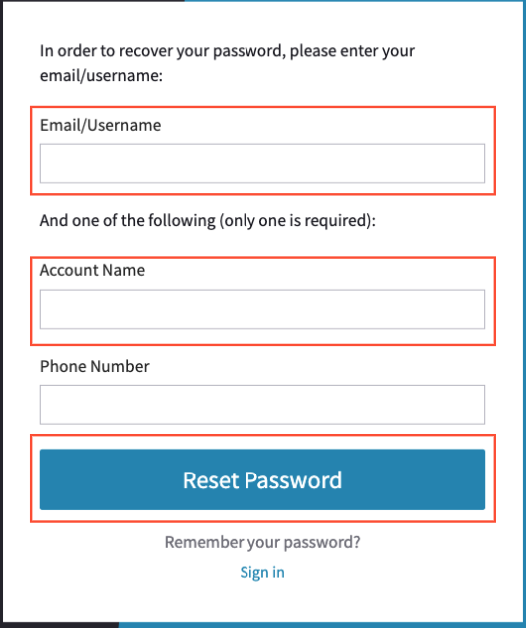
Note that you do not need your phone number for this step.

<ol>
<li><p>Enter your username. This will be your email address assigned to your user</p>
</li>
<li><p>Enter your Account name. The name of the account you have on file with VirtualPBX, typically the name of your company. </p>
</li>
<li><p>Click on Reset Password</p>
<img src="/assets/reset-dashboard-password/image-2.png" alt="Reset a dashboard password in Business Phone" width="538" height="235" loading="lazy" decoding="async">
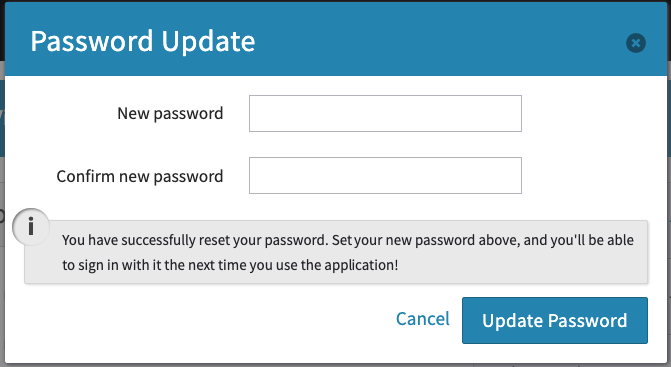
<p>You will receive an email to the email you put for the username, with a link to reset your password.</p>
<img src="/assets/reset-dashboard-password/image-3.png" alt="Reset a dashboard password in Business Phone" width="671" height="367" loading="lazy" decoding="async">
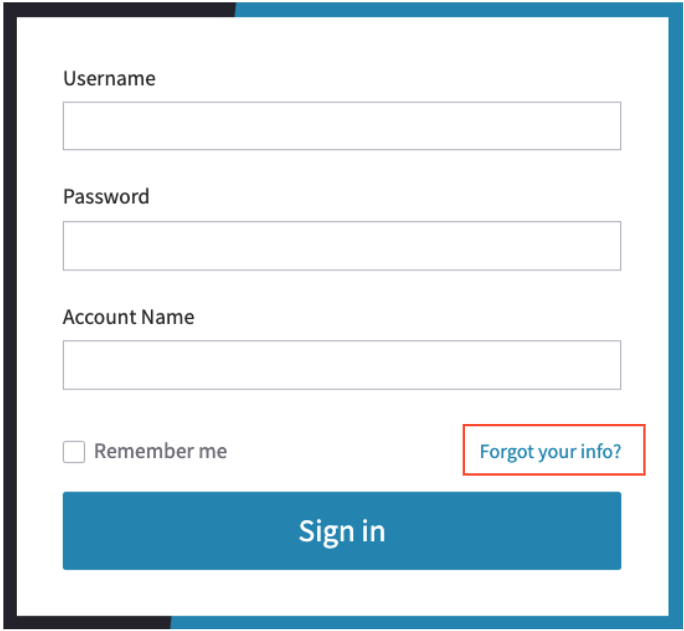
<p> Once you click it, you should be placed here</p></li>
<li><p>Enter your new password</p>
</li>
<li><p>Re-enter your new password</p>
</li>
<li><p>Click on Update Password</p>
</li>
</ol>

Please note that after changing your password, your login credentials for your current session will no longer be recognized and you should receive an error shortly after completing this step. You may log out, and then back in with your updated password to resolve this.