---
notionId: "3e5f0d27c798808babfcc011d7092ab2"
product: "business-phone"
cluster: "call-handling"
intent: "business-phone.audio-conferencing"
docSlug: "audio-conferencing"
task: "Set up audio conferencing in Business Phone"
title: "Set up audio conferencing in Business Phone | VirtualPBX"
meta_description: "By adding a phone number designated for conferencing, you can create individual conference rooms for each of your users. The conference room can be used by"
answer: "By adding a phone number designated for conferencing, you can create individual conference rooms for each of your users. The conference room can be used by your users, as well as outside clients with you!"
audience: "admin"
updated: "2026-09-23"
legacy: ["audio-conferencing"]
headings: [{"depth":2,"text":"Main Conference Number","id":"main-conference-number"},{"depth":2,"text":"Setting Up User Conference Rooms","id":"setting-up-user-conference-rooms"},{"depth":2,"text":"How to Conference","id":"how-to-conference"},{"depth":2,"text":"Managing a Conference through the User Portal","id":"managing-a-conference-through-the-user-portal"}]
lint: ["meta-answer","answer-first"]
---

## Main Conference Number

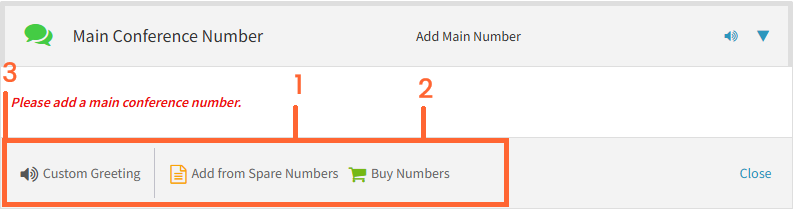
Before your users are able to utilize conferencing, you will need to create a main conference number. 

Start by clicking on Dashboard > Main Conference Number

<img src="/assets/audio-conferencing/Conference_Setup.png" alt="Main Conference Number" width="802" height="212" loading="lazy" decoding="async">

<ol>
<li><p>Here you can select a spare number on your account to be setup as the main conferencing number - Alternatively:</p>
</li>
<li><p>Purchase a brand new number to be used for the Conferencing Line - please reach out to our Support Team if you have any pricing questions on adding a new number </p>
</li>
<li><p>Here is where you can set a custom greeting for your Main Conference Number</p>
</li>
</ol>

## Setting Up User Conference Rooms

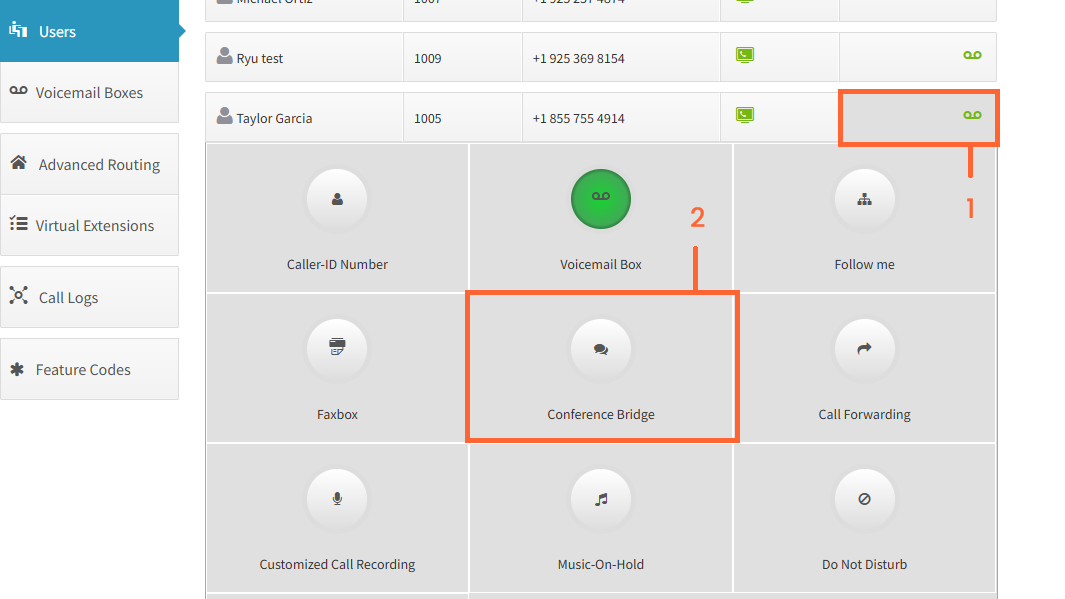
After setting up the Main Conference Number, you will need to set up Conference Bridges for each of your users who will be using the conference line.

Navigate to Dashboard > Users

<img src="/assets/audio-conferencing/User_conferencing.png" alt="Setting Up User Conference Rooms" width="1065" height="599" loading="lazy" decoding="async">

<ol>
<li><p>On the user you are trying to setup, click on the user features on the right column</p>
</li>
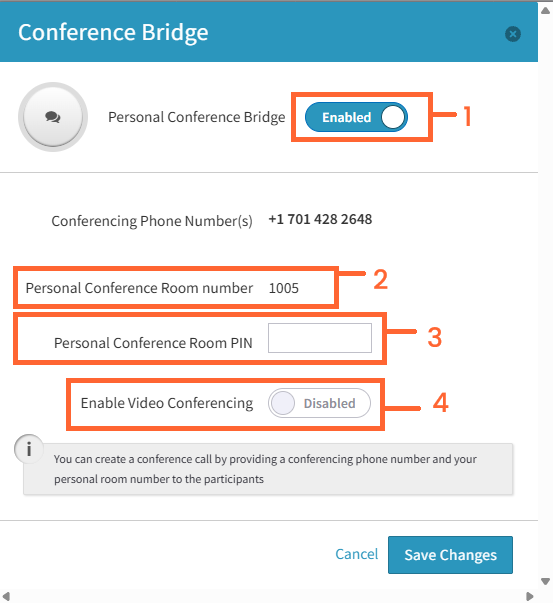
<li><p>Click on the “Conference Bridge” to configure the feature</p>
<img src="/assets/audio-conferencing/User_Conference_Bridge.png" alt="Setting Up User Conference Rooms" width="553" height="603" loading="lazy" decoding="async"></li>
<li><p>Enable the Feature here to reveal the remainder of the options</p>
</li>
<li><p>This is the personal conference room of the user - customers calling into the main conference line will need to know this room number to enter a conference with your user</p>
</li>
<li><p>A PIN will need to be setup as well, and provided to the customer</p>
</li>
<li><p>You can also enable Video conferences from this interface if needed</p>
</li>
</ol>

## How to Conference

<ol>
<li><p>Provide your customer the main conference number &amp; the conference room number &amp; PIN.</p>
</li>
<li><p>Customer will dial into the main conference room number, enter the room number, and then the PIN</p>
</li>
<li><p>Customer will be entered into the conference, and will be on hold until another individual joins</p>
</li>
<li><p>Your agent will dial the main conference number, and enter their room number to enter the conference - if they are dialing from a registered device on their user, they should not need to enter a PIN.</p>
</li>
</ol>

## Managing a Conference through the User Portal

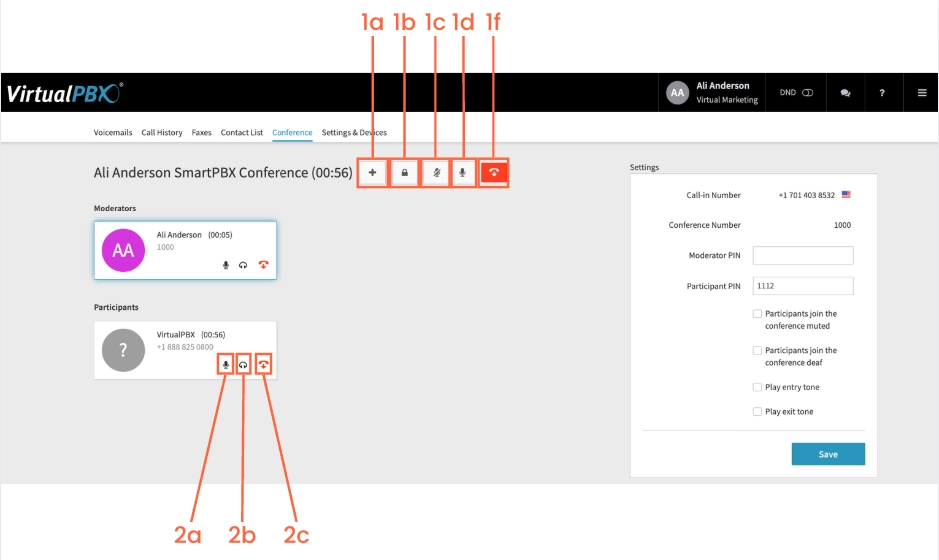
Log in to the dashboard at [dash.virtualpbx.com](http://dash.virtualpbx.com) - if you are an admin you will need to hover over the three-line menu and click on User Portal. If you are a user, you will already be on this page. Click on the Conference tab 

<img src="/assets/audio-conferencing/image.png" alt="Managing a Conference through the User Portal" width="939" height="560" loading="lazy" decoding="async">

<ol>
<li><p>While in a conference you have these optionsInvite other dash users to the conference b. Lock a conference - This will stop any further participants from joining. c. Mute everyone d. Unmute everyone e. End the conference</p>
</li>
<li><p>You also have options for individual participantsMute / unmute a specific personDeafen / turn off the ‘deaf’ feature on a specific personKick a person out of the conference</p>
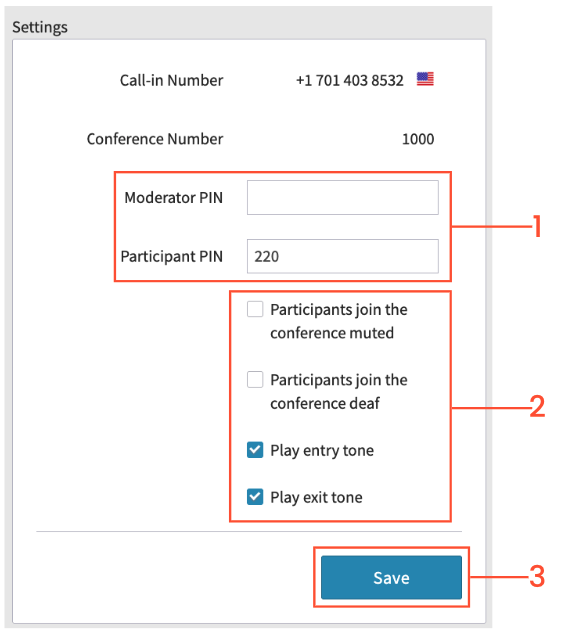
<p>On the right side of the Conference tab you will see your settings</p>
<img src="/assets/audio-conferencing/image-1.png" alt="Managing a Conference through the User Portal" width="576" height="632" loading="lazy" decoding="async"></li>
<li><p>Here you can update both your moderator (yours) and participant PINs - Besides the conference number, this will be required for them to join the conference</p>
</li>
<li><p>You have the option to have participants join muted or deafened as well to play entry and exit tones</p>
</li>
<li><p>Click on Save Changes</p>
</li>
</ol>