---
notionId: "1eaf0d27c7988055ba5ce1197bcb3aa9"
product: "business-phone"
cluster: "advanced"
intent: "business-phone.advanced-reporting"
docSlug: "advanced-reporting"
task: "Run advanced reports in Business Phone"
title: "Run advanced reports in Business Phone | VirtualPBX"
meta_description: "Summary of the time an agent has spent on the various away states. Currently the report will show manual_away or a blank entry."
answer: "Summary of the time an agent has spent on the various away states. Currently the report will show manual_away or a blank entry."
audience: "admin"
updated: "2025-05-05"
legacy: ["advanced-reporting"]
headings: [{"depth":2,"text":"Agent Reports","id":"agent-reports"},{"depth":2,"text":"Queue Reports","id":"queue-reports"},{"depth":3,"text":"Agent Away Reason Summary","id":"agent-away-reason-summary"},{"depth":3,"text":"Agents Status Detail","id":"agents-status-detail"},{"depth":3,"text":"Agent Status Summary","id":"agent-status-summary"},{"depth":3,"text":"Agent Summary","id":"agent-summary"},{"depth":3,"text":"Calls Completed By Agent","id":"calls-completed-by-agent"},{"depth":3,"text":"Call List (Queue Calls)","id":"call-list-queue-calls"},{"depth":3,"text":"Calls by Queue","id":"calls-by-queue"},{"depth":3,"text":"Queue Calls by Day","id":"queue-calls-by-day"},{"depth":3,"text":"Queue Calls by Day & Time","id":"queue-calls-by-day--time"},{"depth":3,"text":"Queue Calls by Time","id":"queue-calls-by-time"},{"depth":3,"text":"Queue Performance","id":"queue-performance"},{"depth":2,"text":"Performance Reports","id":"performance-reports"},{"depth":3,"text":"Abandoned Calls by Days","id":"abandoned-calls-by-days"},{"depth":3,"text":"Abandoned Calls by Day & Time","id":"abandoned-calls-by-day--time"},{"depth":3,"text":"Abandoned Calls by Time","id":"abandoned-calls-by-time"},{"depth":3,"text":"Service Level by Day","id":"service-level-by-day"},{"depth":3,"text":"Service Level by Time","id":"service-level-by-time"},{"depth":2,"text":"User and Device Reports","id":"user-and-device-reports"},{"depth":3,"text":"Calls by Device","id":"calls-by-device"},{"depth":3,"text":"Calls by User","id":"calls-by-user"},{"depth":3,"text":"Calls by User Group","id":"calls-by-user-group"},{"depth":3,"text":"Calls Completed by User","id":"calls-completed-by-user"},{"depth":2,"text":"Time-Based Reports","id":"time-based-reports"},{"depth":3,"text":"Calls by Day","id":"calls-by-day"},{"depth":3,"text":"Calls by Day & Time","id":"calls-by-day--time"},{"depth":3,"text":"Calls by Day of Week","id":"calls-by-day-of-week"},{"depth":3,"text":"Calls by the Day of the Week & Time","id":"calls-by-the-day-of-the-week--time"},{"depth":3,"text":"Calls by Duration","id":"calls-by-duration"},{"depth":3,"text":"Calls by Hold Time","id":"calls-by-hold-time"},{"depth":3,"text":"Calls by Month","id":"calls-by-month"},{"depth":3,"text":"Calls by Ring Time","id":"calls-by-ring-time"},{"depth":3,"text":"Calls by Talk Time","id":"calls-by-talk-time"},{"depth":3,"text":"Calls by Time","id":"calls-by-time"},{"depth":3,"text":"Calls by Week","id":"calls-by-week"},{"depth":3,"text":"Trunk Usage","id":"trunk-usage"},{"depth":2,"text":"Caller ID and DID Reports","id":"caller-id-and-did-reports"},{"depth":3,"text":"Calls by Area Code","id":"calls-by-area-code"},{"depth":3,"text":"Calls by Country","id":"calls-by-country"},{"depth":3,"text":"Calls by DID","id":"calls-by-did"},{"depth":3,"text":"Calls by Location","id":"calls-by-location"},{"depth":3,"text":"Calls by Number","id":"calls-by-number"},{"depth":3,"text":"Calls by Number Type","id":"calls-by-number-type"},{"depth":3,"text":"Calls by Service Number","id":"calls-by-service-number"},{"depth":3,"text":"Calls by State - Province","id":"calls-by-state---province"},{"depth":3,"text":"Calls by Caller ID Name","id":"calls-by-caller-id-name"},{"depth":3,"text":"Calls by Caller ID Number","id":"calls-by-caller-id-number"},{"depth":3,"text":"Top Dialed numbers","id":"top-dialed-numbers"},{"depth":3,"text":"Top Received Numbers","id":"top-received-numbers"},{"depth":2,"text":"Call List reports","id":"call-list-reports"},{"depth":3,"text":"Call List (Abandoned Calls)","id":"call-list-abandoned-calls"},{"depth":3,"text":"Call List (Internal)","id":"call-list-internal"},{"depth":3,"text":"Call List (Non-Segmented)","id":"call-list-non-segmented"},{"depth":3,"text":"Call List (Recorded Calls)","id":"call-list-recorded-calls"},{"depth":3,"text":"Call List (Segmented)","id":"call-list-segmented"},{"depth":3,"text":"Call List (Trunk to Trunk)","id":"call-list-trunk-to-trunk"},{"depth":3,"text":"Call List (Unreturned Abandoned Calls - no filter)","id":"call-list-unreturned-abandoned-calls---no-filter"},{"depth":3,"text":"Call List (Unreturned Abandoned Calls)","id":"call-list-unreturned-abandoned-calls"},{"depth":2,"text":"Route Path Reports","id":"route-path-reports"},{"depth":3,"text":"Incoming Calls by Route Path Name","id":"incoming-calls-by-route-path-name"},{"depth":3,"text":"Incoming Calls by Route Path Number","id":"incoming-calls-by-route-path-number"},{"depth":2,"text":"Call Tag Reports","id":"call-tag-reports"},{"depth":3,"text":"Call Tag Summary","id":"call-tag-summary"},{"depth":2,"text":"Overall Filter","id":"overall-filter"},{"depth":3,"text":"Schedules","id":"schedules"},{"depth":3,"text":"Favorites","id":"favorites"},{"depth":3,"text":"Recent","id":"recent"},{"depth":3,"text":"Settings","id":"settings"},{"depth":3,"text":"Portal","id":"portal"},{"depth":2,"text":"Call Tags","id":"call-tags"}]
lint: ["meta-answer","answer-first"]
---

<aside class="note"><p>Advanced reporting lets you expand your ability to research your calls, call traffic, agent distribution, and much more. If your service plan supports it, you can explore all kinds of options to see how your phone system is helping you grow your business, and even find areas in which you may consider improving to make your business better!</p></aside>

## Agent Reports

## Queue Reports

### Agent Away Reason Summary

The blue manual\_away is a clickable link that allows you to see the agent/s that used this status in greater detail.

### Agents Status Detail

Allows you to see when team members have transitioned from one state to another – such as from active to away. This is particularly helpful when keeping tabs on a remote workforce that could be stationed across the country.

Agent statuses:

Non-ACD Call = external call, direct extension, outbound calls, etc

Ready - ready to take a queue call

Busy - on an inbound queue call

Wrap-up - on wrap-up time after a queue call

Logged on - logged into the queue

### Agent Status Summary

You can see even more detail about any agent’s status, including how long they have been logged in and how long they have been active and taking calls. This also works well for teams that are distributed and working from both homes and offices. It also helps managers get a weekly or monthly overview of the actions their agents have taken during their shifts.

The blue agent number is a link to allow you to see greater details.

Total Busy ACD time - on queue calls

Total Busy non-ACD time - on external calls (ie direct extension or outbound calls)

### Agent Summary

Provides a breakdown of how long agents spend on each status

This is a wide report so this is broken up into 2 parts to show the entire report

The blue agent number is a link to allow you to see greater details.

Total Busy ACD time - On queue calls

Total Busy non-ACD time - On external calls (ie direct extension or outbound calls)

Clicking on the blue agent number takes you to a Call List (Segmented) report for that user.

Clicking on the blue date/time will take you to the specific call

### Calls Completed By Agent

This is a summary of how many calls an agent has completed on an inbound or outbound call.

Clicking on the blue date/time will take you to the specific call

### Call List (Queue Calls)

A list of individual call segments by each queue

Clicking on the start time will take you to the specific call

### Calls by Queue

How many calls came to a specific queue. Queues can be added by name or the queue's extension number in the reports filter.

### Queue Calls by Day

This is to show how many calls came into a Queue. Queues can be added by name or the queue's extension number in the reports filter.

Clicking on the Start Time will take you to the Call List (Segmented) for the day

### Queue Calls by Day & Time

This lets you know on what date a call entered the queue and at what time. Fields can be added to give you more information. For instance, you can add a field like was it an inbound if it was abandoned or not etc.

Clicking on the start time will take you to the Call List (Queue Calls) for that day

### Queue Calls by Time

This report will give you hourly block information. Fields can be added to give you more information. For instance, you can add a field like was it was inbound if it was abandoned or not, etc.

Clicking on the Start time will take you to the Call List (Segmented) for that day

### Queue Performance

This can be set up for a specific queue to show information like (Queue Number, Queue Name, Incoming Calls, Sorted Ascending, Incoming Answered,% Incoming Answered)

Clicking on the queue number will take you to the Call List for the queue

## Performance Reports

### Abandoned Calls by Days

This will show the incoming calls and how many were abandoned each day. It can also other elements can be added such as the percentage abandoned, along with the SL ranking.

Service Level or SL

This is mostly used if a customer is using ranking. Each SL can be adjusted for a certain duration. There are certain levels that can be set. This can have some overlap between the levels of a call. This can be accessed by going to Settings> Workspace. Then, if you want to edit the workspace, select reporting and expand “ring duration threshold”.

### Abandoned Calls by Day & Time

This provides data by the half hour on the abandoned calls. An abandoned call is someone who calls into your system and ends up hanging up before the call is answered. Keep in mind that this can be a robocall that can’t enter anything if the call is going to your Virtual Receptionist.

### Abandoned Calls by Time

This will give you data every half hour when there is a call into your system. Like most other reports, you have options on exact metrics you would like to see.

### Service Level by Day

As the name states, this report is where you can see the service level or ‘SL’ for each day. You will also have the option to choose the range of the report.

Clicking on the start time will take you to the Call List (Segmented) for that day

### Service Level by Time

This is a view of the Service Level by Time, which is set for a set for a week in this example.

Clicking on the start time will take you to the Call List (Non-Segmented) for that day

## User and Device Reports

### Calls by Device

Call information grouped by device

Click on the device number to view the Call List (Segmented) for this device

### Calls by User

Summary of calls handled by each user

Click the User number to view the Call List (Segmented) for the user.

### Calls by User Group

Summary of the number of the calls handled by user group

Clicking on the group name will take you to a Call List (Segmented) for the group

### Calls Completed by User

Summary of the numbers of calls completed by the user

Click on the user number to view a Call List (Segmented) for the users calls

## Time-Based Reports

### Calls by Day

Calls grouped by day, list each day with the date

Click on the start time to view the calls-by-time list for the specific day.

### Calls by Day & Time

Calls grouped by day and time, broken out by the half hour.

Click on start time to view the Call List (Non-Segmented) for that day

### Calls by Day of Week

Call data grouped by the day of the week. List only the days of the week, no dates

Click on the start time to view the calls by time for the specific day

### Calls by the Day of the Week & Time

Call data grouped by day of the week and time. Lists only the weekday name and time, no dates.

Click on the start time to view the Call List (Non-Segmented) for that day

### Calls by Duration

Summary of the number of calls by duration of the call

Click on the Call duration to view a Call List (Non-Segmented) for the involved calls

### Calls by Hold Time

Summary of the number of calls by the hold time of the call. The hold time is based on when the user places the caller on hold via their phone.

Click on the hold time to view a Call List (Non-Segmented) for the calls with that hold duration

### Calls by Month

Call data grouped by month

Clicking on a month will get you to calls by week. Then calls by day.

### Calls by Ring Time

Summary of the number of calls based by the ring time of the call

Click on the ring time to view a Call List (Non-Segmented) for the calls at the selected ring time

### Calls by Talk Time

Summary of the number of calls based on the talk time of the call

Click on the talk time to view a Call List (Non-Segmented) for the calls of the selected talk time

### Calls by Time

Displays statistics about the number of calls handled every half hour

### Calls by Week

Call data grouped by week

Click on the start time to view the Calls by Day reports for the given week.

### Trunk Usage

Trunk activity broken down the half hour. Trunk Peak usage is the number of simultaneous channels.

Clicking on the start time will take you to the Call List (Non-Segmented) for that day

## Caller ID and DID Reports

### Calls by Area Code

Summary of the number of calls by area code

Click on the area code to view the Calls by Location reports - which then allows you to view the Call List (Non-Segmented) for the area code in question

### Calls by Country

A summary of the number of calls by country

Click on the country to view the Calls by Area code. Then click on the area code to view the calls by location. Click on the location to then view the Call List (Non-Segmented) for the specific calls

### Calls by DID

Call information grouped by the DID

Click on the DID to view the Call List (Non-Segmented) for the calls coming in on that phone number.

### Calls by Location

Summary of the number of calls by location

Click on the location to view the Call List (Non-Segmented) for the location

### Calls by Number

Call information grouped by the telephone number

Click on the Outside number to view the Call List (Non-Segmented) for the phone number

### Calls by Number Type

Summary of the number of external calls by the type (local, national or international) of the call

Click on the number type to view the Call List (Non-Segmented) for the the type of number. This will show the outside numbers involved.

### Calls by Service Number

Summary of the received calls by DID or made using the same presentation number

Click on the DID Presentation number to view the Call List (Non-Segmented for the calls that came in on that phone number

### Calls by State - Province

Summary of the number of calls by state or province (NANPA AKA North America Numbering Plan Administrator region only)

Click on the state to view the Calls by Area code for the state.

### Calls by Caller ID Name

Summary of the number of outgoing calls by outgoing presented name

Click on the Caller ID name to view the Call List (Non-Segmented) for the calls made by this user.

### Calls by Caller ID Number

Summary of the number of outgoing calls by outgoing presented number

Click on the CalIer ID to view the Call List (Non-Segmented) for calls with this number

### Top Dialed numbers

Summary of the number of outgoing calls by telephone number

Click on outside number to view the Call List (Non-Segmented ) for calls to the selected phone number

### Top Received Numbers

Summary of the number of incoming calls by telephone number

Click on the outside number to view the Call List (Non-Segmented) for the calls from this phone number

## Call List reports

### Call List (Abandoned Calls)

Shows incoming calls that were never answered

Click on the Start time to view the Call Session information

### Call List (Internal)

A list of individual internal call segments

Click on the start time to view the Call Session for the call

### Call List (Non-Segmented)

Only the total data for an entire call is displayed

Click on the start time to see the Call Session for the call

### Call List (Recorded Calls)

List of all calls with an associated recording

Click on the start time to view the Call Session for the call

### Call List (Segmented)

Expands every segment of a call into separate rows

Click on the start time to view the Call Session for the specific call

### Call List (Trunk to Trunk)

List of individual trunk-trunk call segments. Each segment represents a call to a device.

Click on the start time to view the Call Session for the selected call

### Call List (Unreturned Abandoned Calls - no filter)

A list of abandoned calls that have not been successfully called back with no filter applied to the return calls. The system uses the date/time of the report and checks to see if the inbound phone number has been called back.

Click on the start time to view the selected call’s Call Session

### Call List (Unreturned Abandoned Calls)

A list of abandoned calls that have not been successfully called back. The system uses the date/time of the report and checks to see if the inbound phone number has been called back.

Click on the start time to view the Call Session for the selected call

## Route Path Reports

### Incoming Calls by Route Path Name

A summary of the number of incoming calls by route path name prefix. This makes use of the Prepend feature on phone numbers or groups.

Click on the Route Path Name to view the Call List (Non-Segmented) for the calls with this path name.

### Incoming Calls by Route Path Number

A summary of the number of incoming calls by the route path number prefix

Click on the Route Path Number to view the Call List (Non-Segmented) for the calls with this path number.

## Call Tag Reports

### Call Tag Summary

Summary of the number of calls with a specified tag. This feature requires advanced configuration of your system please contact our Account Services Team.

## Overall Filter

Overall Filter - This is a filter that can be used to set and shared with all other reports. However, that overall filter may not work with some of the reports that are set up. It is best to use the filter in the actual report itself.

### Schedules

With reports, you can have one or more of your reports emailed to you at a specific time on a daily, weekly, or monthly basis. Single or multiple reports can be added to the email delivery. Also, multiple emails can be added to a single report setup. This makes it easy for a specific department get a specific set of reports and another department can receive a completely different set of reports.   To add a report you will first name the report. You are given the option to describe the report or add any notes about it you like. Next, you will see a dropdown of all your current reports.

Select the report(s) and the format in which you would like to receive them.

Next, it will ask you to select or enter in the desired email address(s)

After adding the email address(s) you can create the report.

This is what the report will look like once created. You have the option to delete the report, edit the report and run the report. Running the report will email the report as soon as it was finished compiling the information.

The emailed report will look something like this in your inbox.

### Favorites

If you have a lot of reports but regularly only review daily you can mark them as favorites.

Once marked, you can go over to the favorite menu option and view only the favorited reports.

### Recent

Recent is a list of the most recent reports viewed. This can be determined by the level of permission.

### Settings

Under settings, you have an expanded set of options where you can make granular changes to users as well as other aspects of the reports.

### Portal

This section allows you to alter the visibility of different sections through the reporting system.

<ul>
<li><p>Favorites - Toggle the favorite items section and the ability to add/remove favorites</p>
</li>
<li><p>Recent - Toggle visibility of the recent items section</p>
</li>
<li><p>Wallboards - Toggle visibility of the wallboard section for all workspaces</p>
</li>
<li><p>Dashboard - Toggle visibility of the dashboard section for all workspaces</p>
</li>
<li><p>Schedules - Toggle visibility of the schedules section for all workspaces</p>
</li>
<li><p>Home - Toggle visibility of the home page</p>
</li>
</ul>

Location

Under location, you are able to set the overall reporting system's global location, Time Zone, Language, and Session timeout. Session time out is the amount of time the system is idle before you are logged out.

Compliance

Here you can enable or disable the allowance of CNAME (I.e. Company Name) on the account. This is to enable or disable if you need to comply if you are dealing with sensitive data. It can be important to ensure that call information stored on the system is not personally identifiable. This includes ensuring that someone can not lookup a name using a phone number as a search parameter or visa versa.

User Management

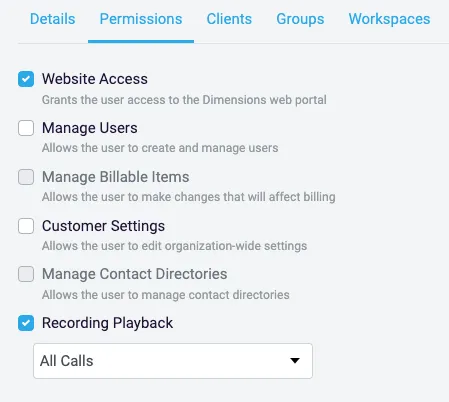
User management is just that. Here, you can manage users and their permissions in the reporting system. You can also get a quick glimpse of the permission for that user.

Clicking edit allows you to see the different sections that can be edited for that user.

Details - This lets you define the type of access the user will be able to have.

Permissions - This is where you are able to set what permissions each user will have in the reporting system.

<img src="/assets/advanced-reporting/image.png" alt="Portal" width="449" height="402" loading="lazy" decoding="async">

Clients- This allows the user access to specific tools within the system.

Groups - Here you can grant permission to specific user groups.

Workspace - Here is where you can set the permissions for the different workspaces throughout the reporting system.

User groups - This is a quick reference to team members in a group and cal chosen call information for that group. Users in one group can also be placed in other groups they may be working with.

Contact Directory - Each directory configured on the system has its own permissions and custom fields which can be tailored for specific uses. Each directory also has a set of fixed fields (like telephone numbers and names) which are used within the system for specific purposes. Contacts can be manually entered in or uploaded via a CSV file. You must give it a name and a brief description.

Fields - Enter the user's contact information in these fields of a user in the system.

Screen Pop - If the contact information has been imported from a web-based CRM, it may be possible to provide Connect users with a screen-pop link when they are on a call to a directory contact.

When the screen-pop link is populated for a directory, the specific details of the contact will be added to the link at runtime, allowing the user to gain quick access to the contact's CRM record without having to search.

Reporting Settings - The following settings apply to all reports created on the system:

<div class="table-scroll" tabindex="0"><table><tr><th>Ignore short ringing calls</th><th>When this setting is enabled, any call marked as short ringing will be ignored.</th><th></th></tr><tr><td>Short ringing call threshold<a href="https://docs.na.xarios.cloud/en-us/config/reporting/#fn:1">1</a></td><td>This threshold is used to control which calls are treated as short ringing. Any call with a duration less than this value (in the first segment) will meet the criteria.</td><td></td></tr><tr><td>Ignore short answered calls</td><td>When this setting is enabled, any call marked as short answered will be ignored.</td><td></td></tr><tr><td>Short answered call threshold<a href="https://docs.na.xarios.cloud/en-us/config/reporting/#fn:1">1</a></td><td>This threshold is used to remove short answered calls from reports so that they do not affect statistics. When configured, any call with a talk time of less than the Short answered threshold will be flagged as 'Short'. These calls can then be filtered out of reports if required.</td><td></td></tr><tr><td>Local area codes<a href="https://docs.na.xarios.cloud/en-us/config/reporting/#fn:1">1</a></td><td>To allow the system to identify which calls are local, enter a comma separated list of local area codes here.</td><td></td></tr><tr><td>Number of outbound lines</td><td>This setting should be configured with the maximum number of external lines that are available to use on the communications platform. This value is then used to work out the 'Trunk Percent Usage' statistics on the Trunk Usage reports.</td><td></td></tr><tr><td>Duration group interval</td><td>This setting controls the interval used for Calls by Duration / Ring Time / Talk</td><td></td></tr></table></div>

## Call Tags

Call tagging is a flexible feature designed to allow custom information to be added to call records, giving them context outside the communications platform and improving call reports.

Call tags can be managed from the 'Settings' area of the portal. Any user with the 'Manage Customer Settings' permission can add or edit tags.

To add a call tag, simply press the '+ Add Tag' button. Each tag must be given a 'Name' which will then be visible on Call List and Filters.

Each tag instance must be given a specific tag type. The values tagged against the call will then be validated against the tag type parameters.

<div class="table-scroll" tabindex="0"><table><tr><th>Value Types</th><th>Parameters</th><th>Example Usage</th></tr><tr><td>Text</td><td>N/A - Tag values can be anything up to 50 characters in length.</td><td>Adding custom information such as reference numbers.</td></tr><tr><td>Yes/No</td><td>N/A</td><td>Flagging calls as VIP or a Sale.</td></tr><tr><td>Pick List</td><td>When this type is selected, one or more valid items must be added on the 'Items' tab before saving.</td><td>Categorize calls by type or outcome.</td></tr><tr><td>Numeric</td><td>Enter a valid range in which the number value tagged can fall between.</td><td>Rate a call for performance.</td></tr><tr><td>Link Record</td><td>Enter a valid URL with a place holder {value} where the tagged data will be inserted.e.g. <code>https://force.com/lightning/r/Contact/{value}/view</code></td><td>Add a reference number with a link, such as an Order or Support Ticket number.</td></tr></table></div>

Once the tag is created you will have access to the edit feature. Here you can get access to the Tag URL’s for call flow and external URL

The external tag URLs are for use with physical VoIP phones to allow users to manually add tags to a call.