---
notionId: "1d6f0d27c7988071a006e68442c2668d"
product: "business-phone"
cluster: "users-and-access"
intent: "business-phone.account-settings"
docSlug: "account-settings"
task: "Change account settings in Business Phone"
title: "Change account settings in Business Phone | VirtualPBX"
meta_description: "You will need to be logged in as an admin on your system to work on your account settings."
answer: "You will need to be logged in as an admin on your system to work on your account settings."
audience: "admin"
updated: "2025-04-15"
legacy: ["account-settings"]
headings: [{"depth":2,"text":"Locating Your Settings","id":"locating-your-settings"}]
lint: ["meta-answer","answer-first"]
---

<aside class="note"><p>Access your Account Settings and update any personal information and account information through your Account Settings Portal</p></aside>

## Locating Your Settings

<img src="/assets/account-settings/image.png" alt="Locating Your Settings" width="997" height="746" loading="lazy" decoding="async">

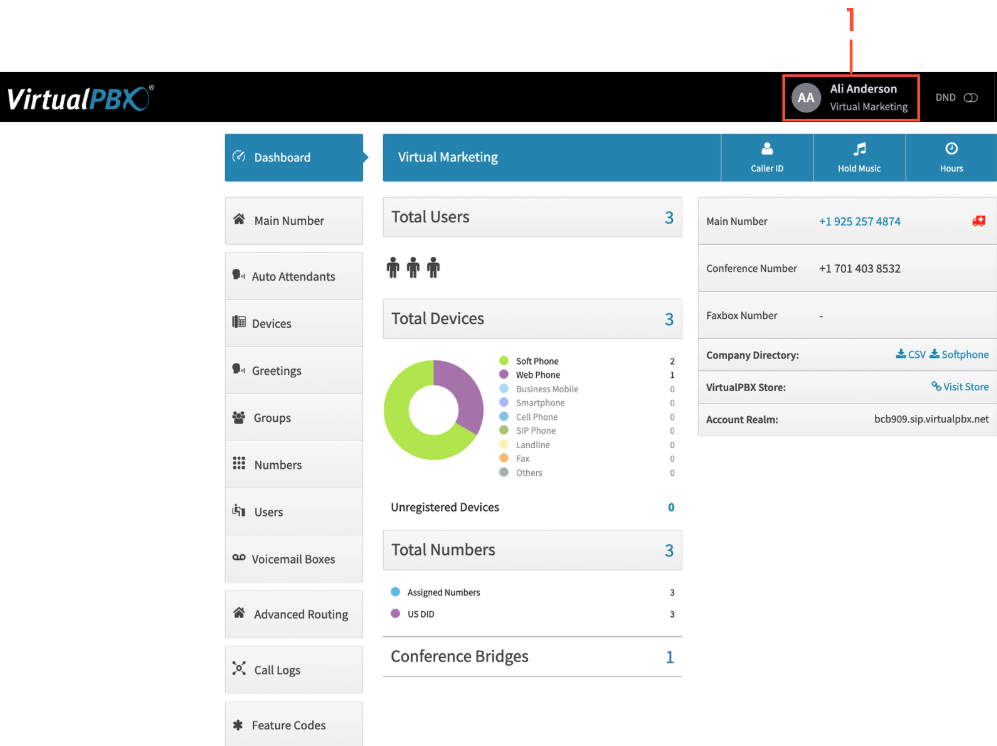
Once logged in to your dashboard, click on your name in the top black bar. 
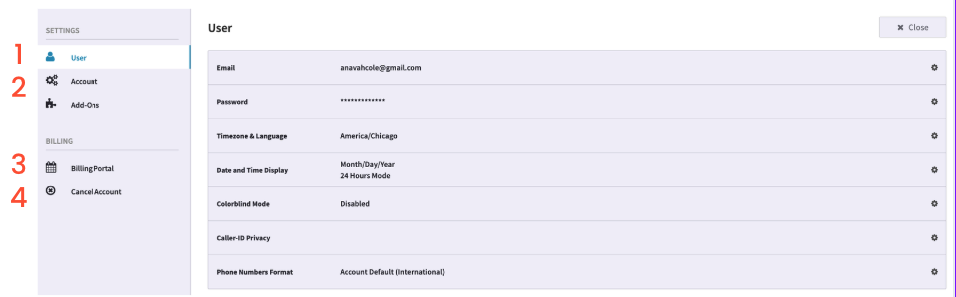
<img src="/assets/account-settings/image-1.png" alt="Locating Your Settings" width="956" height="297" loading="lazy" decoding="async">

<ol>
<li><p>User Settings - View your email and password, as well as set your user’s Timezone and Language. </p>
</li>
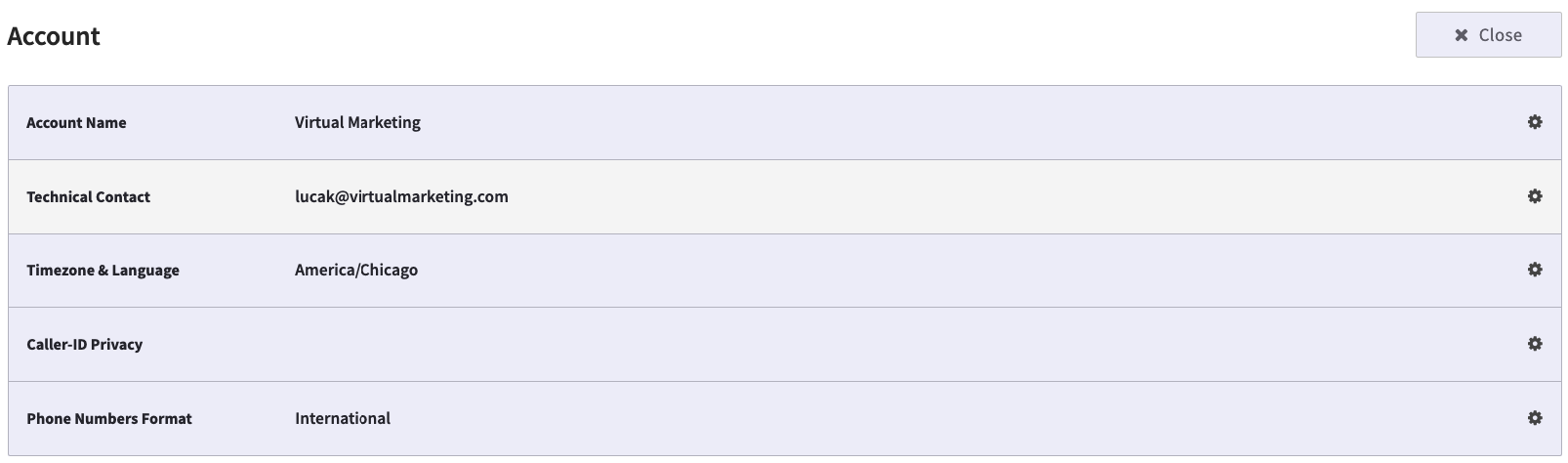
<li><p>Account Settings - View your account name, edit your technical contact, and set your account’s Timezone and Language. You will want to get this updated should you choose to set specific office hours. </p>
<img src="/assets/account-settings/image-2.png" alt="Locating Your Settings" width="1606" height="474" loading="lazy" decoding="async"></li>
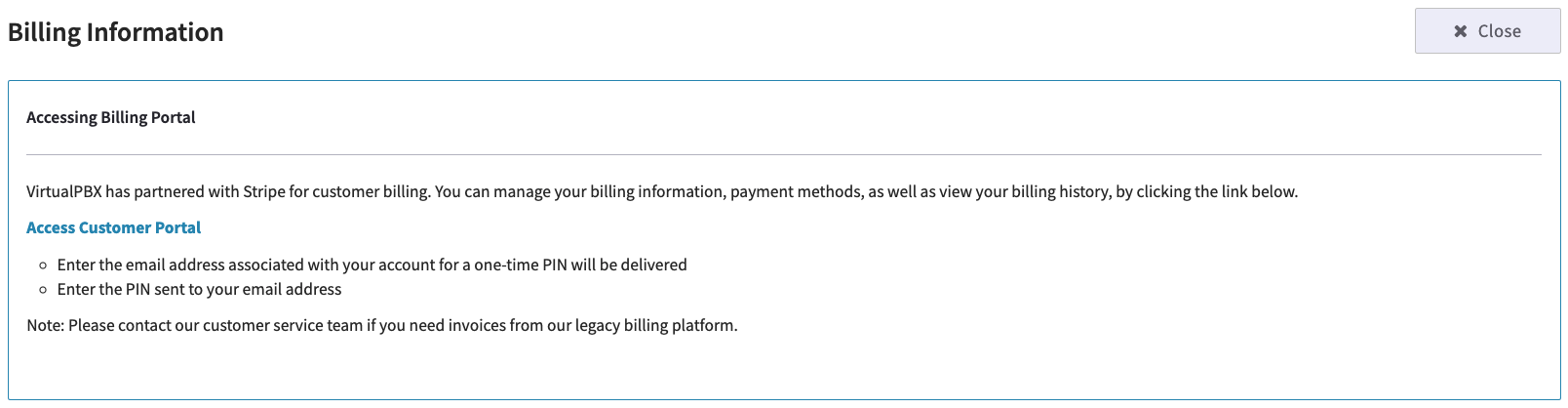
<li><p>Billing Portal - VirtualPBX partners with Stripe for your billing. Once you click on the access link, your billing contact on file will need to input their email, from which they will receive a pin to input for an additional layer of security. </p>
<img src="/assets/account-settings/image-3.png" alt="Locating Your Settings" width="1608" height="418" loading="lazy" decoding="async"></li>
<li><p>Cancel Account - If you are struggling with your account, please don’t hesitate to reach out to our support team first by calling or texting (888) 825-0800, visiting us in chat, or emailing experience@virtualpbx.com.  Should you need to cancel your account with VirtualPBX, you can process through this tab.</p>
</li>
</ol>
